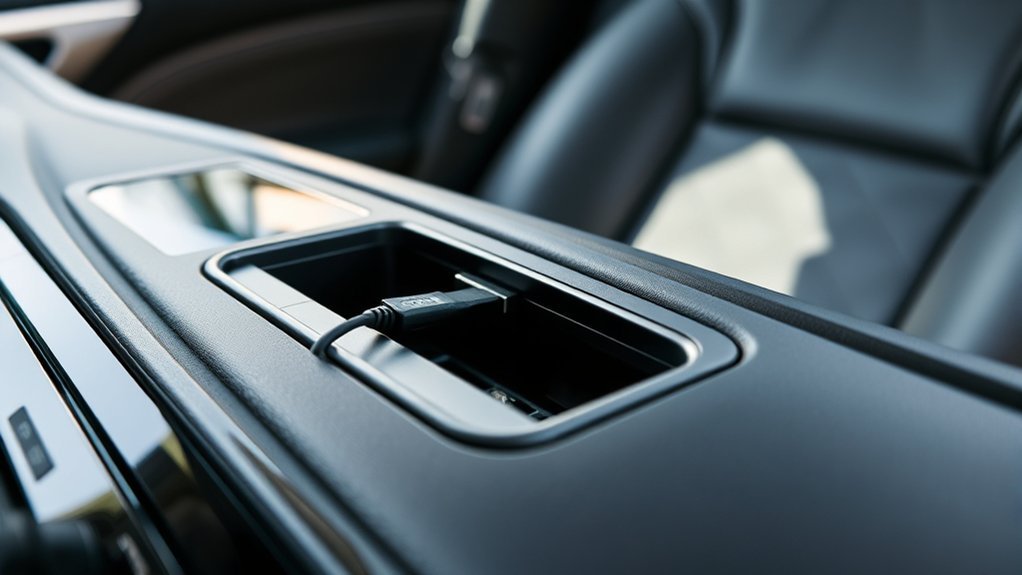
If your Toyota Camry’s USB port isn’t working, start by ensuring your car is in accessory mode. Test different cables and devices to rule out compatibility issues. Clean the ports with compressed air or a toothpick to remove dust or debris. Check the fuse box for any blown fuses related to the USB functionality. Regular inspection and maintenance are key to preventing future problems. Discover effective strategies for seamless USB connectivity in your vehicle.
Common USB Port Problems in Toyota Camry: What You Need to Know
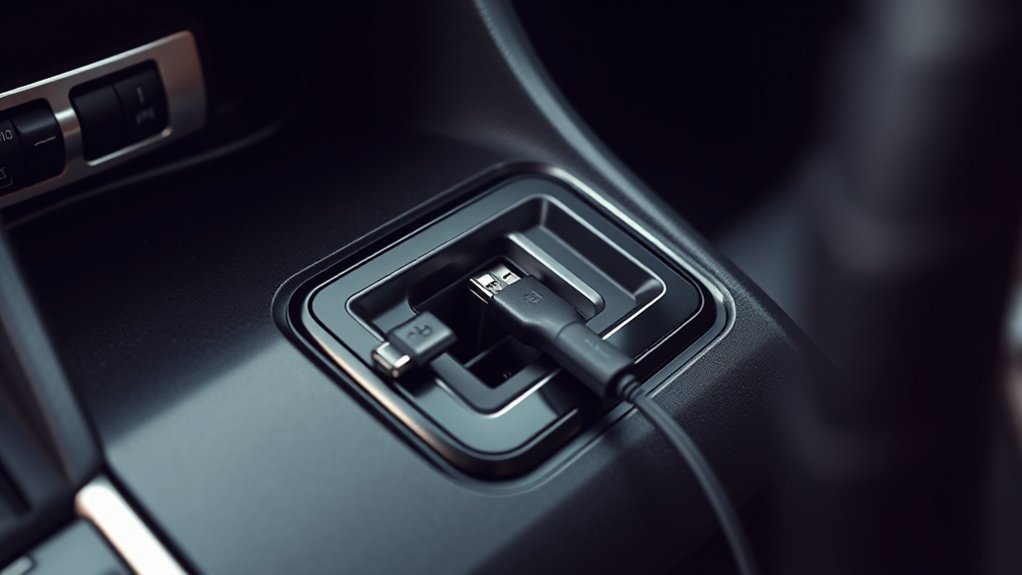
When you rely on your Toyota Camry’s USB ports for charging and connectivity, it can be frustrating if they suddenly stop working. Common USB power issues include a lack of power, device recognition problems, and erratic functionality. Often, users find that the top USB port is less reliable than the bottom one, leading to persistent connectivity issues, regardless of the cables or devices used.
To address these problems, start with port maintenance tips: regularly clean the USB ports using a can of air or a toothpick to remove dust and debris, which can enhance connectivity. Additionally, inspect the vehicle’s fuse box for blown fuses related to USB functionality, as a blown fuse can completely disable the ports. Finally, confirm your car’s infotainment system is updated to improve USB performance and device compatibility, optimizing features like Android Auto and CarPlay.
Step-by-Step Troubleshooting for Non-Functional USB Ports
To troubleshoot non-functional USB ports in your Toyota Camry, start by inspecting the connections and ensuring they’re secure. Next, check the fuse box for any blown fuses that may affect the USB functionality. Finally, clean the ports to remove any dust or debris that could impede proper connection.
Inspect USB Connections
Although diagnosing a non-functional USB port in your Toyota Camry may seem intimidating, a systematic approach can quickly pinpoint the issue. Start by ensuring your car is in accessory or on mode; USB ports require power to function. Test the port with various cables and devices to rule out USB device compatibility problems. Inspect the port for dust or debris, using a toothpick or compressed air for cleaning. Check your car’s settings to confirm the USB port isn’t disabled or set to charging only mode, which limits functionality. If problems persist, remember that alternative charging methods can work temporarily, but eventually, you’ll need to check the fuse box for any blown fuses related to the USB or accessory systems.
Check Fuse Box
Checking the fuse box is an essential step in diagnosing non-functional USB ports in your Toyota Camry. First, locate the fuse box, usually under the dashboard or in the engine compartment. Consult your owner’s manual to identify the specific fuse types related to the USB ports or accessory power. Once located, inspect the designated fuse for any signs of damage, such as a broken wire indicating it’s blown. If the fuse is indeed blown, replace it with a new fuse of the same rating to guarantee proper functionality. After completing the fuse replacement, test the USB ports with your device to confirm they’re working correctly. This step could restore power and resolve your USB issues efficiently.
Clean USB Ports
Frequently, dust and debris can accumulate in the USB ports of your Toyota Camry, leading to connectivity issues. For effective USB port maintenance, grab a can of compressed air or a soft brush. Gently remove any visible dust and debris to enhance connectivity. Next, inspect the port for physical damage or obstructions that might disrupt the connection. If you notice stubborn particles, carefully use a toothpick or a small cleaning tool to dislodge them, but be cautious not to damage the port’s interior. Regular cleaning is essential to prevent buildup that could cause future connection problems. Finally, test the port with different cables and devices to confirm that it’s functioning properly again.
Quick Fixes for Common USB Issues
To quickly address USB issues, start by checking cable compatibility, as not all cables support data transfer. Next, inspect the USB ports for any dust or debris that could obstruct connections. These simple steps can often resolve common problems and restore functionality.
Check Cable Compatibility
Sometimes, a simple cable issue can disrupt your Toyota Camry’s USB functionality. First, verify your USB cable supports data transfer compatibility; many cables are only for charging. Opt for original equipment manufacturer (OEM) cables whenever possible. To diagnose the problem, test the USB port with multiple devices.
Here’s a quick reference table to guide you:
| USB Cable Type | Description | Compatibility |
|---|---|---|
| OEM Cables | Specifically designed for Toyota | High data transfer |
| High-Speed Cables | Labeled for best performance | Data transfer compatible |
| Standard Cables | Basic charging functionality | Limited data transfer |
| Frayed Cables | Wear and tear issues | Often unreliable |
| Charging Cables | Only for charging | No data transfer |
Regularly inspect your cables for damage to maintain connectivity.
Inspect For Debris
Dust and debris in your Toyota Camry’s USB port can lead to connectivity issues. For effective USB port maintenance, regularly inspect the port for any obstructions. Use a can of compressed air or a soft brush to gently remove dust. If you find stubborn particles, a toothpick can help dislodge them without damaging the port. Always verify the car is powered off during this cleaning process to avoid electrical issues. Implementing these cleaning techniques not only resolves immediate connectivity problems but also promotes the long-term functionality of your USB ports. By keeping your ports clear, you can enjoy uninterrupted charging and data transfer, empowering your driving experience. Regular inspections will prevent future headaches.
How to Check Your Car’s Fuse Box for USB Issues
Checking your Toyota Camry’s fuse box is an essential step in diagnosing USB port issues. First, locate the fuse box, typically under the dashboard or in the engine compartment; your owner’s manual will provide the exact location. Next, identify the specific fuse for the USB ports or accessory power, which should be clearly labeled in the fuse box diagram.
Inspect the fuse visually; if the metal filament appears broken or burned, it needs replacement. Follow this fuse replacement guide: always replace blown fuses with an exact match in amperage, as specified in your owner’s manual. After replacing the fuse, test the USB ports again to see if functionality has been restored. If issues persist, consider these USB troubleshooting tips or seek professional assistance. Taking these steps can help guarantee your USB ports operate smoothly, giving you the freedom to stay connected on the road.
How to Clean and Maintain USB Ports for Better Performance
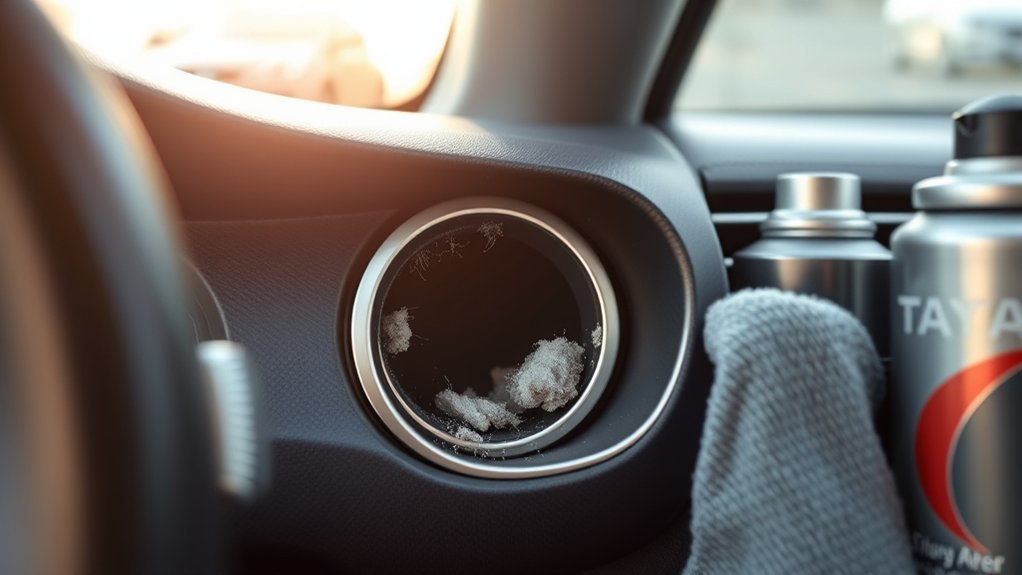
To guarantee your Toyota Camry’s USB ports function at their best, it’s crucial to maintain them regularly. Start with USB port cleaning; inspect the ports for dust and debris that can obstruct connectivity and charging efficiency. Use cleaning tools like compressed air or a soft brush to gently remove particles without damaging internal components.
For enhanced performance, avoid excessive force when connecting or disconnecting devices, as this can cause wear and tear. Regularly check cables for fraying or damage; replacing them promptly guarantees connection stability and safety.
Additionally, keep your vehicle’s interior clean and moisture-free. Humidity can lead to corrosion, impacting the USB ports’ functionality. Following these maintenance tips will not only enhance performance but also prolong the lifespan of your USB ports, guaranteeing a reliable connection for your devices.
When to Call a Mechanic for USB Issues
Have you tried all the basic troubleshooting steps but still can’t get your Toyota Camry’s USB ports to work? If issues persist, especially with USB power problems or unstable connections, it might be time to consult a mechanic. Unusual smells or sounds accompanying the malfunction can indicate underlying electrical problems that require professional evaluation.
Additionally, if one USB port consistently outperforms another, this discrepancy may point to a faulty harness or connection, necessitating dealer intervention. For those with vehicles still under warranty, seeking professional help can save you money and guarantee that any defective components are replaced correctly.
Documenting your troubleshooting efforts not only aids mechanics in diagnosing the issue more efficiently but also promotes quicker resolutions. Don’t hesitate to reach out for assistance when USB issues persist; getting a professional opinion can provide peace of mind and restore your connection stability.
User Experiences: Real-World Solutions From Other Camry Owners
Many Camry owners have shared their experiences and solutions regarding USB port issues, providing valuable insights for those facing similar problems. Owner testimonials reveal that some, like Eliot Ness, encountered temporary glitches, with ports resetting after a few hours, suggesting it might not be a permanent fault. Users such as SteveCPU found success by replacing the USB harness at the dealership, showcasing their efficiency in diagnosing non-functional ports. MacGarage specifically noted issues with the top-front USB port, indicating reliability concerns. In contrast, Tim.s reported better performance from the bottom USB port, emphasizing variability among ports. Many owners recommend regular maintenance, such as cleaning the ports and checking settings, to enhance functionality. These troubleshooting experiences underline the importance of a proactive approach in addressing USB connectivity issues, empowering you to resolve problems effectively and keep your Camry running smoothly.
Preventive Measures to Avoid Future USB Connectivity Issues
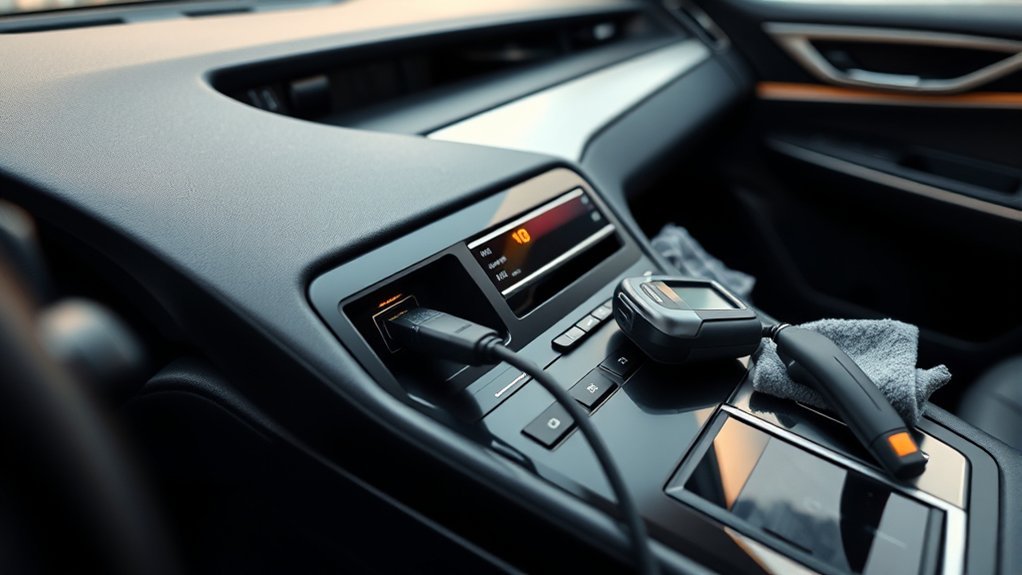
While you might not think about it often, taking proactive steps can greatly reduce future USB connectivity issues in your Toyota Camry. Implementing preventive maintenance is key for seamless connectivity enhancements.
| Action | Benefit |
|---|---|
| Regularly clean USB ports | Prevents dust-related issues |
| Use high-quality cables | Reduces connection problems |
| Update car software | Improves functionality |
| Avoid overloading ports | Minimizes overheating risks |
| Familiarize with settings | Guarantees peak performance |
Conclusion: Keeping Your USB Ports Running Smoothly
To guarantee your Toyota Camry’s USB ports operate smoothly, it’s essential to adopt a proactive approach to maintenance. Regularly inspect and clean the ports to prevent dust and debris buildup, which can hinder connectivity. Familiarize yourself with your car’s settings, confirming they’re configured correctly for both charging and data transfer. Don’t forget to check the fuse box for any blown fuses related to the USB ports, as this can commonly cause malfunctions.
Using high-quality, compatible cables and devices enhances performance, especially with USB port upgrades and smartphone integrations. Document any troubleshooting steps and interactions with dealerships to assist in diagnosing persistent problems effectively. By implementing these strategies, you’ll guarantee that your USB ports remain functional and ready for all your tech needs, giving you the freedom to enjoy seamless connectivity on the road.
Frequently Asked Questions
How to Fix a USB Port Suddenly Stopped Working?
To fix a USB port that suddenly stopped working, use USB troubleshooting tips: check power mode, test with different cables, clean the port, inspect fuses, and seek professional help for common port issues if needed.
How Much to Fix a USB Port in a Car?
Fixing a USB port in your car typically costs between $100 and $500, depending on the issue. Cost estimates vary based on repair complexity and whether you opt for professional help or DIY solutions.
Conclusion
Ultimately, keeping your Camry’s USB ports functioning flawlessly fosters fantastic connectivity. By following the troubleshooting steps and preventive measures outlined, you can dodge future disruptions. Remember, regular maintenance and a proactive approach pave the way for problem-free performance. If issues persist, don’t hesitate to seek professional help. With diligent care, your Toyota Camry’s USB ports will continue to deliver dependable and delightful digital experiences on every drive.