Setting up Apple CarPlay in a 2016–2021 Toyota Land Cruiser LC200 is different from enabling CarPlay in a newer Toyota that has it from the factory. This guide assumes a Hamilton Motor Company Upgrade Kit is already installed. The kit adds wired and wireless CarPlay to the original Land Cruiser screen while keeping the factory Toyota interface and controls available.
Quick Answer
For wireless CarPlay, enable the Hamilton kit’s “Use Car’s BT Channel” setting, pair your iPhone with the Land Cruiser’s factory Bluetooth for calls and audio, then pair it separately with the Hamilton Bluetooth network and accept the CarPlay prompt. Keep both Bluetooth and Wi-Fi enabled for automatic reconnection.
Key Takeaways
- The 2016–2021 LC200 setup covered here uses a Hamilton aftermarket upgrade kit; do not follow instructions written for newer Toyotas with factory CarPlay.
- Hamilton recommends using the Land Cruiser’s factory Bluetooth channel for calls and audio while the Hamilton connection supplies CarPlay.
- Wireless CarPlay starts through Bluetooth and then uses Wi-Fi, so leave Bluetooth and Wi-Fi enabled.
- For wired CarPlay, use the Hamilton kit’s installed wired-CarPlay USB connection rather than assuming every original Toyota USB port is the CarPlay input.
- If wireless CarPlay is unstable, forget and re-pair the Hamilton connection before moving to network resets, Wi-Fi-channel changes, or antenna checks.
At a Glance
| Time Required | About 10–15 minutes after the Hamilton kit is installed |
| Difficulty | Easy |
| Tools Needed | Compatible iPhone, installed Hamilton Upgrade Kit, and a suitable data cable if using wired CarPlay |
| Cost | No additional setup fee after the kit is installed; a suitable cable may be needed for wired use |
Warning: Complete pairing, menu changes, firmware work, and troubleshooting while the vehicle is safely parked. Do not reset connections or navigate setup menus while driving.
What You Need Before You Start (Compatible iPhone, iOS, and Land Cruiser Models)
First, confirm what system you are working with. For a U.S.-market 2016–2021 Toyota Land Cruiser LC200, this guide is specifically for a vehicle fitted with the Hamilton Motor Company Upgrade Kit. Hamilton states that this kit keeps the original screen and adds both wired and wireless Apple CarPlay.
This distinction matters because the original 2021 Land Cruiser multimedia system was described by Toyota with features such as integrated navigation, Siri Eyes Free and Bluetooth connectivity rather than native Apple CarPlay. The Hamilton module adds the CarPlay interface to that older factory system.
You will need:
- A CarPlay-compatible iPhone.
- The Hamilton Upgrade Kit installed and operating correctly.
- Bluetooth enabled on your iPhone.
- Wi-Fi enabled if you want wireless CarPlay.
- Siri enabled.
- A suitable data cable if using wired CarPlay. Depending on your iPhone, that may be a Lightning or USB-C cable.
Apple recommends keeping your iPhone on a current supported version of iOS. Although older iPhones appear on Apple’s CarPlay compatibility list, using an actively supported iPhone and current software reduces avoidable compatibility and security problems.
Note: This setup guide is not the installation procedure for the Hamilton hardware itself. If the module, harnesses or antenna have not yet been installed, follow Hamilton’s model-specific installation documentation before attempting CarPlay pairing.
Prepare Your iPhone: Siri, Screen Time, and iOS Updates
Prepare your iPhone before pairing so you do not have to troubleshoot several settings at once.
- Update iOS. Open Settings > General > Software Update and install an available update if your iPhone supports it.
- Enable Siri. Apple CarPlay relies heavily on Siri for hands-free calls, messages, directions and other functions. The exact Siri menu name varies by iOS version, so open Settings and confirm Siri is enabled.
- Check CarPlay restrictions. Open Settings > Screen Time > Content & Privacy Restrictions. If restrictions are enabled, make sure CarPlay is allowed under the permitted apps/features menu.
- Enable Bluetooth. Wireless Hamilton pairing begins through Bluetooth.
- Enable Wi-Fi. Wireless CarPlay uses Wi-Fi after the initial Bluetooth connection.
Apple’s current CarPlay setup guidance also recommends starting the vehicle, making sure Siri is enabled, and following the vehicle or aftermarket-system instructions for wired or wireless connection.
Wired vs Wireless CarPlay: Which to Choose for Your Land Cruiser?
The Hamilton 2016–2021 Land Cruiser Upgrade Kit supports both wired and wireless Apple CarPlay, so you can choose whichever is more convenient for a particular drive.
| Option | Best For | What to Know |
|---|---|---|
| Wireless CarPlay | Daily convenience | Bluetooth starts the connection; Wi-Fi carries wireless CarPlay |
| Wired CarPlay | Charging and a physical connection | Use the Hamilton kit’s installed wired-CarPlay USB lead/port and a compatible data cable |
Wireless CarPlay is usually the easier everyday choice because your iPhone can reconnect without plugging it in. Wired CarPlay can be useful on long drives when you also want to keep the phone connected to power.
Do not assume that a particular original Toyota USB socket has become the CarPlay input. The Hamilton module provides the added CarPlay functionality, so follow the USB routing used during your kit installation.
[Products Worth Considering]

This 2-in-1 wireless adapter converts factory-wired CarPlay into a cable-free experience for compatible vehicles, helping you enjoy seamless phone integration with less clutter. It supports automatic reconnection, stable Bluetooth and Wi-Fi pairing, and broad compatibility with many factory-installed CarPlay systems. Built with a durable metal and acrylic design, it also includes firmware updates and lifetime technical support for continued convenience.

This wireless CarPlay adapter upgrades compatible factory wired CarPlay or Android Auto systems with wireless connectivity and built-in entertainment apps. Enjoy navigation, calls, music, and hands-free control through Apple CarPlay, plus streaming from popular video platforms when connected to a hotspot. It also supports USB media playback and an HD media port for rear-seat entertainment on road trips and daily drives.

The WIX 57060XP XP Oil Filter is engineered for synthetic oil users who need dependable protection in demanding driving conditions. Its advanced synthetic-blended media delivers high filtration efficiency and supports extended service intervals, while the precise fit makes installation quick and straightforward. Built for severe-duty performance, it helps maintain cleaner oil flow and reliable engine protection during towing, stop-and-go traffic, and long highway trips.
Connect Apple CarPlay via USB (Step-by-Step)
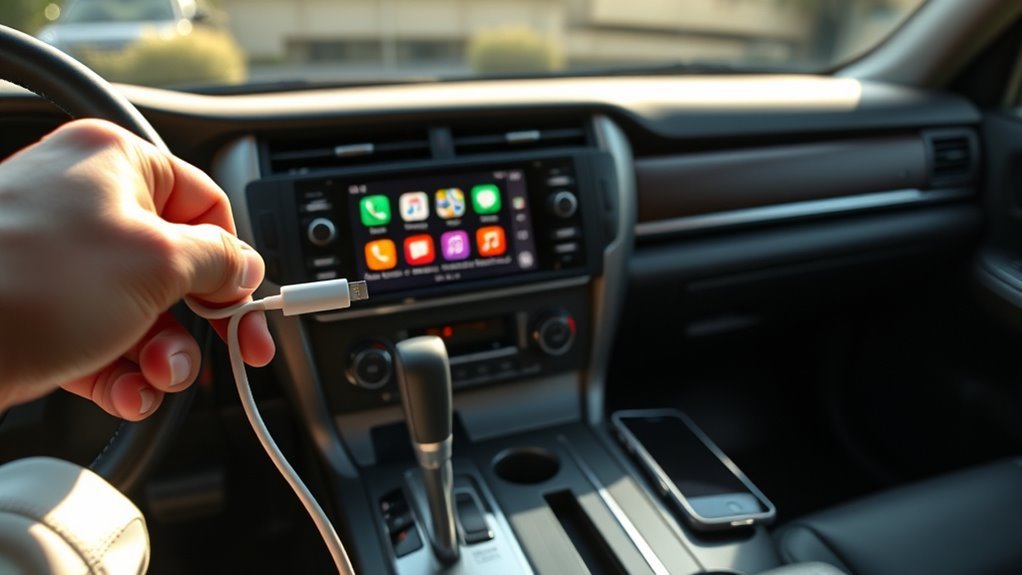
If you prefer a physical connection, Hamilton lists wired Apple CarPlay as a supported feature of its 2016–2021 Land Cruiser Upgrade Kit. The exact location of the usable USB lead can vary according to how the kit was installed.
[Products Worth Considering]

The HEYINCAR+ H-Air adapter upgrades compatible factory wired CarPlay and Android Auto systems to wireless convenience with a compact plug-and-play design. It connects automatically after setup, delivering fast startup, stable performance, and support for your car’s original touchscreen, steering wheel controls, and voice commands. Built for broad vehicle compatibility and ongoing firmware updates, it offers a simple way to enjoy cable-free driving with minimal clutter.

This compact adapter converts factory-wired CarPlay and Android Auto systems to wireless for a cleaner, more convenient driving experience. It offers fast auto-connect, stable performance, and plug-and-play setup so you can enjoy navigation, music, calls, and voice control without extra cables. The included USB-to-USB-C converter helps it fit a wide range of vehicle ports.
Prepare Your iPhone
Before connecting, make sure Siri is enabled, iOS is current for your device, and CarPlay has not been blocked through Screen Time. Use a good-quality data-capable cable appropriate for your iPhone. Older iPhones use Lightning, while newer USB-C iPhones require a compatible USB-C connection or appropriate cable arrangement.
| Check | Why It Matters |
|---|---|
| Current supported iOS | Reduces software compatibility problems |
| Siri enabled | Required for key hands-free CarPlay functions |
| Data-capable cable | Charge-only or damaged cables may not carry CarPlay data |
| CarPlay allowed in Screen Time | Prevents restriction-related connection failures |
Connect and Select CarPlay
- Park the Land Cruiser and power on the vehicle and infotainment system.
- Connect the iPhone to the wired-CarPlay USB lead or port installed with the Hamilton kit.
- Accept any iPhone prompt requesting permission to use CarPlay.
- Open the Hamilton interface if it does not appear automatically. On Hamilton’s LC200 system, a long press of the steering-wheel voice/speech button is used to switch between the Hamilton interface and the original Toyota interface.
- Confirm that the CarPlay home screen appears.
- Test Siri, navigation audio and music before driving.
If wired CarPlay does not appear, test another known-good data cable, inspect the Hamilton USB connection used during installation, restart the iPhone, and reboot the infotainment system before changing more advanced settings.
Set Up Apple CarPlay Wirelessly With the Hamilton Kit
Wireless setup is where the original article was most misleading. For the 2016–2021 Land Cruiser Hamilton Upgrade Kit, Hamilton recommends its Factory Bluetooth / Method 1 configuration. Your iPhone is paired to two systems for different purposes: the original Toyota Bluetooth connection handles calls and audio, while the Hamilton connection launches CarPlay.
[Products Worth Considering]

The Ultimate Smarter Copilot: Stay on Top of Your Driving- The 3A magic link CarPlay box control everything with a word, Or a touch, Or a twist. Save your 40% of time by quick auto conn and seamless operation, such as navigation, music playing, Siri assistant, phone calls, radio etc(Our Carplay Only Compatible with wired Apple CarPlay Car systems)

Plug and Play: Easily convert your factory wired CarPlay to wireless with a one-time pairing setup. No app download required—it automatically connects at every subsequent startup, maintaining a seamless connection(Not compatible with Android)

Upgrade to Wireless CarPlay & Android Auto The 2 in 1 Wireless CarPlay and Android Auto Adapter converts your factory wired system into a wireless experience. It’s perfect for families using both iPhone and Android phones, allowing effortless switching without unplugging or swapping cables. This adapter is compatible with over 1,000 vehicle models—supporting 800+ with wired CarPlay and 500+ with wired Android Auto. Works with iPhone 6 or later and Android 11 or above devices.
Pairing Via Bluetooth
Follow this order:
- Power on the Land Cruiser while parked.
- Long-press the steering-wheel voice/speech button to open the Hamilton operating system.
- Open Settings > System in the Hamilton interface.
- Find Use Car’s BT Channel and turn it on. Hamilton states that the system will reboot after this setting is changed.
- Long-press the voice/speech button again to return to the original Toyota interface.
- If your iPhone is not already paired with the Land Cruiser, open the Toyota Bluetooth setup menu and add the phone for phone calls and Bluetooth audio.
- On your iPhone, open Settings > Bluetooth.
- Find the Bluetooth device whose name begins with Hamilton, such as Hamilton-1234.
- Tap it and accept the Bluetooth pairing request.
- Allow contacts/favorites if you want those functions available.
- When the iPhone asks whether you want to use CarPlay, choose Connect to CarPlay.
- Wait several seconds for the CarPlay interface to appear.
According to Hamilton, wireless CarPlay uses Bluetooth to establish the initial connection and then automatically switches to Wi-Fi. You do not normally need to manually join a Hamilton Wi-Fi network, but Wi-Fi must remain enabled on the iPhone.
Pro Tip: Do not delete the Land Cruiser’s factory Bluetooth pairing when using Hamilton’s recommended Method 1 on a 2016–2021 LC200. The Hamilton connection provides CarPlay while the Toyota factory Bluetooth connection is intentionally retained for audio and calls.
| Connection | Purpose |
|---|---|
| Toyota factory Bluetooth | Calls and audio routing |
| Hamilton Bluetooth | Initiates CarPlay pairing |
| Wi-Fi | Carries the active wireless CarPlay connection after pairing |
Enabling Siri and Permissions
Siri must be enabled for normal CarPlay operation. You should also accept the CarPlay connection prompt when the Hamilton network is paired and allow the permissions you actually want CarPlay to use, such as contacts.
If the iPhone does not offer the CarPlay prompt, confirm that Wi-Fi and Bluetooth are both enabled, check that CarPlay is not restricted by Screen Time, and then forget the Hamilton Bluetooth record and pair it again.
Customize CarPlay Apps and Layout on Toyota Infotainment
Once CarPlay is connected, customize the app layout from the iPhone rather than trying to reorganize it through the original Toyota menus. Open Settings > General > CarPlay, select the connected vehicle/system, and choose Customize.
You can drag supported apps into a more useful order and remove optional apps from the CarPlay home screen where Apple permits it. Put the apps you use most—such as navigation, phone and audio—where they require the least searching.
| Action | Purpose | Safety Benefit |
|---|---|---|
| Rearrange icons | Put frequently used apps first | Reduces time spent searching the screen |
| Remove optional apps | Reduce clutter | Makes the interface easier to scan |
| Use Siri | Control supported functions by voice | Reduces manual screen interaction |
Make layout changes while parked and test Siri before starting your trip.
Quick Fixes: No CarPlay, Connection Drops, and USB Problems
If CarPlay does not appear or repeatedly disconnects, start with the simplest checks. Apple recommends checking the connection, restarting the iPhone and vehicle, confirming Siri is enabled, checking Screen Time restrictions, forgetting the vehicle under CarPlay settings when appropriate, and making sure system firmware is current.
For a Hamilton-equipped Land Cruiser, use this troubleshooting order:
- Confirm Bluetooth and Wi-Fi are on. Both matter for wireless CarPlay.
- Verify “Use Car’s BT Channel” is enabled in Hamilton Settings > System when using the recommended 2016–2021 LC200 factory-Bluetooth configuration.
- Confirm the Toyota factory Bluetooth connection is active for calls and audio.
- Forget and re-pair the Hamilton connection. On the iPhone, open Settings > Bluetooth, tap the information button beside the Hamilton device and choose Forget This Device. Clear old paired devices from the Hamilton system as instructed by Hamilton, then pair again.
- Restart the iPhone and infotainment system.
- For wired CarPlay, try another data cable and inspect the Hamilton USB lead/connection.
If those steps do not work, Hamilton recommends more advanced wireless troubleshooting.
Reset iPhone Network Settings Only if Re-Pairing Fails
Hamilton’s troubleshooting sequence recommends resetting iPhone network settings after a normal delete-and-reconnect attempt fails. On current iOS versions, this is generally found under Settings > General > Transfer or Reset iPhone > Reset > Reset Network Settings.
Warning: Reset Network Settings removes saved network information such as remembered Wi-Fi networks and related network settings. Use it as a later troubleshooting step, not as the first fix.
Check the Hamilton Wi-Fi Channel and Antenna
If wireless CarPlay pairs but crashes or drops repeatedly, Hamilton says interference can sometimes affect the Wi-Fi connection. Its troubleshooting guide allows the wireless channel to be changed from the Hamilton operating system under Settings > System > WiFi > Channel. Hamilton currently recommends channel 48 for stability in the United States.
Hamilton also advises checking the kit’s Wi-Fi/Bluetooth antenna. Make sure it is connected and is not mounted directly against the Hamilton metal box or another metal surface, which can interfere with the wireless signal.
In-Car Audio Troubleshooting: Call Echo, Bluetooth Channels, and Fixes
If callers hear an echo or your Land Cruiser has strange call/audio behavior, do not treat factory Bluetooth and CarPlay as competing connections. With Hamilton’s recommended Method 1 for the 2016–2021 LC200, they are designed to work together.
Hamilton’s call-echo guidance says to re-establish the correct configuration:
- Open the Hamilton operating system.
- Go to Settings > System.
- Make sure Use Car’s BT Channel is enabled.
- Return to the Toyota factory interface.
- Pair the iPhone to the Toyota factory Bluetooth system for phone calls and audio.
- Pair the iPhone separately with the Hamilton Bluetooth network for CarPlay.
- Set the factory radio to Bluetooth mode.
- On the iPhone, check the current audio output and confirm audio is being routed to the Land Cruiser’s factory Bluetooth connection when using this setup.
Hamilton identifies the factory Toyota/Lexus Bluetooth audio network in its instructions as a name similar to CARMULTIMEDIA-PLAYER. The exact label visible on your vehicle or iPhone may vary.
For the 2016–2021 Land Cruiser Hamilton setup, CarPlay can remain active on screen while factory Bluetooth handles the audio path. Correct routing is part of the intended configuration, not a workaround.
Firmware & Support: When to Update the Car or Hamilton Kit and Who to Contact
If basic pairing and audio-routing steps do not solve the problem, check the software on each part of the system separately:
- iPhone: install an available supported iOS update.
- Hamilton Upgrade Kit: follow Hamilton’s current help documentation and any model-specific firmware instructions.
- Toyota factory multimedia system: use Toyota documentation or an authorized Toyota service provider if the problem involves the original vehicle hardware rather than the retrofit module.
Do not install an unrelated firmware file simply because it is labeled for a Toyota or another Hamilton product. Firmware and configuration files can be hardware-specific.
For kit-specific pairing, echo, Wi-Fi or upgrade-module problems, use the Hamilton Motor Company Help Center. Hamilton also publishes a dedicated Land Cruiser audio and CarPlay configuration guide.
If you contact support, provide the Land Cruiser model year, iPhone model, iOS version, whether the problem occurs wired or wirelessly, whether factory Bluetooth audio works, and exactly when the failure occurs. Those details make diagnosis much faster than simply reporting that “CarPlay does not work.”
Sources
- Apple Support — Use CarPlay with your iPhone — official wired/wireless CarPlay setup and Siri guidance.
- Apple Support — If you need help with CarPlay — official troubleshooting, restrictions, restart and connection guidance.
- Hamilton Motor Company — Configuring Audio and CarPlay for Toyota Land Cruiser — factory Bluetooth routing and Hamilton wireless pairing.
- Hamilton Motor Company — Resolve CarPlay Glitches — re-pairing, network-reset, Wi-Fi-channel and antenna troubleshooting.
- Toyota USA Newsroom — 2021 Land Cruiser Equipment — factory multimedia features for the 2021 LC200.
Frequently Asked Questions
How do I set up Apple CarPlay in a 2016–2021 Toyota Land Cruiser?
With a Hamilton Upgrade Kit installed, enable “Use Car’s BT Channel” in the Hamilton system, pair your iPhone to the Land Cruiser’s factory Bluetooth for calls and audio, then pair the iPhone with the Hamilton Bluetooth network and accept the CarPlay prompt. Keep Wi-Fi enabled for wireless CarPlay.
Does the 2016–2021 Toyota Land Cruiser have factory Apple CarPlay?
This guide should not be read as a factory-CarPlay activation procedure. Toyota’s U.S. information for the 2021 LC200 describes its original multimedia system with navigation, Siri Eyes Free and Bluetooth, while the Hamilton Upgrade Kit is an aftermarket module that adds wired and wireless CarPlay to the original screen.
Why is my Toyota Land Cruiser not connecting to wireless CarPlay?
Check that Bluetooth, Wi-Fi and Siri are enabled, confirm CarPlay is not restricted by Screen Time, verify the Hamilton “Use Car’s BT Channel” setting, and forget then re-pair the Hamilton Bluetooth connection. If problems continue, Hamilton recommends network-reset, Wi-Fi-channel and antenna checks.
Should I keep the Land Cruiser’s factory Bluetooth paired when using Hamilton CarPlay?
Yes, when using Hamilton’s recommended Method 1 for a 2016–2021 Land Cruiser. The iPhone remains paired to factory Toyota Bluetooth for calls and audio while the separate Hamilton connection provides CarPlay.
Can I use wired CarPlay with the Hamilton Land Cruiser kit?
Yes. Hamilton specifies wired and wireless Apple CarPlay compatibility for its 2016–2021 LC200 Upgrade Kit. For wired use, connect through the wired-CarPlay USB lead or port installed with the Hamilton system and use a data-capable cable appropriate for your iPhone.
Why can Bluetooth be connected while wireless CarPlay also uses Wi-Fi?
Wireless CarPlay uses Bluetooth during connection setup and then uses Wi-Fi for the active CarPlay link. On this Hamilton Land Cruiser configuration, the original Toyota Bluetooth connection can simultaneously remain responsible for the vehicle’s call and audio routing.
Conclusion
Apple CarPlay can work cleanly in a 2016–2021 Toyota Land Cruiser LC200 when the Hamilton retrofit is configured the way its manufacturer intends. The key is understanding that the Hamilton CarPlay connection and the original Toyota Bluetooth connection can work together: Hamilton provides the CarPlay interface while factory Bluetooth handles calls and audio under the recommended setup. Configure everything while parked, keep Bluetooth and Wi-Fi enabled for wireless use, and troubleshoot the Hamilton connection systematically rather than treating the system like factory Entune CarPlay.