
Depending on model year and trim, a Sonata may have built-in navigation, Apple CarPlay and Android Auto, or both. This guide covers using smartphone apps, finding points of interest, voice commands, personalizing settings, map updates and troubleshooting voice recognition. Features and menus vary, so check your owner’s manual or Hyundai’s website for your model year.
Integrating Smartphone Apps Into the Hyundai Sonata Navigation System
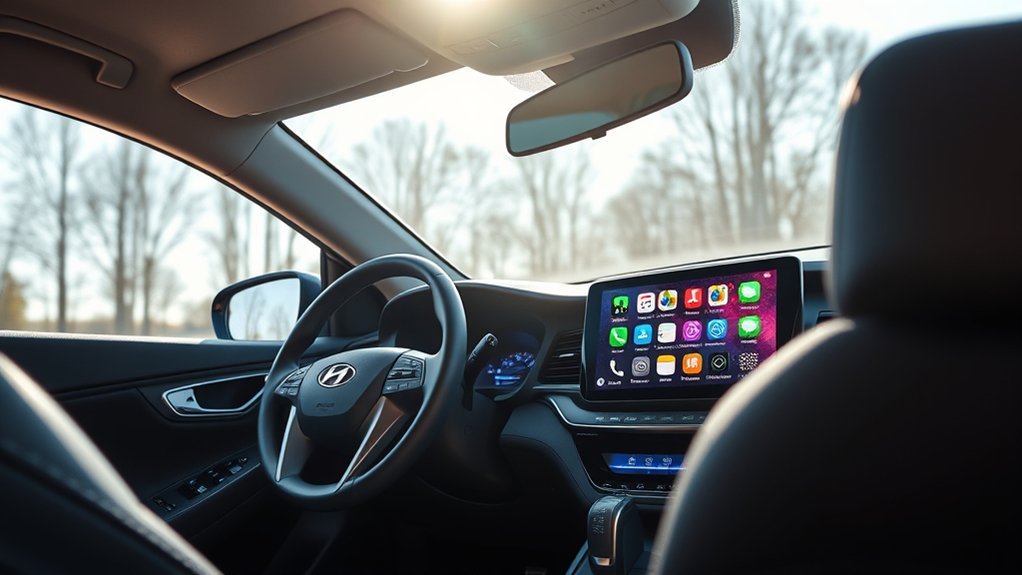
Many Sonata trims support Apple CarPlay and Android Auto, which let you use phone navigation apps such as Google Maps or Apple Maps on the car’s infotainment screen. Depending on the model year, you connect with a USB cable or wirelessly; check your manual for the setup steps.
Phone apps give turn-by-turn directions and live traffic, and you can use voice commands to enter a destination so you don’t have to handle your phone while driving. Built-in navigation maps are updated separately (see the updates section).
Finding Traffic Updates and Points of Interest
Depending on the system, traffic information may come from a connected-services subscription or from a phone app when you use CarPlay or Android Auto, so check which applies to your car. To find places, use the point-of-interest search in the navigation menu to look for restaurants, gas stations and attractions near you or along your route, and save frequently visited destinations as favorites. Voice commands let you do this without taking your eyes off the road.
How to Use Voice Commands for Navigation?
In many Sonatas you start a voice command with the voice-recognition button on the steering wheel, then say a command such as a destination address or place name. Exact commands vary by model year and system, so check the voice-command list in your manual. Voice input lets you keep your eyes on the road.
Speak clearly and use the command phrases listed in your manual. If you use CarPlay or Android Auto, the phone’s own voice assistant handles navigation requests.
Personalizing Navigation Settings for Optimal Use

You can personalize the navigation settings and screen layout in the infotainment menu, and save frequently visited places as favorites for quick access. Available options vary by model year and trim.
Regular Updates for Best Navigation Performance
Built-in navigation maps and system software are updated separately from phone apps. Check Hyundai’s website or ask a dealer how to get map and software updates for your model year and VIN; phone apps such as Google Maps update on their own.
Importance Of Software Updates
Map updates keep roads and points of interest current, and software updates can fix bugs. Check Hyundai’s website or ask a dealer whether updates are available for your system and how to install them.
Timing For Updates
How often to update depends on your system, so check the manual or Hyundai’s update site for your model year. Depending on the system, updates install by USB drive, an over-the-air connected service, or a dealer visit. Outdated maps can cause missed turns or missing roads, so update when new maps are available.
Benefits Of Regular Updates
Keeping the navigation updated helps with the following:
- More current maps and points of interest
- Fewer missed turns from outdated roads
- Bug fixes included in software updates
Troubleshooting Voice Commands for Navigation?
If voice commands don’t work as expected, try the steps below.
Common Voice Command Issues
Background noise, an open window or sunroof, or speaking before the system is ready can all cause misrecognition. Speak clearly, use the command phrases from your manual and wait for the prompt tone. If the system stops responding, restart the car or the infotainment system. Some voice and connected features need an active Blue Link subscription, so check your account if they stop working.
- Make certain a quiet environment.
- Check that your Blue Link subscription is active (if your system uses it).
- Regularly update software.
- Speak clearly and use specific commands.
Improving Voice Recognition Accuracy
Voice command issues can be frustrating, especially when traversing through unfamiliar roads. To improve voice recognition accuracy, start with microphone maintenance—ensure it’s free from obstructions and dirt. This simple step can dramatically enhance command clarity. When issuing navigation commands, speak clearly and at a moderate pace, avoiding background noise that could confuse the system.
Use the command phrases in your manual, such as Navigate to followed by a destination. If problems continue, restart the infotainment system or ask a dealer to check for software updates.
Frequently Asked Questions
How Does Built-In Navigation Work?
Built-in navigation uses GPS to find your position, and you enter destinations by touchscreen or voice. Traffic information depends on the system and any connected-services subscription.
Conclusion
Whether you use the built-in navigation or CarPlay and Android Auto, keep the maps and software updated, learn the voice commands for your model year, and check the owner’s manual for details.