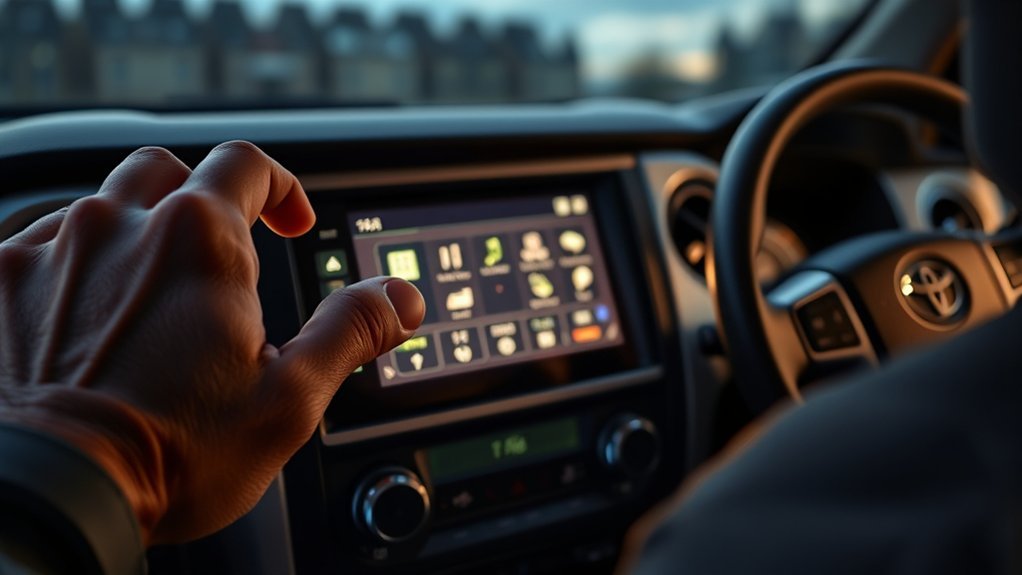
Put the Tundra in Park, turn on the ignition, then hold the infotainment power button for 10–15 seconds until the screen goes dark and reboots to quickly reset the system. For minor issues, a soft reset (hold power ~10 seconds in Run/On) restores responsiveness without erasing settings. For persistent glitches, back up contacts and nav favorites, then do Settings > General > Reset to factory defaults and re-pair devices. Update software and PIN afterward; keep going to learn troubleshooting and support steps.
Restart the Tundra Infotainment in 30 Seconds
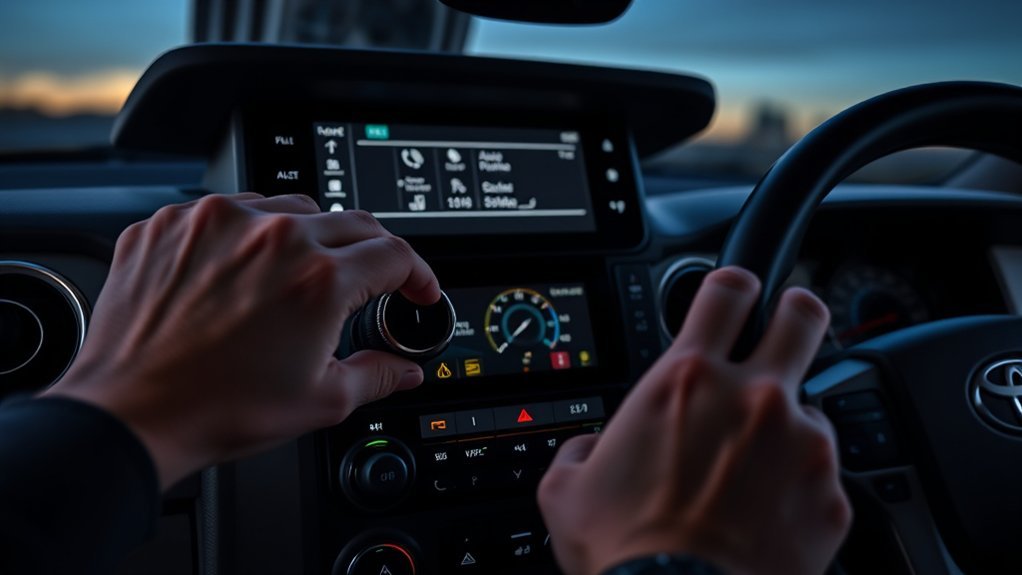
Start by putting the Tundra in Park and turning the ignition on, then press and hold the infotainment power button for 10–15 seconds until the screen goes dark and reboots; disconnect any Bluetooth devices first to prevent reconnection problems. You’ll see the display go black and restart within about 30 seconds — that’s your quick reboot. This resets many common infotainment features, clears minor software hiccups, and restores responsiveness without erasing settings. If the system still acts up after the restart, use the settings menu or the Toyota app to check for software updates as a next step. Keep troubleshooting tips close: verify Park and ignition status before trying, remove paired devices, and consult your owner’s manual for model-specific guidance. You’re reclaiming control of the cabin tech with a single, decisive action — a fast, effective reset that gets you back on the road and back in command.
Perform a Soft Reset (Power-Button Method)
Hold the power button for about 10 seconds until the screen goes black to initiate the soft reset. Make sure the vehicle is in “Run” or “On” so the system can reboot properly. After the reboot, confirm the system restarts and check Bluetooth and other features to verify the issue is resolved.
Hold Power Button
If your Tundra’s infotainment acts up, you can perform a soft reset by pressing and holding the power button for about 10 seconds until the screen goes off and back on. Make sure the vehicle is in park and the ignition is on. Hold the power button firmly; this method targets minor system issues like Bluetooth drops or an unresponsive touchscreen without erasing settings. Wait for the restart, then test controls and reconnect devices as needed. This quick step frees you from small annoyances and keeps control in your hands.
| Step | Purpose |
|---|---|
| Park vehicle | Safety |
| Ignition on | Power supply |
| Hold power button ~10s | Trigger reset |
| Screen off/on | Confirm reboot |
| Test functions | Verify fix |
Confirm System Reboot
Once the screen cycles off and back on, verify the system has fully rebooted by checking that the home screen, clock, and audio sources load normally; keep the vehicle in Run mode until everything appears. After holding the power button for about 10 seconds, watch the system indicators for activity—boot logo, progress icons, and audio status—to confirm the restart sequence completed. Perform reset confirmation by testing Bluetooth pairing and navigation briefly; these functions often reveal lingering glitches. If menus fail to load or indicators remain stuck, shut down, wait a minute, then try the soft reset again or check for software updates that may resolve faults. If problems persist, contact Toyota customer support for assisted diagnostics and next steps.
Do a Factory Reset: When and How
If persistent glitches or lost connectivity won’t clear with a soft reset, you’ll want to do a factory reset from the home screen’s Settings > General > Reset. Back up any important contacts, navigation favorites, and paired devices first because the reset erases Bluetooth, navigation data, and all personal settings. When you’re ready, follow the on-screen Reset steps, then re-pair devices and reconfigure preferences after the system restarts.
When To Factory Reset
When your Tundra’s infotainment keeps glitching—like persistent Bluetooth drops or unresponsive menus—you should consider a factory reset, but first back up any contacts and personalized settings since the reset erases all saved data. You’ll choose reset timing based on whether basic fixes failed; use a reset when repeated troubleshooting benefits haven’t solved connectivity or software bugs. To act decisively:
- Confirm simple fixes tried: reboot, disconnect devices, update software.
- Navigate Settings → General → Reset → Factory Data Reset to start the process.
- If issues persist after reset, seek dealership or professional assessment for possible hardware faults.
A factory reset liberates your system from persistent software corruption, restoring default behavior when other steps haven’t worked.
Backup Before Reset
Before you factory reset the Tundra’s infotainment, back up your contacts, navigation favorites, and any saved settings because the reset will erase them; also unpair linked phones to avoid post-reset connectivity conflicts. Start with data preservation: export contacts to a phone or cloud account and note navigation waypoints. Use backup methods available—USB export, Bluetooth sync, or cloud services—so you control your info. Verify backups by viewing exported files or confirming cloud sync. Once your data’s secure and devices are unpaired, you’ll reduce friction when restoring. Remember: the reset will wipe configurations, so planning saves time and preserves autonomy over your system. After reset, reconnect devices and restore preferences from your backups.
Step-By-Step Reset
Now that you’ve secured backups and unpaired devices, you can perform the factory reset directly from the infotainment menu. Navigate to Settings from the home screen, choose General, then scroll to Reset and select Factory Reset. Confirm by tapping Yes; this wipes personal data and restores defaults. You’ll need to re-pair Bluetooth devices and restore contacts or favorites from your backup.
- Follow the on-screen prompts exactly to avoid partial resets.
- After reset, reconfigure settings to reclaim control of your user experience.
- If issues persist, consult troubleshooting tips in the manual or dealer support.
Proceed when you’re ready to reclaim a clean slate—this action liberates the system but erases stored personalization.
Reset Bluetooth, Phone Profiles & Guest Accounts
If you’re having trouble with Bluetooth or multiple phone profiles, open the infotainment’s Settings, choose Bluetooth, and remove any paired devices or select a specific device and tap Forget to clear its profile; to sign out guest accounts, go to User settings and exit Guest mode so your saved preferences apply. For Bluetooth troubleshooting, work methodically: delete all paired devices, then reboot the system by turning off the vehicle, waiting a few minutes, and restarting to flush temporary glitches. Re-pair your primary phone first to re-establish phone connectivity and confirm audio, calls, and contact sync. If a single profile keeps failing, forget it again and pair under a different profile name or remove conflicting devices nearby. To keep control, sign out any Guest accounts so your customized settings and saved favorites load reliably. Regularly check for software updates via the Toyota app to reduce repeat connectivity issues and maintain a liberated, dependable infotainment experience.
Update Software and Change Infotainment PIN
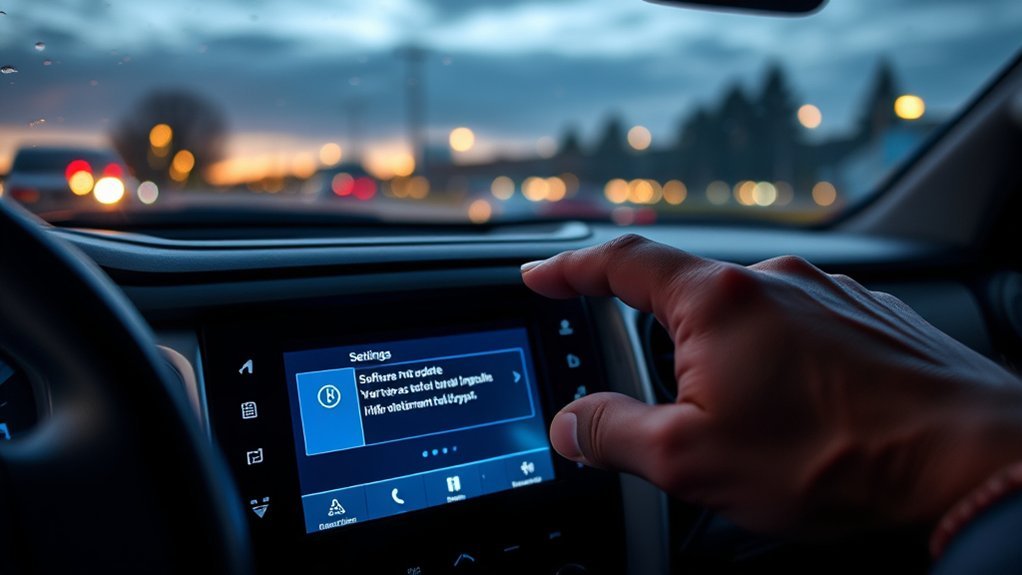
While you’re managing infotainment issues, check for software updates in Settings > Software Update and install any available patches to fix bugs and improve performance; you can also reboot the system by holding the power button for about 10 seconds to clear temporary glitches before or after updating. After rebooting, verify firmware version and apply any software enhancements Toyota provides to restore stability and freedom from recurring faults.
- Open Settings > Software Update, follow prompts, and wait for installation to finish.
- Use the Toyota app: go to Settings > Change PIN to update your infotainment PIN and strengthen PIN security.
- Reboot again and, if needed, remove and re-pair devices to verify clean connections.
You’ll want to change the PIN through the app for convenience and to avoid losing access during resets. Regular checks for firmware and timely PIN updates keep control in your hands, reduce vulnerability, and guarantee the system serves you without interference.
Fix Post-Reset Symptoms: Bluetooth, Nav, Audio
Because resets clear temporary glitches but can also wipe active connections and settings, you’ll want to verify and restore Bluetooth, navigation, and audio right away. First tackle Bluetooth troubleshooting: delete prior pairings, put the head unit and your device into pairing mode, and follow the on-screen prompts to re-pair. Test call audio and media playback to confirm connection stability.
Next address navigation fixes: open the nav menu and check for available software updates in Settings; install updates if offered, then reload saved destinations. If maps look wrong, restart the app and re-enter a route to verify routing behavior.
Finally perform audio adjustments: confirm the correct audio source is selected, set volume and balance to your preference, and test multiple sources (radio, Bluetooth, USB). If symptoms persist after these steps, consult the owner’s manual or contact Toyota for guided assistance.
If Resets Fail: Toyota Support, Logs & Dealer Options
When onboard resets don’t fix the problem, contact Toyota Support so engineers can walk you through advanced diagnostics and log collection. You’ll get higher-level Toyota troubleshooting and step-by-step guidance; keep customer communication active so you’re informed about progress and next steps. Collect detailed documentation: error messages, timestamps, and reproduction steps.
- Share logs and screenshots as instructed to speed diagnosis and guarantee clear customer communication.
- Ask support to confirm if software updates are available and applicable before scheduling service.
- If remote steps fail, arrange a dealership diagnosis so technicians with specialized tools can test hardware and firmware.
You should act with purpose: follow support’s commands, attach precise logs, and request written case notes. That documentation frees you from guesswork and forces accountability. If the dealership confirms a hardware fault or needs reflash, insist on written estimates and update timelines so you retain control and clarity throughout the repair process.
Frequently Asked Questions
What Happens if I Factory Reset My Infotainment System?
You’ll erase settings and saved data, so expect clear data loss implications: you’ll lose Bluetooth, presets, and destinations. System performance often improves, but you’ll need to reconfigure preferences, reconnect devices, and be patient during reinitialization.
Conclusion
You’ve got the steps to reboot your Tundra’s infotainment like a pro: quick restart, soft reset, or full factory wipe when needed. If Bluetooth or nav act up afterward, follow the targeted fixes, update the software, and change the PIN. When all else fails, contact Toyota or your dealer to pull logs. Keep this guide handy so you can reset trouble away like a windshield wiper clearing a storm—swift, deliberate, and under control.