
Open Apps > Setup > Clock to adjust your RAV4’s time; you’ll see options for GPS Auto Adjust or manual entry. Pick Other for direct hour/minute input, confirm AM/PM if shown, then press Home to save. Under Clock you can set time zone, enable Daylight Saving, and choose 12/24 format. Changes sync the infotainment and dashboard clocks; power-cycle or check software after a battery change if times diverge. Keep going to learn troubleshooting and tips.
Change the Clock Quickly (Toyota RAV4 : 1‑Minute Fix)
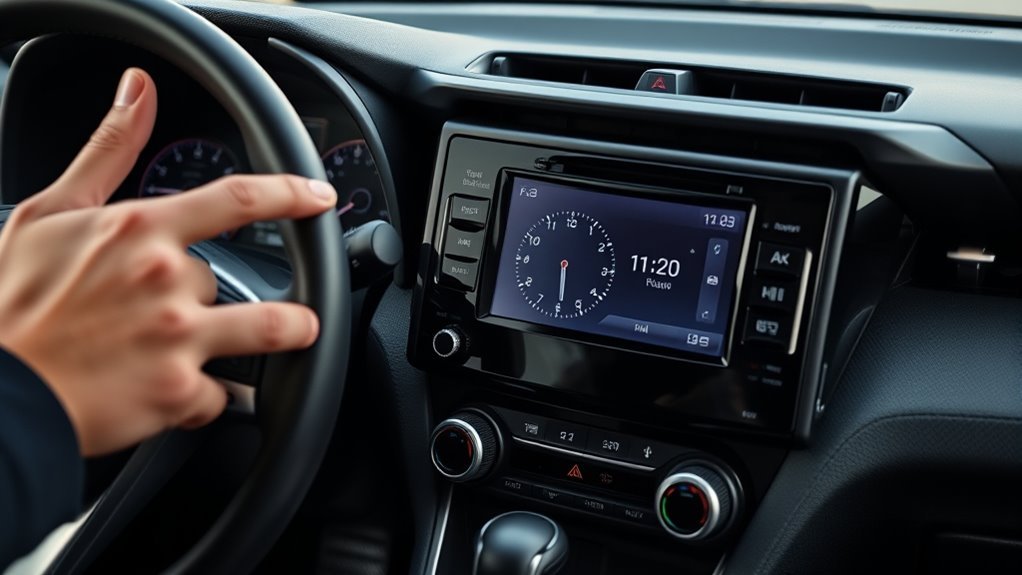
Press the Apps button, open Setup, and select Clock under General to change your RAV4’s time in under a minute. You’ll use the digital interface to make quick adjustments: tap Clock, then choose Other for manual entry or leave GPS auto-adjust to handle location-based updates. If you pick Other, enter hours and minutes directly, confirm AM/PM if shown, and verify the dash and screen match. If you toggle GPS auto-adjust, the system will sync with your location; toggle off to keep manual control. After changes, press Home to save settings so the dashboard and entertainment displays stay synchronized. Work efficiently: follow prompts, avoid menus unrelated to Clock, and rely on the clear touch responses. You’re reclaiming control of a small but essential system—precise timekeeping that aligns with your schedule and freedom to set it how you prefer.
Choose Auto (GPS) or Manual Time for Your RAV4 Clock
Now that you can change the clock quickly via the Clock setting, decide whether to let the RAV4 handle time automatically or set it yourself. Choose Auto (GPS) to rely on GPS accuracy: open Settings > General > Clock and check the GPS Auto Adjust box. The system syncs to location data and updates when you cross time zones, freeing you from manual tweaks and keeping time precise.
If you want control, disable GPS Auto Adjust and enter Time preferences manually. Select hours or minutes in the clock menu, adjust values, and watch both the dashboard and infotainment clocks update immediately. Manual mode lets you override automatic changes when you need fixed time for travel, work, or personal routines.
Make a clear choice: Auto for seamless, location-driven accuracy; Manual for autonomy and customized Time preferences. Both options are accessible in the same Clock settings, so switch modes whenever your needs for freedom or precision change.
Set Daylight Saving, Time Zone, and 12/24 Format
When you’re in Setup > Clock, choose your local time zone from the list, enable the Daylight Saving Time option to let the system shift the clock automatically, and pick 12‑hour or 24‑hour format to match your preference. Navigate Menu > Setup > Clock, then select Time Zone and scroll to your region. Confirm the entry to lock in the offset used for system time and navigation timestamps. Toggle Daylight Saving to ON if your jurisdiction observes DST; this automates spring/fall clock adjustments so you don’t manage them manually. Choose 12 hour format if you prefer AM/PM readability, or 24-hour for military-style clarity. If needed for precision, pick Other and enter hours and minutes to override automatic settings temporarily. Apply changes and exit; the system will display the chosen format and honor DST and time zone parameters. These concise steps free you from frequent manual clock adjustments and keep vehicle systems synchronized with local time.
Sync Dashboard and Infotainment Clocks Together
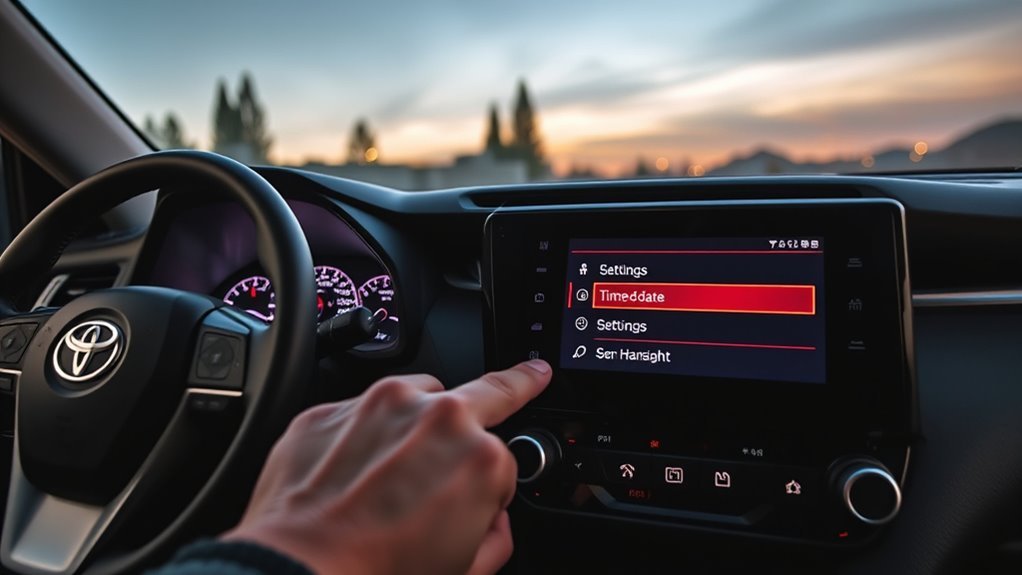
If you want both the dashboard and infotainment clocks to match, go to Menu > Setup > Clock and make your time adjustments there—changes you make on the infotainment display will automatically update the dashboard clock. Use this single access point to enforce consistent time across the vehicle without repeating steps. Select your display format preferences (12-hour or 24-hour) in the same menu so both readouts follow your chosen convention.
For reliable results, follow these clock synchronization tips: confirm the infotainment unit saves settings after adjustment, verify the dashboard updates immediately, and reboot the system if the change doesn’t propagate. If you prefer automated accuracy, enable GPS auto-adjust so the system updates when crossing time zones. That reduces manual intervention and frees you to focus on the road. These controls give you direct, efficient command of timekeeping—streamlined, deterministic, and aligned with your preference for autonomy.
When to Turn Off GPS Auto-Adjust Near Time‑Zone Borders
When you’re driving near a time‑zone border and the RAV4’s GPS starts jumping the clock, turn off GPS auto‑adjust to prevent misreadings. That gives you manual control to set hours or minutes exactly as needed and avoids unexpected clock jumps. You can re-enable GPS sync anytime once you’ve cleared the border.
GPS Misreadings At Borders
Because GPS signals can miscalculate time near time‑zone borders, you should consider turning off the RAV4’s auto-adjust to prevent incorrect clock changes. Observe GPS inaccuracies and confirm Time zone adjustments manually when you approach borders. If you travel frequently along boundaries, disable auto-adjust in the settings menu before crossing to avoid abrupt clock jumps that disrupt schedules.
When a misreading occurs, open the clock menu and edit hours or minutes directly; the interface is designed for quick corrections. Disabling auto-adjust gives you deliberate control to set time ahead or behind for appointments or regional norms. Always verify the displayed time after crossing a border. This procedural habit protects your itinerary and preserves your autonomy over vehicle timekeeping.
Manual Control Benefits
Although GPS auto-adjust can simplify timekeeping, you should turn it off near time‑zone borders to retain precise, predictable control over your RAV4’s clock. You’ll use manual adjustments to enforce travel accuracy when GPS signals waver or interpret boundary data inconsistently. Access the clock settings menu, choose hour or minute edits, and set the display to the local standard you trust.
- Disable GPS auto-adjust in settings before crossing a border to avoid automatic misreads.
- Use manual adjustments to align the clock with posted local time or your itinerary.
- Set the clock slightly ahead for early arrivals without relying on GPS recalculations.
- Re-enable auto-adjust only when you want automated synchronization again.
Prevent Clock Jumping
If you’re crossing or approaching a time‑zone boundary, turn off GPS auto‑adjust before the border to prevent sudden clock jumps in your RAV4; this lets you set and lock the time manually so the dashboard and infotainment displays stay consistent. Disable auto-adjust in the settings menu, then use manual adjustment tips: open the clock menu, select hours/minutes, and increment to the desired time. This avoids GPS miscalculations and gives you control over time zone impacts during transit. After you set the time, confirm both dashboard and infotainment read the same value. When you’ve cleared the border and verified local time, you can re-enable GPS auto‑adjust. Take control—don’t let automated systems dictate your schedule.
Troubleshoot Clock Errors (Reset, Battery Change, System Restart)
Start by confirming the vehicle is fully powered on, then open the infotainment settings to reset the clock after a battery change; if the time still shows discrepancies, turn the car off, wait a few moments, and restart the infotainment system before attempting the reset again. You’ll apply precise steps to restore reliable clock synchronization and regain control.
- Verify model-specific reset steps in the user manual; follow the menu path to set time or perform a factory clock reset.
- After resetting, check for available software updates in system settings; apply updates to resolve bugs that disrupt timekeeping.
- If the clock ignores inputs, repeat the power-cycle: full ignition off, wait 30–60 seconds, restart infotainment, then re-enter clock settings.
- If persistent faults remain, schedule a diagnostics visit to a Toyota Service Center for firmware-level troubleshooting and hardware inspection.
Act methodically, insist on correct synchronization, and escalate to professional service only when system restarts and updates fail.
Save Changes and Confirm Time Across Systems
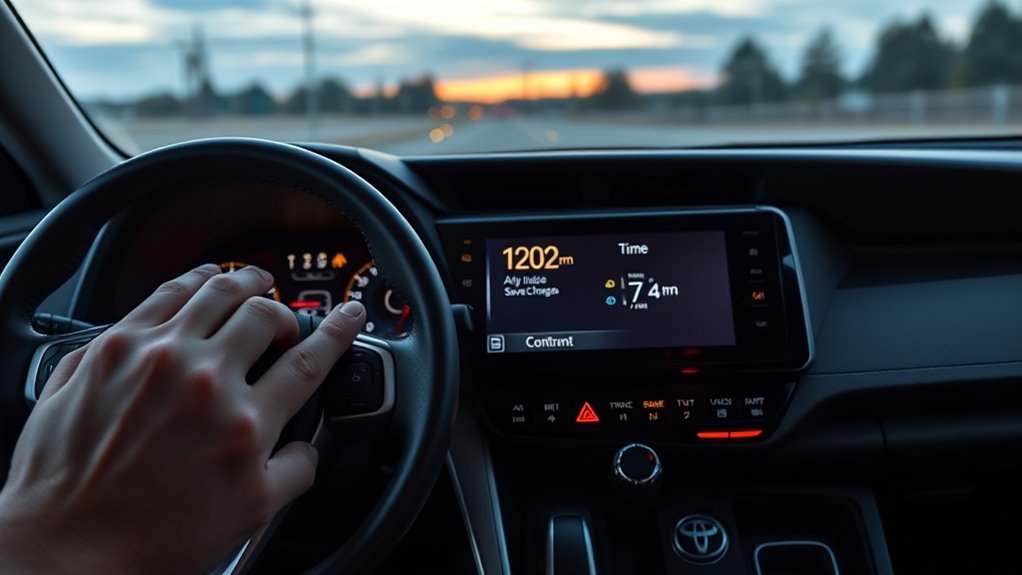
Save your changes by pressing the Home button after setting the time so the new value is written to both the dashboard and infotainment displays; the system syncs the clock across menus automatically, but always return to the clock menu to verify the displayed time matches your manual entry or GPS-derived setting. After saving, perform clock verification: open the dashboard clock, then the infotainment clock, and confirm both show identical time. Use synchronization tips: rely on GPS auto-adjust when traveling, but manually correct for Daylight Saving Time if needed. Repeat checks after battery service or system resets.
| Action | Target | Expected Result |
|---|---|---|
| Save via Home | Dashboard + Infotainment | New time stored |
| Verify clocks | Dashboard | Matches manual/GPS |
| Verify clocks | Infotainment | Matches manual/GPS |
| Adjust DST | Clock menu | Correct local time |
Be deliberate and swift; these steps free you from time errors and keep systems aligned.
Frequently Asked Questions
Will Changing the Clock Affect My Scheduled Maintenance Reminders?
No — changing the clock won’t alter maintenance notifications. You update clock settings independently; maintenance notifications rely on mileage/time sensors and service intervals. Resetting the clock preserves reminders, so you can freely reclaim accurate time without worry.
Does Updating the Infotainment Clock Change Recorded Trip Timestamps?
No — changing the infotainment clock won’t alter stored trip timestamps; investigate system logs to confirm. If daylight saving or time zone shifts occur, recorded times may display differently, so sync vehicle telematics to UTC for consistency.
Can Phone-Connected Apps Override the RAV4 Clock Automatically?
Yes — your phone sync can override the RAV4 clock automatically if the app settings permit; you’ll disable sync, adjust permissions, or change in-car Bluetooth/Apple CarPlay/Android Auto preferences to reclaim manual time control.
Is There Any Impact on Towing/Telemetry Systems When Adjusting Time?
Better safe than sorry: you’ll rarely affect towing capabilities by adjusting the clock, and you won’t harm telemetry accuracy if systems use GPS time. Verify synced modules, reboot telemetry, and log changes for freedom and control.
Will Dealership Software Updates Revert My Manual Clock Settings?
Generally no — dealership software features rarely overwrite manual time, but some clock synchronization methods (GPS/NTP updates or CAN bus resets) can revert settings. You’ll want to confirm with the dealer and back up preferred time manually.
Conclusion
You’ve just wrestled the RAV4 clock into submission—because nothing says adventure like aligning tiny digital hands. Do the obvious: pick auto GPS for instant fixes or set time, DST, zone and 12/24 manually; sync dash and infotainment; turn off auto near borders; reset or restart if it glitches. Save and verify across systems. It’s tedious, precise, and oddly satisfying—like tightening a bolt that quietly decides whether your trip feels punctual.