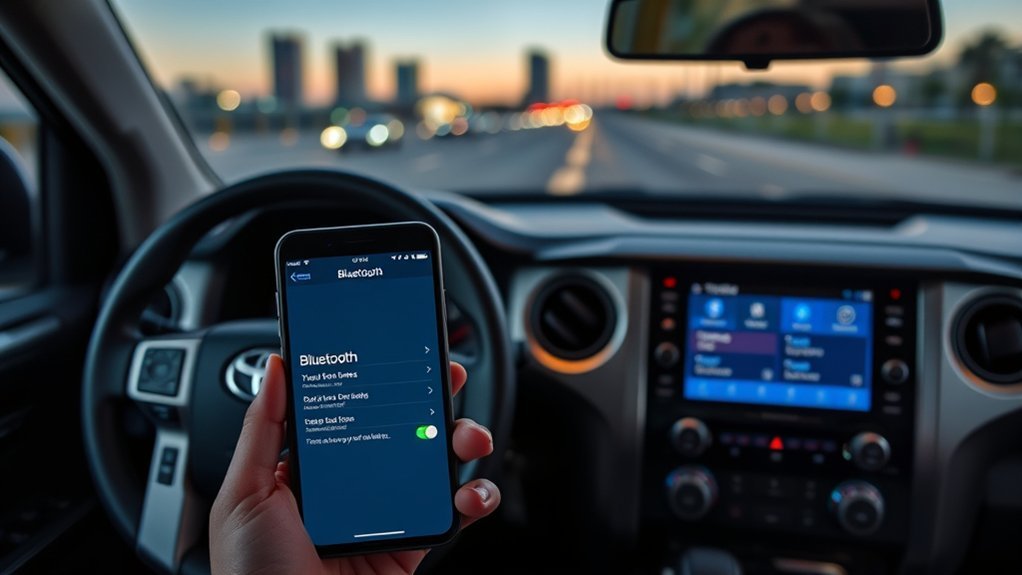
Connecting Bluetooth to a Toyota Tundra usually takes only a few minutes when the truck is parked, the phone is unlocked, and Bluetooth is turned on. The exact menu names can vary by model year and multimedia system, but newer Toyota Audio Multimedia systems use the Settings menu, then Bluetooth & Devices, to search for and register your phone.
Quick Answer
To connect Bluetooth to a Toyota Tundra, park the truck, turn on Bluetooth on your phone, open Settings > Bluetooth & Devices on the touchscreen, choose Search for devices or Add another device, select your phone, confirm the matching code on both screens, and allow phone, contacts, message, and media permissions.
Key Takeaways
- Pair your phone while parked, not while driving.
- Use the Tundra touchscreen first: Settings > Bluetooth & Devices.
- Confirm the same pairing code on the truck and phone before accepting.
- Newer Toyota Audio Multimedia systems can store up to five devices and connect two at the same time.
- If pairing fails, forget the device on both the phone and truck, restart both, then pair again.
At a Glance
| Time Required | 3–5 minutes for a normal pairing attempt |
| Difficulty | Easy |
| Tools Needed | Your phone, the Tundra touchscreen, and your phone passcode if needed |
| Cost | Free |
Warning: Pairing a phone, changing Bluetooth settings, or setting up Apple CarPlay or Android Auto can distract you. Complete setup while parked, with the transmission in Park, before you start driving.
Prep: Phone & Tundra Bluetooth Settings
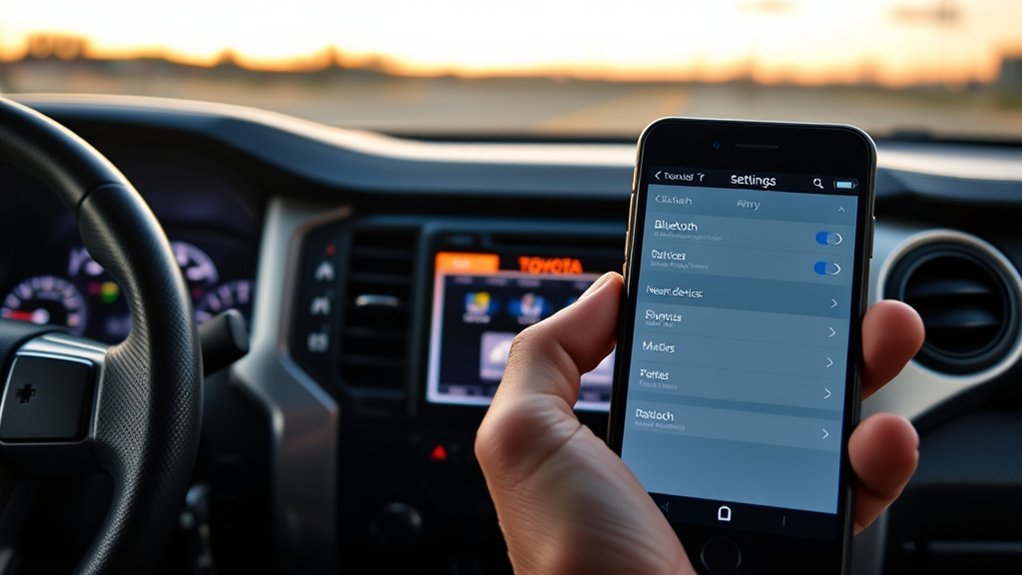
Before you start, unlock your phone and turn on Bluetooth. Keep the phone nearby and leave the Bluetooth settings screen open during pairing, because some phones are easiest to detect while that screen is active. If your phone locks quickly, temporarily increase the screen timeout so you can approve prompts without rushing.
On newer Toyota Audio Multimedia systems, open the Tundra’s touchscreen menu and select Settings, then Bluetooth & Devices. If your Tundra uses an older Entune-style system, the menu may say Setup, Phone, or simply Bluetooth. The goal is the same: place the truck and phone in pairing mode at the same time.
- Turn on Bluetooth on your phone.
- Make sure the truck is parked and the multimedia system is on.
- Keep the phone within a few feet of the touchscreen.
- Disconnect or forget old pairings if the phone was previously connected to this truck.
- Have your phone unlocked so you can approve contacts, calls, messages, and media permissions.
Note: Toyota’s newer Audio Multimedia system can store up to five Bluetooth devices and can connect two devices at the same time, but feature availability and priority behavior can vary by model year, trim, phone, and software version.
Pair a New Bluetooth Device: Quick Steps for Tundra
Use these steps for newer Toyota Tundra models with Toyota Audio Multimedia. If your screen labels are slightly different, follow the closest matching Bluetooth or phone-registration menu.
[Products Worth Considering]
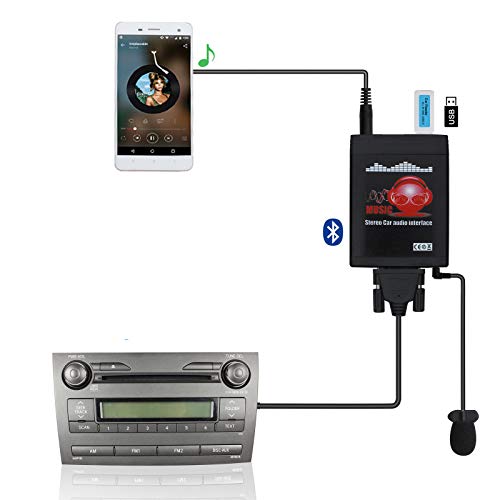
Built-in bluetooth 5.0 and Build-in high performance mic and clip-on design, for your clear hands-free calling and safe driving.

【Enjoy Wireless Streaming Music】This car Bluetooth adapter can be connected to non-Bluetooth car audio systems, home stereos, speakers, wired headphones via the 3.5mm AUX adapter; And equipped with a Bluetooth 5.0 chip for stable connection / fast transmission / wide signal range. Just pair it with your phone and start listening to your favorite music!

NOTE: you need to buy a "Y" cable if the CD changer port of radio is occupied by NAV, AUX. (pls view promotion details)
Prepare Phone and Vehicle
- Park the Tundra and leave the multimedia system on.
- On your phone, open Settings and turn on Bluetooth.
- On the Tundra touchscreen, select Settings.
- Select Bluetooth & Devices.
- Choose Search for devices. If a device is already saved, choose Add another device.
- If the system asks to disconnect another active device before pairing, select OK.
On some Tundra systems, you can also press and hold the steering-wheel phone or voice switch to open the phone-registration screen. Use the touchscreen method if the steering-wheel shortcut does not open the pairing menu.
Complete Pairing Steps
- When the Tundra finds your phone, select your phone’s name on the touchscreen.
- Wait for a pairing code or PIN to appear on both the Tundra screen and your phone.
- Confirm that the code is identical on both screens.
- Select OK, Pair, or Accept on the Tundra and the phone.
- Approve phone permissions for calls, contacts, messages, and media if you want full hands-free features.
- If prompted, choose whether to set this phone as the primary device.
- If prompted, choose whether to enable Apple CarPlay or Android Auto.
- Make a quick test call or play audio at low volume to confirm the connection works.
Pro Tip: Rename your phone before pairing if several family members have the same phone model. A clear name like “Hasan iPhone” or “Work Pixel” makes device switching much easier later.
Confirm PINs & Complete the Connection
The PIN or pairing code is the security check that proves the phone and truck are trying to connect to each other. Do not accept the connection if the numbers do not match.
Verify the Matching PIN
- Compare the code on the Tundra screen with the code on your phone.
- If the numbers match, approve the prompt on both devices.
- If the numbers do not match, cancel and restart pairing.
- If no code appears, turn Bluetooth off and back on, then search again.
Accept the Connection Prompt
After the code matches, tap Pair, OK, or Accept on your phone. The Tundra may show a progress message while it registers the device. Keep the phone unlocked and close to the screen until the completion message appears.
When your phone asks for access to contacts, call history, messages, or notifications, choose the permissions you want. If you deny contacts or messages, basic Bluetooth audio may still work, but hands-free calling, caller names, and message features may be limited.
Confirm the Device Display Name
Once pairing completes, check the device list on the Tundra screen. The phone should appear by name, and the screen should show whether it is connected for phone, media, Apple CarPlay, or Android Auto.
- If the wrong phone appears, disconnect it and choose the correct device.
- If the phone appears but calls do not work, enable the phone or hands-free profile for that device.
- If music does not play, enable the media-audio profile and select Bluetooth audio as the source.
- If the phone keeps connecting to another vehicle or headset, disconnect that device before pairing with the Tundra.
Register Additional Phones & Hands-Free Limits
Newer Toyota Audio Multimedia systems can store up to five Bluetooth devices and connect two at the same time. That does not mean every connected device will control every feature at once. One phone may be primary for calls, another may be selected for media, and Apple CarPlay or Android Auto can change how audio routes.
To add another phone, repeat the same pairing process:
- Open Settings > Bluetooth & Devices.
- Select Add another device.
- Disconnect an active device if the Tundra asks you to free a connection slot.
- Select the new phone and confirm the matching code.
- Choose whether it should be the primary device.
Use the primary-device setting for the phone you want the Tundra to prefer for calls, messages, and automatic connection. If your family shares the truck, set the daily driver’s phone as primary and keep the second phone available for occasional switching.
Troubleshooting Pairing Failures: Waiting for Bluetooth, Device Not Found, or Pairing Failed
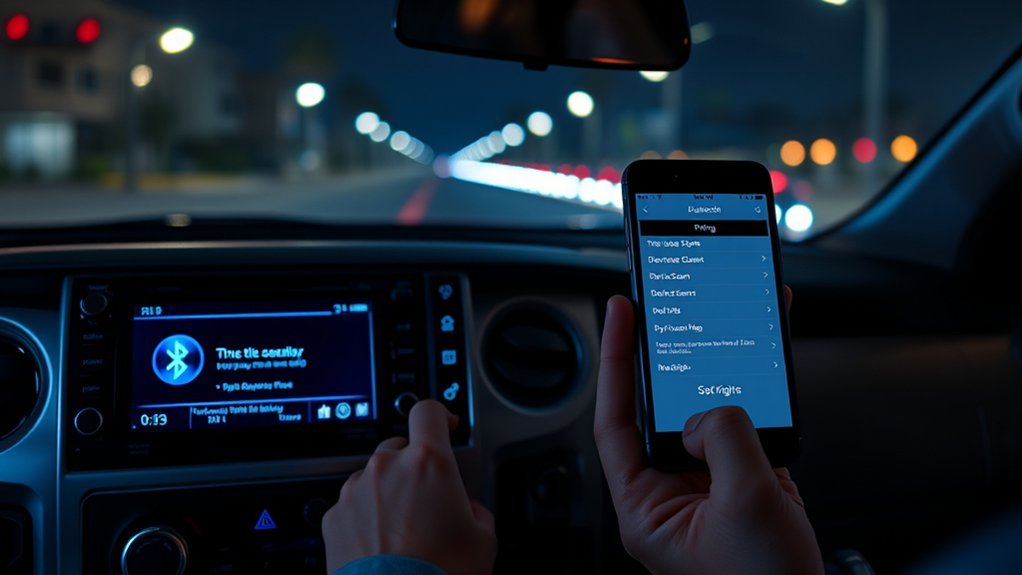
If the Tundra says “Waiting for Bluetooth,” your phone does not appear, or pairing fails after the PIN, work through the simple fixes before resetting the system.
| Problem | Most likely cause | Fix |
|---|---|---|
| Phone does not appear | Phone is not discoverable or Bluetooth screen is closed | Open the phone’s Bluetooth settings, keep the screen unlocked, and search again. |
| PIN does not match | Wrong device was selected or pairing timed out | Cancel pairing on both screens, wait 10 seconds, then restart pairing. |
| Pairing fails after approval | Old Bluetooth record is corrupted | Forget the Tundra on your phone and forget the phone in the Tundra, then pair fresh. |
| Calls work but music does not | Media profile is off or another source is selected | Enable media audio for the phone and select Bluetooth audio on the Tundra. |
| Music works but caller names do not show | Contacts permission was denied | Allow contact sharing in the phone’s Bluetooth settings for the Tundra. |
| CarPlay or Android Auto will not launch | Wi-Fi, Siri, Location Services, restrictions, cable, or compatibility issue | Check phone settings, update the phone, try a different USB cable if wired, and confirm the service is enabled for that device. |
Most Bluetooth problems are fixed by deleting the old pairing from both the phone and the Tundra, restarting both systems, and pairing again from a clean device list.
[Products Worth Considering]
![Syncwire Bluetooth 5.4 FM Transmitter Car Adapter 48W (PD 36W & 12W) [Light Switch] [HiFi Bass Sound] [Fast Charging] Wireless Radio Music Adapter LED Display Hands-Free Calling Support USB Drive](https://m.media-amazon.com/images/I/41A6qyDIimL._SL500_.jpg)
[Humanized Ambient Light Switch Design] - Indulge in a delightful driving experience with our trendy rainbow light design. Immerse yourself in fun while having the convenience of easily turning off the light by double pressing the red "B" button when not needed. Enjoy the captivating ambiance of the rainbow lights and have full control over your driving atmosphere.
![Nulaxy 54W Bluetooth 5.3 Car Adapter Charger 4-Port Fast Charging [PD36W & QC3.0 18W], Wireless Radio FM Transmitter with Deep Bass Player, 5 Colors LED Backlit, Hands-Free Calling, Support USB Drive](https://m.media-amazon.com/images/I/519DOQ+b5WL._SL500_.jpg)
54W High Power Fast Charging, 4-Port Synchronous Charging: Nulaxy Bluetooth car adapter integrates PD36W and QC18W, offering a high-speed and efficient charging solution. Its innovative four-port design supports parallel charging of multiple devices, effortlessly overcoming battery anxiety and enhancing charging efficiency.
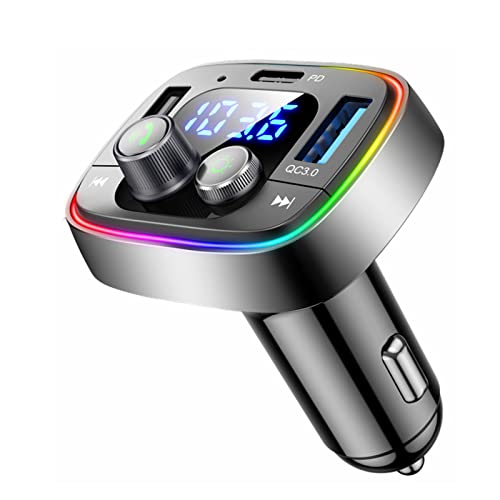
Upgrade any non-Bluetooth car in 30 seconds: Turn any vehicle into a wireless Bluetooth audio system in seconds.
Hard Resets & When to Factory-Reset the Head Unit
A factory reset should be a last owner-level step, not the first fix. It can erase saved phones, audio settings, profiles, and other multimedia preferences. Before you reset the Tundra’s head unit, try these steps:
- Turn Bluetooth off and back on your phone.
- Restart your phone.
- Power-cycle the Tundra’s multimedia system by turning the truck off, opening the driver door, waiting briefly, then restarting.
- Forget the phone from the Tundra’s Bluetooth list.
- Forget the Tundra from the phone’s Bluetooth list.
- Try pairing again with the phone unlocked and nearby.
If the same problem continues with multiple phones, use the head unit’s restore or factory-reset option from the settings menu if your owner’s manual lists that procedure for your model. After the reset, re-pair your main phone first, confirm calls and audio, then add secondary devices.
Warning: Do not disconnect the vehicle’s 12-volt battery just to fix Bluetooth unless you know the correct procedure for your Tundra or a Toyota service professional recommends it. Battery disconnection can reset vehicle settings and may create extra troubleshooting steps.
[Products Worth Considering]
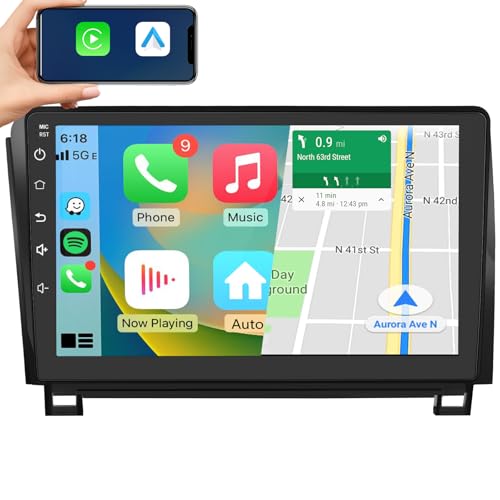
【Applicable Car Models】This Toyota Tundra stereo is specifically designed for the 2007, 2008, 2009, 2010, 2011, 2012, 2013 Toyota Tundra and the 2008, 2009, 2010, 2012, 2013, 2014, 2015, 2016, 2017, 2018 Toyota Sequoia. It comes with a complete plug-and-play kit that includes all the necessary components for installation. It retains your factory steering wheel controls, rearview camera, and factory antenna adapter.

【Vehicle Compatibility】Using the Dasaita G13 tundra head unit for Toyota Tundra 2014 2015 2016 2017 2018 2019 2020 2021 upgrades, enhance your driving experience. Complete Plug-and-Play kit includes everything you need to install, retains factory steering wheel controls, reverse camera and radar, OEM JBL amplifier, factory antenna adapter, door open hint, AC information, fuel information etc. Experience top-notch in-car entertainment and superior performance with this high-quality radio.

【Designed for Toyota Tundra 2014-2021】Dasaita 2Din dash kit is specifically designed for the installation of double din radios, suitable for the 2Din Radio Size 178*100MM
When to Update Software or See Your Dealer
If Bluetooth fails after a clean re-pair and a reset, check for software updates. Toyota provides an Audio Multimedia software update portal where owners can enter vehicle information to check update availability. Some eligible updates may require a compatible USB drive.
Also update your phone’s operating system. A major iOS or Android update can change Bluetooth, CarPlay, Android Auto, permissions, or battery-saving behavior. If the issue began right after a phone update, test with another phone before assuming the truck is the problem.
Schedule Toyota dealer service when:
- Several phones fail to pair with the Tundra.
- The Bluetooth menu is missing, greyed out, or frozen.
- The head unit reboots repeatedly.
- Bluetooth worked before a vehicle software update and no longer works.
- You need help confirming the correct software version for your model year.
Using Apple CarPlay / Android Auto and Primary Device Settings
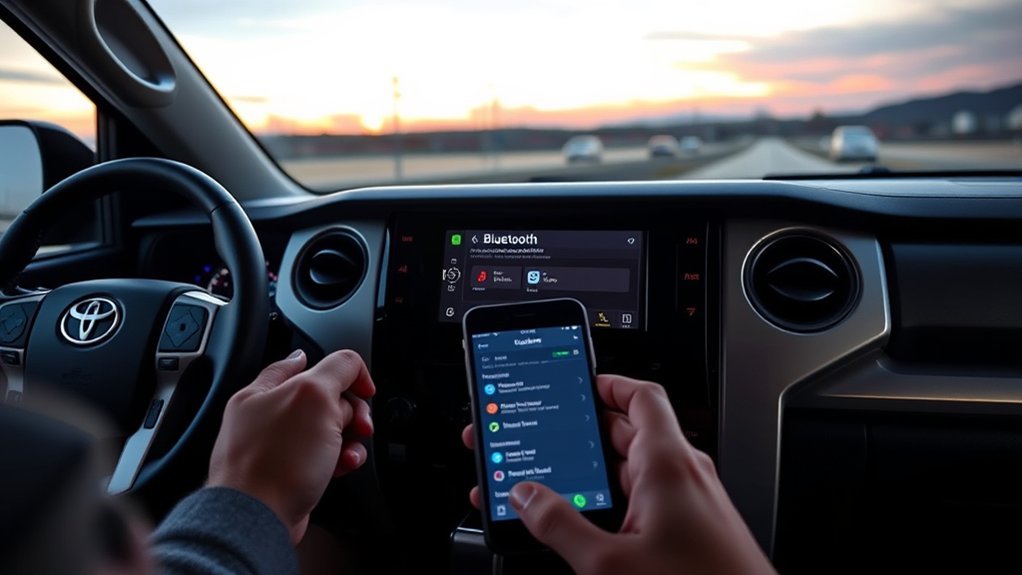
On newer Toyota Audio Multimedia systems, Apple CarPlay and Android Auto can often be enabled during the Bluetooth pairing process. If you choose Yes when the Tundra asks, the phone can be set up for CarPlay or Android Auto right away. If you choose No, the phone can still work as a regular Bluetooth device, and you can enable CarPlay or Android Auto later from Settings > Bluetooth & Devices.
For wireless Apple CarPlay, make sure Bluetooth and Wi-Fi are on, Siri is enabled, and CarPlay is not blocked by Screen Time restrictions. If CarPlay does not launch, try forgetting the Tundra in Settings > General > CarPlay on your iPhone, then set it up again.
For wireless Android Auto, keep Bluetooth, Wi-Fi, and Location Services turned on during setup. The vehicle should be in Park with the infotainment system on. Android Auto may ask for phone updates or permissions before it launches.
A USB cable can still be useful. If wireless CarPlay or Android Auto is unstable, connect with a high-quality data cable through the vehicle’s media USB port, approve the prompts on the phone and the vehicle display, and test again.
Frequently Asked Questions
Can I stream audio from two phones at the same time?
No. Even when two phones are connected, the Tundra normally plays media from one active audio source at a time. To switch music, open the Bluetooth device list or audio source menu and select the phone you want to use for media.
Will Bluetooth drain my Tundra’s battery when parked?
Built-in Bluetooth should not be a major battery drain when the truck is off and the multimedia system has gone to sleep. Battery-drain concerns are more common with aftermarket Bluetooth adapters, dash cams, trackers, or accessories plugged into a power outlet that stays live while parked.
Does Bluetooth work with aftermarket head units?
Yes, Bluetooth can work with an aftermarket head unit, but the steps will follow the aftermarket brand’s menu, not Toyota’s factory multimedia menu. Choose a reputable unit, confirm phone compatibility, and follow the installer’s wiring and pairing instructions.
How do I remove a paired device from the Tundra?
Open Settings > Bluetooth & Devices, choose the phone from the device list, then select Forget, Delete, or Remove, depending on your screen wording. Also remove the Tundra from the phone’s saved Bluetooth devices if you want a completely fresh pairing.
Can passengers control media from their phones?
Yes, if the passenger’s phone is paired and selected as the active media device. The driver should set this up while parked or let the passenger handle the phone. The Tundra will still play one active Bluetooth audio source at a time.
Why does my phone connect for calls but not music?
The phone may be connected only as a hands-free phone, not as a media device. Open the Tundra’s Bluetooth device settings, choose your phone, and make sure media audio is enabled. Then select Bluetooth audio as the source.
Why does Apple CarPlay or Android Auto start instead of regular Bluetooth audio?
CarPlay and Android Auto can take over audio routing after the phone connects. In Bluetooth & Devices, choose your phone and toggle CarPlay or Android Auto off if you want that phone to behave as a regular Bluetooth phone and media device.
Conclusion
To connect Bluetooth to a Toyota Tundra, keep the truck parked, turn on Bluetooth on your phone, open Settings > Bluetooth & Devices, add or search for your device, and confirm the same code on both screens. If pairing fails, delete the old pairing from both the truck and phone, restart both, and try again. For persistent problems, check phone updates, Toyota multimedia software updates, and dealer support before moving to a factory reset.
Sources
- Toyota Bluetooth Pairing on Toyota Audio Multimedia — official Toyota pairing steps, device storage, two-device connection, primary device, and permissions.
- Toyota Owners: 2025 Tundra Bluetooth device registration — Tundra-specific Bluetooth registration guidance.
- Toyota Audio Multimedia System Updates — official Toyota software update portal.
- Apple Support: If you need help with CarPlay — CarPlay Bluetooth, Wi-Fi, USB, Siri, restrictions, and firmware troubleshooting.
- Google Android Auto Help: Set up Android Auto — Android Auto wired and wireless setup requirements.
- NHTSA Distracted Driving — safety guidance on avoiding driver distraction.