If your Toyota RAV4 USB port is not working, do not replace the port or head unit first. In most cases, the fix is a data-capable cable, the correct multimedia USB port, a phone permission setting, a gentle port cleaning, an infotainment reset, or the correct fuse check. Start with the no-cost checks before you approve port, harness, or head-unit work.
By the AutoReviewNest Editorial Team · Last updated: July 7, 2026 · Reviewed for accuracy
Quick Answer
To fix a RAV4 USB port that will not connect, first confirm you are using the multimedia/data USB port, not a charge-only port. Then try a short data-capable cable, test another phone, approve CarPlay or Android Auto prompts while parked, and restart the infotainment screen. If it still will not charge or transfer data, check the exact fuse in your owner’s manual, look for Toyota multimedia software updates, or have the USB module and harness tested.
Key Takeaways
- Only the multimedia/data USB port can launch wired CarPlay, Android Auto, or flash-drive playback; other ports may charge only.
- Use a short, high-quality cable that supports data transfer, not a charge-only cable.
- For Android Auto, Google says to connect while parked with the infotainment system on; Toyota update and manual pages should guide the exact vehicle setup.
- Fuse names and locations vary by RAV4 year, trim, and market, so confirm the diagram on the fuse box cover or in the owner’s manual before replacing any fuse.
- A soft reset, over-the-air update, USB update, or dealer software update can fix some recognition problems without replacing hardware.
- If the port is loose, corroded, bent, or has no power, the likely repair is a port, harness, or head-unit diagnosis.
At a Glance
| Time Required | 5–45 minutes for basic checks; longer for trim or harness work |
| Difficulty | Easy for cable, phone, reset, and fuse checks; moderate for port replacement |
| Tools Needed | Data USB cable, flashlight, compressed air, soft brush, fuse puller, multimeter, owner’s manual |
| Cost | Free for basic checks if you already have a data cable and tools; shop diagnosis, port, harness, or head-unit repair varies by market, model year, and warranty status |
Is It the USB Port, Radio, or Whole Infotainment System?
Start by separating the problem into three buckets: the USB port, the phone or cable, or the whole infotainment system. If the same phone and cable work in another vehicle but not in your RAV4, the vehicle side needs attention. If a different phone connects right away, your original phone, cable, or phone setting is likely the issue.
A USB-only problem usually looks like this: the screen, radio, Bluetooth, and backup camera still work, but the port will not charge, will not launch Apple CarPlay or Android Auto, or will not read music files. A full infotainment problem usually includes screen freezing, repeated restarts, no audio, or several features failing at once.
| Symptom | Most Likely Area | First Check |
|---|---|---|
| Phone charges but CarPlay/Android Auto will not start | Cable, phone permission, software, or data pins | Try a data cable and approve phone prompts |
| No charging and no connection | Port power, fuse, harness, or damaged port | Check the port, fuse, and power supply |
| Bluetooth works but USB does not | USB port or wired connection path | Clean and test the USB port |
| Screen freezes or restarts often | Infotainment software or head unit | Soft reset and check for updates |
| Radio, screen, and USB are all dead | Main power, fuse, head unit, or wiring | Check related fuses and seek diagnosis |
Note: Toyota multimedia systems differ by model year. A 2018 RAV4 with Entune, a 2021 RAV4 with wired smartphone projection, and a newer RAV4 with Toyota Audio Multimedia may not use the same menus, ports, or update method.
Which RAV4 USB Port Actually Supports Data?
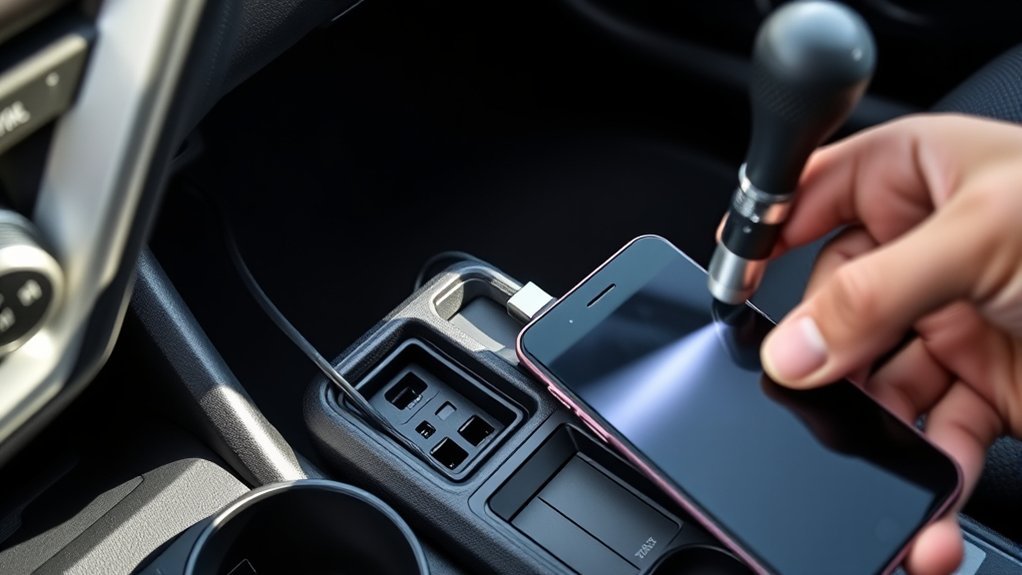
Many RAV4 trims have more than one USB port, but charging does not prove the port can carry data. The data-capable port is the one Toyota’s multimedia manual identifies for smartphone projection, USB media, or the multimedia system. Other console or rear-seat ports may be charge-only, so they can power a phone without launching Apple CarPlay, Android Auto, or flash-drive playback.
If you have been plugging into a console or rear-seat port and nothing but charging happens, move to the multimedia/data port before assuming anything is broken. Exact port count, connector type, and placement vary by model year, trim, and region. On the all-new 2026 RAV4, Apple CarPlay and Android Auto are standard as wireless connections and the USB-C ports are geared toward charging, so a “USB CarPlay” problem on that model may actually be a wireless-connection issue; confirm each port’s function in the exact 2026 multimedia manual before buying parts.
Quick Fixes to Try First: Cable, Phone Settings, and the Port
Before pulling panels or buying parts, test the simple causes. A worn cable, lint-packed phone connector, or missed phone permission can look exactly like a bad RAV4 USB port.
- Try a known-good data cable. Avoid cheap charge-only cables, damaged adapters, and loose USB-C-to-USB-A combinations. Google says to connect Android Auto while the vehicle is parked and the infotainment system is on. Apple recommends trying a different USB cable and a different USB port when wired CarPlay will not connect.
- Test another phone. If a second phone works, your RAV4 port is probably fine.
- Restart the phone. Phone-side USB services can freeze after updates or repeated plug-ins.
- Approve all prompts. Unlock the phone and accept CarPlay, Android Auto, file transfer, or trust-this-device prompts.
- Check iPhone CarPlay settings. Make sure Siri is on, CarPlay is not restricted in Screen Time, and the iPhone is updated before you blame the RAV4 port.
- Check Android USB mode. Some phones default to charge-only. Select File Transfer, Android Auto, or the relevant data mode if prompted.
- Clean the phone and vehicle ports. Use compressed air and a soft, non-metal brush. Do not scrape the contacts with a pin, screwdriver, or knife.
- Remove adapters. Test without USB hubs, magnetic tips, extension cables, splitters, or wireless CarPlay/Android Auto dongles.
Pro Tip: Keep one short, data-capable cable in the glove box just for troubleshooting. If that cable works reliably, you can quickly tell whether the issue is the vehicle, the phone, or the everyday cable.
USB Flash Drive Not Playing Music? Check the Format
If you plug in a USB flash drive to play music rather than connecting a phone, a drive that will not read may be a formatting or indexing problem, not a failed port. Follow your exact multimedia manual first, then test a simple FAT32 drive before replacing hardware.
- Try FAT32 first if your manual does not list another required file system. Some head units will not read exFAT- or NTFS-formatted drives.
- Keep folders a reasonable size. Very large single folders with thousands of files can cause the system to skip tracks, lose your place, or fail to index the drive.
- Try a smaller, simpler drive. Some head units struggle with very large-capacity or off-brand flash drives.
- Do not leave a drive plugged in and exposed to a hot, closed cabin for long periods. Heat can degrade flash storage over time.
Which RAV4 Fuses Control the USB and How to Test Them
Fuse labels vary by RAV4 generation, model year, market, engine, and audio package. Do not rely on one online fuse list for every RAV4. Check the diagram on the fuse box cover and your exact owner’s manual first.
On many Toyota models, USB, accessory power, audio, and infotainment circuits may be tied to labels such as ECU-IG, ECU-IGR, ECU-IGR2, ECU-DCC, ECU-DCC2, RAD, AUDIO, DOME, or P/OUTLET, depending on the vehicle. Your fuse box cover is the final guide for your specific RAV4.
| Checkpoint | What to Do |
|---|---|
| Confirm the correct fuse | Use the fuse box cover and Toyota owner’s manual for your exact year |
| Inspect visually | Look for a broken metal strip or dark discoloration |
| Test with a multimeter | Use continuity mode across the fuse terminals |
| Replace safely | Use the same amperage rating only |
| Watch for repeat failure | A fuse that blows again points to a short or wiring fault |
Warning: Never install a higher-amp fuse to “see if it works.” That can overheat wiring and turn a small USB problem into a much more expensive electrical repair.
[Products Worth Considering]

The LEXIVON 3/8-Inch Drive Click Torque Wrench is built for accurate, reliable fastening across a wide range of automotive and mechanical tasks. It arrives pre-calibrated for dependable use, with a clear dual-range scale for easy reading and a reversible ratchet head for added convenience. The hardened steel construction and corrosion-resistant finish help deliver long-lasting performance and comfort in everyday use.

The KONNWEI KW208 is a versatile 12V battery tester designed to quickly analyze battery health, cranking performance, and charging system status for cars, trucks, boats, motorcycles, and more. It supports multiple battery types and provides clear guidance on whether a battery should be recharged or replaced, helping you diagnose issues before they become failures. With plug-and-play use, high accuracy, and multilingual support, it offers a convenient way to test batteries in-vehicle or out-of-vehicle.

Turn your iPhone, Android device, or Windows PC into a professional-grade diagnostic scan tool with this Bluetooth OBD2 adapter. It is designed for broad vehicle compatibility and supports popular apps for deeper diagnostics, live data, and code clearing. Built-in protections and firmware updates help keep your vehicle and scanner safe while delivering reliable performance.
Reset or Update the RAV4 Infotainment: Software Steps That Help
If the USB port has power but the phone will not connect, the infotainment software may be stuck. Toyota says audio multimedia updates may be available over the air on vehicles with the latest Toyota Audio Multimedia system, by USB for eligible vehicles, or through a dealer. Apple also recommends confirming that the vehicle stereo uses the latest manufacturer firmware when CarPlay fails.
Soft Reset Procedure
A soft reset is the best next step when the screen works but the USB connection is glitchy. It does not replace fuses or fix a physically broken port, but it can clear a temporary software hang.
- Park the vehicle in a safe place.
- Disconnect the USB cable and remove any USB drive or adapter.
- Keep the infotainment system on.
- Press and hold the infotainment power/volume button for about 10 seconds, or until the screen restarts.
- Reconnect the phone with a data cable and approve the phone prompts.
Software Update Steps
For persistent USB recognition problems, check whether a multimedia update is available for your exact vehicle. Toyota’s U.S. software portal says eligible vehicles may use a compatible USB drive for the audio multimedia software download, and Toyota’s over-the-air update page says some vehicles can update directly through the display.
- Write down your RAV4 model year and current multimedia software version from the system settings, if available.
- Check Toyota’s official update page, over-the-air update menu, Toyota app, or dealer support for your vehicle.
- If your vehicle supports over-the-air updates, follow the on-screen update prompts while parked.
- If your vehicle needs a USB update, use Toyota’s software portal instructions and a compatible USB drive.
- If the update fails, the vehicle is outside the supported region, or the menus do not match your system, ask a Toyota dealer to check the software version.
Note: Toyota’s U.S. software download site states that its downloads are intended for vehicles manufactured for use in the continental United States, Alaska, and Hawaii. Owners in other regions should use their local Toyota support site or dealer.
When It’s Hardware: Diagnosing the USB Harness, Port, and Head Unit
If cables, phone settings, cleaning, fuses, and software checks do not help, treat the problem as hardware. The failure may be inside the USB port, the wiring harness between the port and the head unit, or the head unit itself.
[Products Worth Considering]

The ANCEL AD410 helps drivers quickly read and clear engine-related fault codes, view live data, and understand why the check engine light is on before heading to a repair shop. With built-in code definitions, readiness checks, and support for common OBD2 functions, it makes basic diagnostics straightforward for beginners and DIY users. Powered directly from the vehicle and easy to use with no app required, it offers practical value for everyday vehicle troubleshooting.

ROBLOCK low profile car ramps are designed to give low-chassis vehicles safer access for lifting, repairs, and maintenance work. The widened, shortened ramp design helps create room for a jack while the 17-degree slope and curved shape improve vehicle placement and stability. Built from impact-resistant PP with non-slip features and a high load capacity, these ramps are a practical choice for home garages and professional service use.

Compatible with Toyota: For 2013 Corolla S, 2016-2018 Corolla IM, 2013-2017 Corolla, 2019 Tundra, 2013-2017 Tacoma, 2012-2018 RAV4/RAV4 Base, 2018 RAV4 XLE, 2012-2013 Prius, 2017 Prius Prime, 2018 CHR, 2015 Avalon hybrid, 2014/2019 Highlander, 2015 Camry
Signs the USB Port Is Damaged
- The cable feels loose or falls out easily.
- The phone charges only when the cable is held at an angle.
- You can see bent pins, corrosion, or a broken plastic tongue inside the port.
- Several known-good data cables fail in the same port.
- The port gets hot or smells burnt.
How to Check the Harness Without Guessing
Use a flashlight first. Look behind the port area for a loose connector, water marks, trim damage, or previous accessory wiring. If you are comfortable removing trim, disconnect the 12-volt battery before unplugging panels, and use plastic trim tools to avoid cracking clips.
If the RAV4 has power at the USB connector but will not transfer data, the issue may be the data pins, the USB module, the cable path to the head unit, or the head unit’s USB input. A dealer or qualified auto-electric shop can test the circuit instead of replacing parts by trial and error.
Warning: Disconnecting the battery can reset vehicle settings and may affect electronic systems. If your RAV4 is under warranty, or if you are unsure about airbags, trim removal, or hybrid-related safety precautions, let a professional handle the diagnosis.
Dealer vs. DIY Repairs: What to Ask, Likely Fixes, and Expected Costs
Choose DIY for low-risk checks: cable swaps, phone settings, port cleaning, soft resets, and fuse testing. Choose a dealer or qualified shop when the fuse blows again, the port is physically damaged, the infotainment screen freezes, or the vehicle is still under warranty.
When to See a Dealer
See a dealer if your RAV4’s USB port still will not work after you have tested multiple cables and phones, cleaned the port, checked the correct fuse, and tried a soft reset. Also go to the dealer if the infotainment system has update errors, repeated restarts, or a possible warranty concern.
Before authorizing work, ask these questions:
- Is this covered by the basic warranty, extended warranty, or service campaign?
- Can you confirm the USB port has both power and data communication?
- Will you check for multimedia software updates or service bulletins before replacing parts?
- Is the failure in the USB port module, harness, or head unit?
- Can I get an itemized estimate before parts are ordered?
DIY Troubleshooting Steps
| Action | DIY Complexity | When to Stop and Get Help |
|---|---|---|
| Swap cable and phone | Low | If every known-good device fails |
| Clean port gently | Low | If pins are bent or corroded |
| Soft reset infotainment | Low | If the screen keeps freezing |
| Check fuse with multimeter | Low–Medium | If a new fuse blows again |
| Replace USB port module | Medium | If trim removal, wiring, or warranty is a concern |
| Diagnose head unit or harness | High | Best left to a dealer or auto-electric technician |
Repair Costs and Warranty
Basic checks can cost nothing if you already have a reliable data cable, flashlight, fuse puller, and multimeter. A replacement fuse is inexpensive, but a fuse that blows again needs diagnosis because a short or harness fault may be present. Dealer diagnostic fees, USB modules, harness work, and head-unit repairs vary by model year, trim, region, and warranty status.
Before you approve paid work, ask whether the failure is covered by the basic warranty, extended warranty, a service campaign, or a dealer software update. Get an itemized estimate that separates diagnosis, parts, labor, and any software work.
Temporary Workarounds: Quality Cables, Adapters, and Bluetooth Options
If the USB port still fails and you need time before repair, use Bluetooth audio and hands-free calling. Bluetooth will not always replace every USB feature, but it can keep music and calls working while you diagnose the wired connection.
If you have not already checked which port on your RAV4 is the data port, do that first. Plugging into a charge-only port is one of the most common reasons CarPlay, Android Auto, or flash-drive playback will not start even though a device charges normally.
Wireless CarPlay or Android Auto adapters can be useful when the vehicle’s data port works but you want fewer plug-ins. They will not fix a port that has no power or no data connection.
[Products Worth Considering]

Upgrade to Wireless CarPlay & Android Auto The 2 in 1 Wireless CarPlay and Android Auto Adapter converts your factory wired system into a wireless experience. It’s perfect for families using both iPhone and Android phones, allowing effortless switching without unplugging or swapping cables. This adapter is compatible with over 1,000 vehicle models—supporting 800+ with wired CarPlay and 500+ with wired Android Auto. Works with iPhone 6 or later and Android 11 or above devices.

💎【2-in-1 Dual Compatibility & USB-C Ready】 The ultimate solution for mixed-tech households. Fully supports both Wireless CarPlay (iOS 10+) and Wireless Android Auto (Android 11+). We include both USB-A and USB-C adapter cables, making it perfectly compatible with 2016-2026 car models, including newer vehicles equipped with Type-C ports.

The Ultimate Smarter Copilot: Stay on Top of Your Driving- The 3A magic link CarPlay box control everything with a word, Or a touch, Or a twist. Save your 40% of time by quick auto conn and seamless operation, such as navigation, music playing, Siri assistant, phone calls, radio etc(Our Carplay Only Compatible with wired Apple CarPlay Car systems)
Model-Year Notes for RAV4 USB Problems
RAV4 USB behavior depends heavily on model year and multimedia system. Older RAV4 models may use USB mainly for music playback and charging. Later models may support Apple CarPlay, Android Auto, or Toyota Audio Multimedia features, but the exact port, cable, and setup process can differ.
- Older RAV4 models: Check whether the USB port supports media, charging, or both. Not every older port supports smartphone projection.
- 2019–2022 RAV4 models: Many issues come from cable quality, phone permissions, software compatibility, or port wear from frequent plug-ins.
- 2023–2025 RAV4 models: These use Toyota Audio Multimedia on many trims, so check the over-the-air update menu, Toyota software portal eligibility, and dealer support before assuming a hardware fault.
- All-new 2026 RAV4: The sixth-generation RAV4 moves to the latest Toyota Audio Multimedia system with standard wireless Apple CarPlay and Android Auto, a 10.5- or 12.9-inch touchscreen, and USB-C ports. Because phone projection is wireless by default, a connection problem here is often a wireless-pairing or software issue rather than a bad USB port. Use the exact 2026 multimedia manual to confirm each USB-C port’s function before troubleshooting cables, adapters, or the USB module.
- Hybrid and plug-in hybrid models: Avoid unnecessary electrical work if you are not trained. Stick to simple user-level checks or schedule service.
Frequently Asked Questions
How do I fix the USB port in my Toyota RAV4?
Start by confirming you are using the dashboard’s data port, then try a known-good data cable, another phone, phone permissions, and a gentle port cleaning. Soft-reset the infotainment system, check the correct fuse for your model year, and look for software updates. If none of that works, the port, harness, or head unit may need professional diagnosis.
Why does Android Auto or CarPlay only work in one of my RAV4’s USB ports?
Most RAV4 trims have only one data-capable USB port, usually on the dashboard near the display. The other USB ports, such as those in the center console armrest or the rear-seat area, are commonly charge-only and cannot launch Apple CarPlay, Android Auto, or play music from a flash drive. Check your exact trim’s multimedia manual if you are unsure which port is which.
Why does my RAV4 USB charge but not connect to CarPlay or Android Auto?
Charging only proves the power pins are working. CarPlay and Android Auto also need a reliable data connection, phone approval, compatible software, and the correct USB mode. Try a data-capable cable in the dashboard’s data port, unlock the phone, accept prompts, and restart both the phone and infotainment system.
Which fuse should I check for a RAV4 USB port?
The correct fuse depends on your RAV4 year, trim, market, and multimedia system. Check the fuse box cover and your Toyota owner’s manual first. Possible related circuits may include accessory power, audio, ECU, or infotainment fuses, but you should replace only the fuse identified for your exact vehicle.
Can a software update fix a RAV4 USB problem?
Yes, if the problem is caused by infotainment software, phone compatibility, or a temporary recognition bug. Toyota supports over-the-air updates on some newer multimedia systems, USB updates for eligible vehicles, and dealer updates when needed. A software update will not fix a broken port or damaged wiring.
Why does my USB port work sometimes and fail other times?
Intermittent USB problems often come from a loose cable, worn port, lint in the phone connector, bent USB pins, vibration, phone software glitches, or a weak harness connection behind the port. Test with one reliable cable and one known-good phone before replacing parts.
Should I replace the RAV4 USB port myself?
Only replace it yourself if you are comfortable disconnecting the battery, removing trim, and handling wiring clips without damaging them. If the vehicle is under warranty, the fuse keeps blowing, or the issue could be the head unit or harness, a dealer or auto-electric technician is the safer choice.
Conclusion
A Toyota RAV4 USB port that is not working is usually best handled step by step. Start by confirming you are using the multimedia/data USB port, then check the cable, phone, permissions, CarPlay or Android Auto settings, and port cleaning. If you use a USB flash drive for music, test a simple FAT32 drive unless your manual requires another format. Then try a soft reset, confirm software updates, and check the correct fuse for your exact RAV4. If the port has visible damage, no power, or no data connection after every basic check, the USB module, harness, or head unit needs proper diagnosis.
Use Bluetooth as a temporary workaround, but do not ignore repeated fuse failures, overheating, corrosion, or a loose port. Those signs point to a real electrical or hardware issue that should be fixed before it gets worse.
Sources
- Toyota Manuals and Warranties — backs up using the exact owner’s manual and fuse information for the correct RAV4 model year.
- Toyota Audio Multimedia System Updates — confirms Toyota supports over-the-air, USB, and dealer multimedia update methods depending on vehicle eligibility.
- Toyota Software Updates Portal — backs up USB-based audio multimedia software updates for eligible U.S. Toyota vehicles.
- Toyota 2025 RAV4 Digital Manual: Android Auto USB Connection — confirms Android Auto can use a data USB cable on compatible RAV4 systems.
- Google Android Auto Help — backs up parking safely and using a USB cable when setting up Android Auto.
- Apple Support: If You Need Help With CarPlay — backs up checking the cable, USB port, iPhone settings, restart steps, and vehicle firmware.
- Toyota Safety Recalls and Service Campaigns Lookup — useful for checking whether a vehicle has open Toyota service campaigns or recalls by VIN.