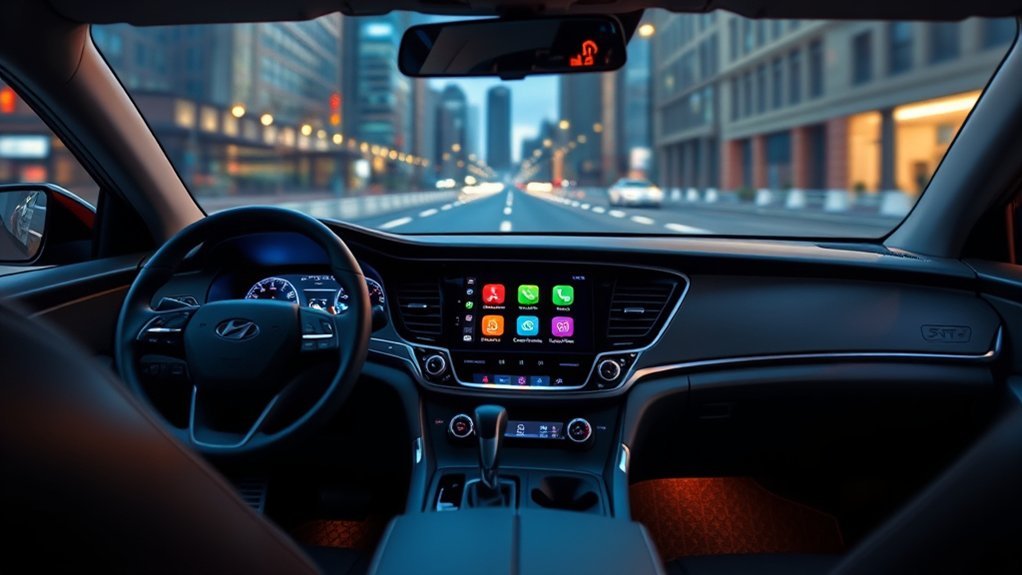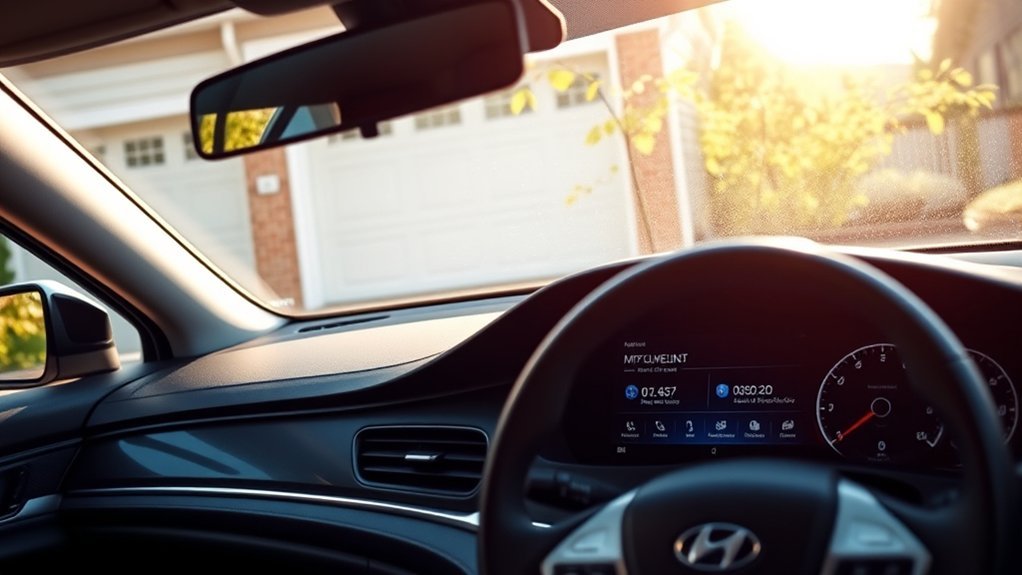
Setting up MyHyundai with Bluelink on a Hyundai Sonata starts with confirming which connected-service system your model year uses. Most 2023-and-older Bluelink-equipped Sonatas use the legacy Bluelink service, while 2024-and-newer Bluelink-equipped Hyundai models use Bluelink+. After adding your Sonata to MyHyundai, you can activate the service from the vehicle, create your connected-services PIN, and manage available remote, safety, and navigation features.
Quick Answer
To set up Bluelink on a Hyundai Sonata, create or sign in to your MyHyundai account, add the car using its VIN, confirm your available service, then park the vehicle, turn it on, open Bluelink Settings on the infotainment screen, and choose Service Activation. Finish by creating your four-digit connected-services PIN.
Key Takeaways
- Check your model year first: 2024-and-newer Bluelink-equipped Sonatas use Bluelink+, while most earlier compatible Sonatas use legacy Bluelink.
- You normally need your 17-character VIN, a MyHyundai account, and access to the Sonata before completing enrollment.
- In-vehicle activation usually ends at Bluelink Settings > Service Activation, although menu names can vary by model year and software version.
- A four-digit connected-services PIN protects select remote functions.
- If you bought the Sonata used, update vehicle ownership in MyHyundai and remove the previous owner’s Bluelink connection when necessary.
- Cellular and GPS coverage affect connected features, so activation may fail or be delayed in locations with a weak signal.
At a Glance
| Time Required | About 10–20 minutes for a normal setup; a disconnected vehicle may take longer to reconnect. |
| Difficulty | Easy |
| Tools Needed | Sonata VIN, smartphone or computer, MyHyundai account, vehicle infotainment screen, and internet/cellular coverage |
| Cost | Depends on model year and ownership status. Qualifying original owners of new 2024+ Bluelink-equipped vehicles receive Bluelink+ without an additional recurring Bluelink+ charge; legacy Bluelink and pre-owned Advanced service can have different terms. |
Warning: Park the Sonata in a safe location before changing Bluelink or infotainment settings. Do not work through setup screens while driving.
Bluelink vs. Bluelink+ for the Hyundai Sonata
Before checking subscriptions or activating service, identify which system applies to your Sonata. According to Hyundai’s current Bluelink+ information, most 2023-and-older compatible Hyundai vehicles use the original Bluelink service, while Bluelink+ applies to the 2023 IONIQ 6 and qualifying 2024-and-newer Bluelink-equipped Hyundai models.
Current Sonata models use the newer system. For example, Hyundai lists Bluelink+ on the 2026 Sonata. Feature availability can still vary by year, trim, equipment, ownership status, and software configuration.
| Sonata Type | Connected Service | What to Know |
|---|---|---|
| Most compatible 2023-and-older models | Bluelink | Legacy Connected Care, Remote, and Guidance packages may apply. Trial and paid-subscription terms vary. |
| 2024-and-newer Bluelink-equipped models | Bluelink+ | Uses Hyundai’s newer Basic/Advanced service structure. Qualifying original purchasers and lessees receive Bluelink+ without an additional recurring Bluelink+ charge. |
Note: This guide covers Hyundai’s U.S. MyHyundai/Bluelink system. Plans and features can differ in other countries.
What You Need Before Setting Up Bluelink
Have the following ready before you begin:
- Your Hyundai Sonata’s 17-character VIN. Common locations include the driver’s-side dashboard near the windshield, the driver’s door jamb, registration documents, insurance records, or title.
- A MyHyundai account or an email address you can use to create one.
- Your smartphone or a computer with internet access.
- Physical access to the Sonata so you can finish activation through its infotainment system.
- A location with reasonable cellular reception. Bluelink relies on embedded cellular and GPS services.
- If the car is used, documents Hyundai may request to verify ownership.
Hyundai’s Bluelink+ registration instructions direct new users to create a MyHyundai account, enter the VIN, and then sign in through the MyHyundai with Bluelink app or owner website.
How to Check Your Bluelink Subscription Status for the Sonata
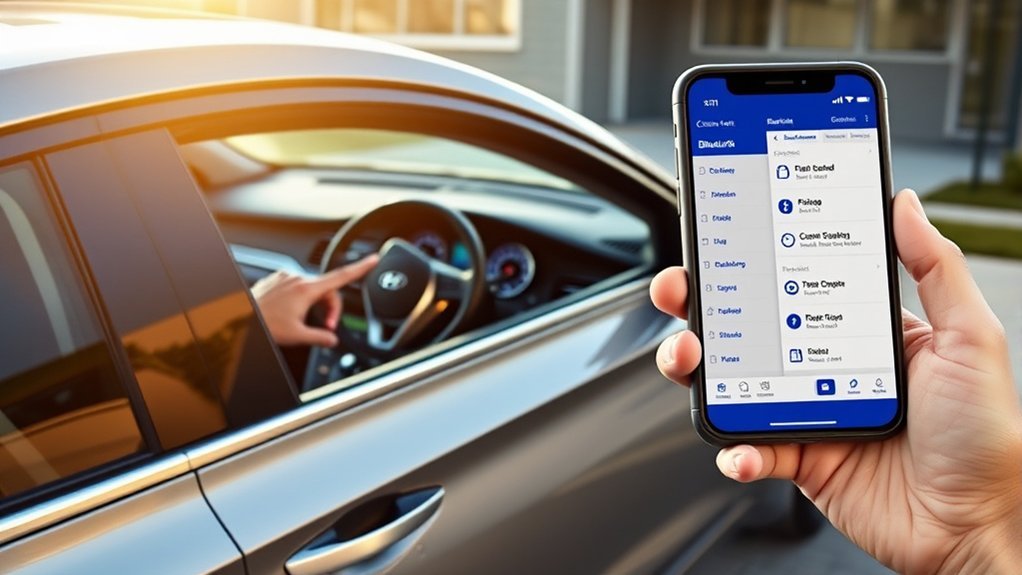
Sign in to your MyHyundai account through the owner website or MyHyundai with Bluelink app and select your Sonata. Look for your Bluelink, Bluelink+, or subscription-management information. The exact wording can change as Hyundai updates the app and website.
Do not assume that every Sonata has the same trial or payment arrangement. Your model year is important:
- 2024-and-newer Bluelink-equipped Sonata: qualifying original purchasers and lessees receive Bluelink+ without an additional recurring Bluelink+ charge. Hyundai describes newer service using Basic, which covers Connected Care functions, and Advanced, which includes Remote and Guidance functions.
- Most 2023-and-older compatible Sonatas: legacy Bluelink rules apply. Hyundai’s current U.S. help information lists Connected Care, Remote, and Guidance as legacy packages and states that each can cost $99 per year or $9.90 per month after the applicable trial period. Prices and terms can change, so confirm the amount shown in your MyHyundai account before purchasing.
- Pre-owned vehicles: eligibility and complimentary periods differ from those provided to the original owner.
If MyHyundai shows a different status than expected, confirm that the correct VIN is associated with your account. For account or subscription problems, Hyundai lists Bluelink Customer Care at 1-855-2-BLUELINK (855-225-8354).
Steps to Activate Bluelink in Your Hyundai Sonata
Once your Sonata is enrolled in MyHyundai and the appropriate connected service is associated with it, complete activation inside the vehicle. Hyundai’s current Bluelink activation guide directs owners to use the vehicle’s main multimedia screen and select Service Activation.
| Step | Action |
|---|---|
| 1 | Park safely, start the Sonata, and turn on the infotainment system. |
| 2 | Open Settings, Setup, or the equivalent menu for your model year. |
| 3 | Select Bluelink or Bluelink Settings. |
| 4 | Choose Service Activation. |
| 5 | Follow the prompts and allow the vehicle to establish its Bluelink connection. |
Menu labels can differ between Sonata generations and infotainment versions. You do not need to assume that a separate factory-navigation feature must be present just because older activation instructions referred to turning on the navigation system. Follow the Bluelink or connected-services menu actually shown on your vehicle.
Pro Tip: If activation repeatedly fails in a garage or underground parking area, move the Sonata to an open outdoor location with better cellular reception and try again.
[Products Worth Considering]
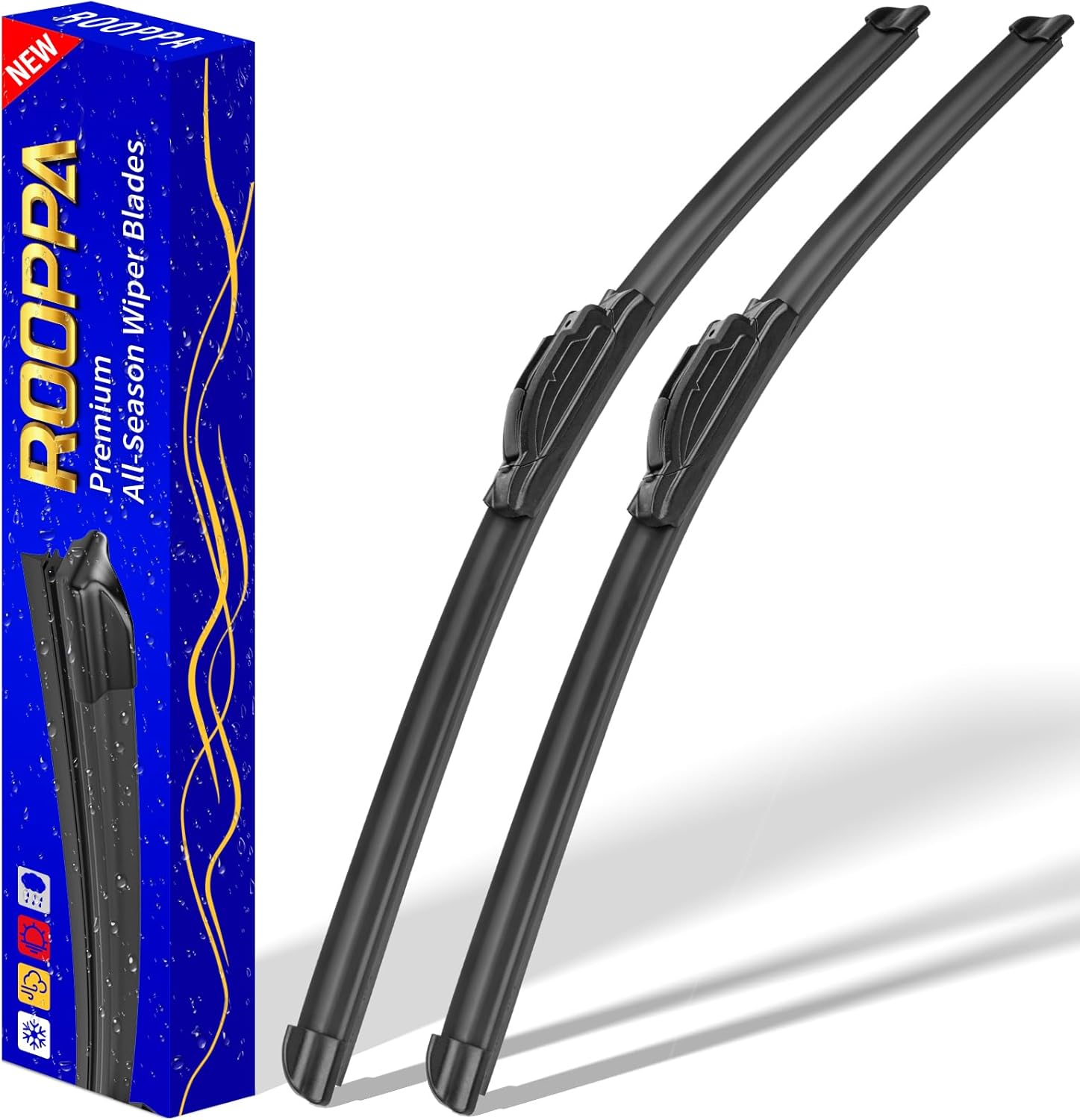
These front windshield wiper blades are designed as a direct replacement for compatible Hyundai models, helping restore clear visibility in rain and road grime. The hard-molded frame and stronger spring support smooth, reliable wiping performance, while the easy plug-and-play installation makes replacement simple. Included as a two-piece set, they are built for dependable everyday use with a one-year warranty for added confidence.

Replace worn or damaged key fob buttons with this rubber keypad insert designed for compatible Hyundai remote key cases. It restores the look and feel of your car key, offering a simple installation and a snug fit for supported Santa Fe and Sonata models. The set includes two replacement pads and a mini screwdriver for convenience.

This keyless entry remote replacement is designed for a wide range of Toyota, Scion, and Lexus-compatible vehicles, offering a convenient way to restore remote locking and unlocking functions. Each fob is pre-tested, comes with the battery and electronics already installed, and is ready to be programmed for supported standard-key vehicles. It is a practical replacement choice for drivers who need a reliable, compatible remote for everyday use.
Set Up Your Bluelink PIN After Activation
A four-digit connected-services PIN helps protect select remote functions associated with your Hyundai. Hyundai’s current ownership-enrollment process includes creation of a four-digit PIN for remote features.
When MyHyundai asks you to create or change the PIN:
- Sign in to the correct MyHyundai account.
- Open the security, Bluelink, or connected-services PIN setup presented by the site or app.
- Enter the four-digit PIN you want to use.
- Re-enter the same PIN when asked to confirm it.
- Keep the PIN private and avoid an easily guessed number such as a simple sequence or information someone else could know.
If the two entries do not match, MyHyundai will ask you to enter them again. This PIN can be required when authorizing certain remote or connected-service actions, so store it securely.
Complete MyHyundai Verification for Enhanced Security
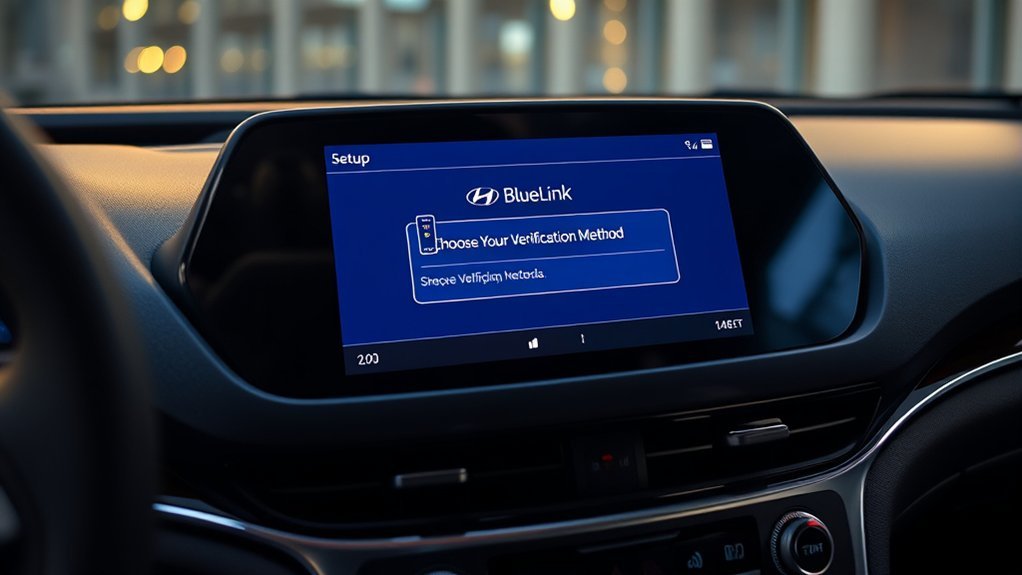
MyHyundai may ask you to verify your identity when creating an account, changing security information, accepting an invitation, resetting a password, or completing another protected account action. Follow the verification method shown on the screen and enter the code Hyundai sends you.
Hyundai account workflows can use verification codes delivered through available contact methods such as email or text, but the exact choices can depend on what you are doing and the information already stored in your account. Avoid assuming that every enrollment screen will offer the same options.
| Verification Method | What to Check |
|---|---|
| Text message, when offered | Confirm that the mobile number attached to your account is current and able to receive messages. |
| Email, when offered | Check the correct inbox and spam/junk folder if the message does not appear promptly. |
If a code does not arrive, use the resend option when available and verify that your account’s contact information is correct before requesting repeated codes.
Understand Hyundai Sonata Bluelink and Bluelink+ Features
The features available in your Sonata depend on the model year, trim, equipment, ownership status, and connected-service plan. Hyundai says Bluelink and Bluelink+ can provide functions such as remote vehicle access, vehicle-health information, safety services, destination features, and other connected functions.
[Products Worth Considering]

This filter combo is designed for Hyundai Sonata gas models from 2015 to 2019, including non-hybrid 2.4L vehicles, and replaces both the engine and cabin air filters in one convenient set. It helps improve engine airflow while also refreshing the cabin environment with activated carbon odor control and high-efficiency particle filtration for cleaner, quieter driving.
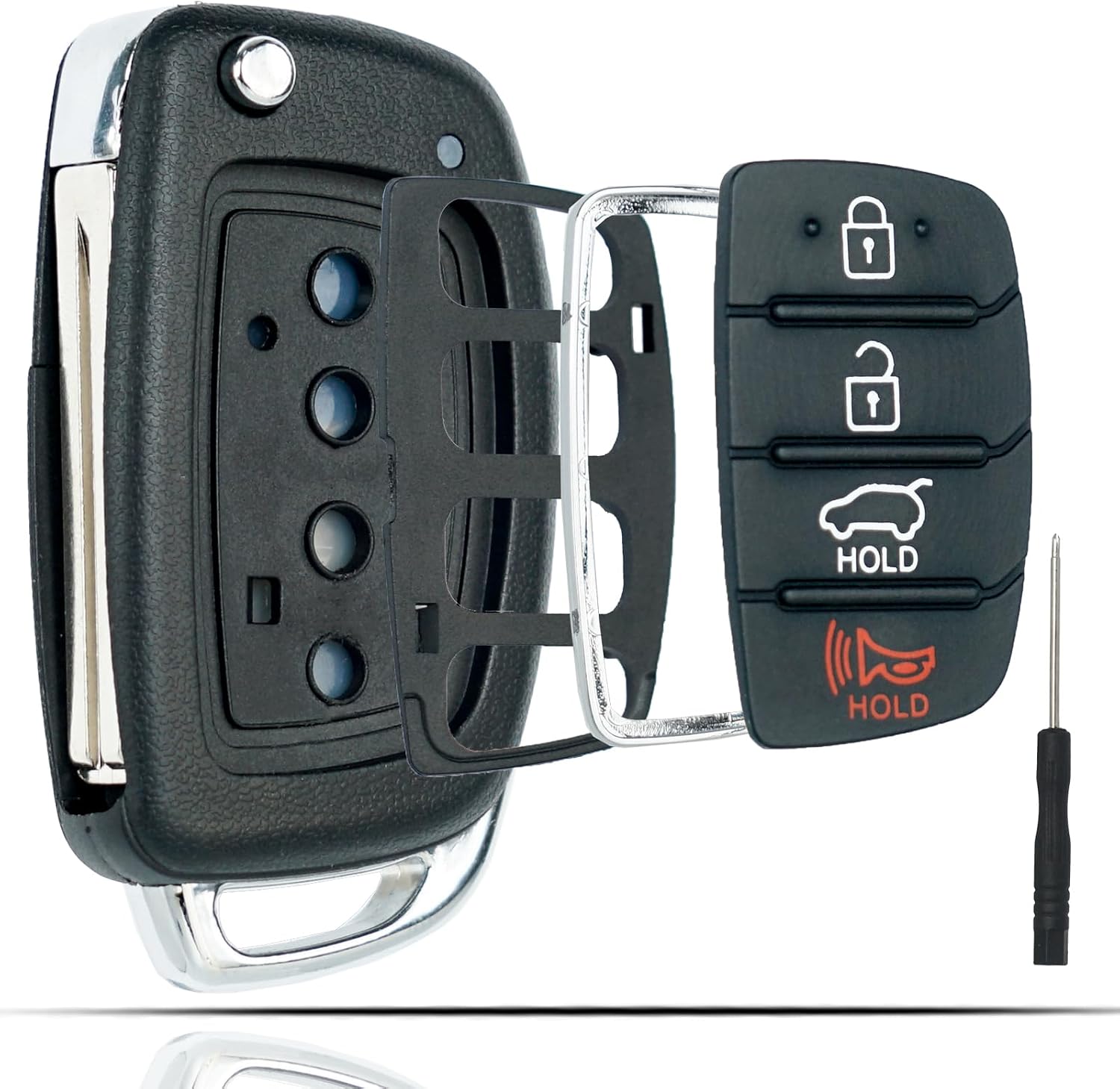
This flip key fob shell is a replacement case designed for compatible Hyundai Sonata and Santa Fe models, helping restore a worn or broken remote housing without replacing the electronics. It includes a 4-button layout and is made for easy transfer of your original internal components, with no reprogramming required. The durable metal and plastic construction makes it a practical fix for damaged key fobs, and the replacement blade must be cut by a locksmith or hardware store.

This replacement key fob set is designed for select Toyota RAV4 and XB models with regular key systems, offering lock, unlock, and panic functions in a convenient two-pack. Each remote comes pre-tested with battery and electronics installed, and it must be cut and programmed by a qualified dealer or locksmith for proper use. Built from durable materials and backed by warranty support, it provides a reliable solution when replacing worn or missing remotes.
Bluelink+ on 2024-and-Newer Sonatas
Hyundai groups newer Bluelink+ functionality into service levels commonly described as Basic and Advanced. Basic corresponds broadly to Connected Care functions, while Advanced incorporates Remote and Guidance functions.
Depending on the Sonata’s equipment, functions can include:
- Remote engine start and stop
- Remote door lock and unlock
- Remote climate functions on compatible vehicles
- Vehicle location or car-finder functions
- Vehicle-health and diagnostic information
- Safety and emergency-assistance services
- Destination search or connected navigation functions where supported
For qualifying original purchasers and lessees of new 2024-and-newer Bluelink-equipped Hyundai vehicles, Hyundai currently provides Bluelink+ without an additional recurring Bluelink+ charge. Pre-owned vehicles can have different Advanced-service trial periods and eligibility.
Legacy Bluelink on Older Sonatas
For most compatible 2023-and-older Sonatas, Hyundai continues to describe the legacy service with three packages:
- Connected Care: safety, vehicle-health, diagnostics, maintenance, and assistance functions.
- Remote: compatible remote commands such as remote start, climate control, and door lock/unlock.
- Guidance: connected destination and navigation-related features on compatible vehicles.
Hyundai’s current U.S. help center lists each legacy package at $99 per year or $9.90 per month after the applicable trial period. Because connected-service pricing can change, verify the rate shown in MyHyundai before subscribing.
Note: Older Hyundai materials may mention features such as Driving Score. Do not assume a feature shown in an older manual or article is available on every current Sonata. Hyundai states that Bluelink features vary by model and trim, so use the MyHyundai app or your vehicle’s feature list as the final check.
How to Set Up Bluelink on a Used Hyundai Sonata
If you bought a pre-owned Sonata, simply logging into the previous owner’s Bluelink profile is not the correct solution. Hyundai provides a separate ownership-update process.
According to Hyundai’s subsequent-owner enrollment instructions, the general process is:
- Gather acceptable proof of ownership and identification requested by Hyundai.
- If the prior owner is still linked to the vehicle, use the Sonata’s Bluelink settings to deactivate the previous connection and reset the system as instructed.
- Create your own MyHyundai account or sign in to your existing account.
- Use the ownership-update function and submit the required proof of ownership.
- Add or confirm the Sonata’s VIN.
- Activate Bluelink from the vehicle’s infotainment screen.
- Create your own four-digit connected-services PIN and confirm the available service package.
Complimentary service for a used Sonata is not necessarily the same as the benefit given to the original owner. Hyundai currently states that eligible newer certified pre-owned vehicles can receive a period of Bluelink+ Advanced service while Basic remains available under Hyundai’s applicable program terms.
[Products Worth Considering]
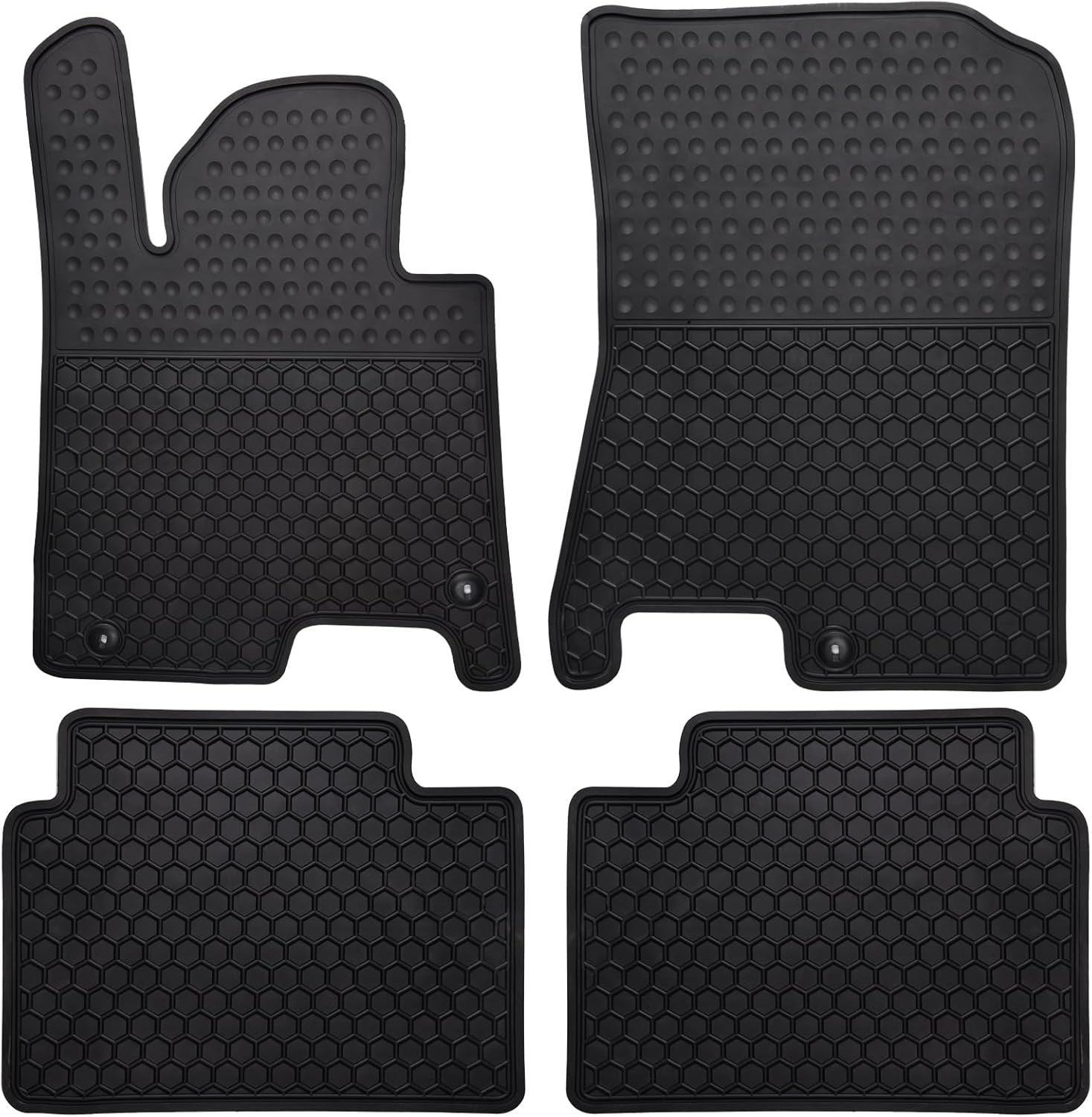
These custom-fit all-weather floor mats are designed for compatible Hyundai Sonata and Kia K5 models to help protect your vehicle's interior from mud, slush, dirt, and spills. Made from odorless, durable rubber with a deep hexagon pattern, they offer reliable anti-slip coverage and are easy to remove and clean with water or a damp towel. The set is built for long-lasting use in every season and helps keep your car looking clean while supporting resale value.

These custom-fit TPE floor mats are designed for Hyundai Sonata and Kia Optima models, delivering precise coverage with high-edge protection to help trap spills, dirt, and everyday messes. Built for all-weather durability, they offer anti-slip stability, odorless construction, and easy cleanup while helping preserve your vehicle's original carpet.

This activated carbon cabin air filter is designed as a replacement for select Hyundai Sonata gas models and Kia Cadenza vehicles, helping improve in-cabin air quality. It is engineered to capture odors, VOCs, and common pollutants for a fresher driving environment, while matching multiple OE and reference numbers for convenient fitment confirmation.
What to Do if Hyundai Sonata Bluelink Is Not Activating
If Service Activation fails, work through these checks before assuming the hardware is defective:
- Confirm the VIN. Make sure the Sonata shown in MyHyundai is the same vehicle you are trying to activate.
- Confirm enrollment. Activation inside the vehicle does not replace creating or updating the MyHyundai account first.
- Check ownership status. A used Sonata may still be associated with a previous owner.
- Move into better cellular coverage. Avoid underground garages, enclosed structures, or other locations where the vehicle’s embedded cellular connection may be weak.
- Restart the vehicle and infotainment system. Then return to the Bluelink Settings or connected-services menu.
- Retry Service Activation. Menu wording varies, but current Hyundai instructions use the Bluelink Settings area.
- Allow time after a full disconnection. Hyundai says a vehicle being reconnected after complete Bluelink deactivation can require a few hours, and rare cellular-coverage cases can take up to 72 hours.
- Contact Hyundai if activation still fails. Bluelink Customer Care is available at 855-225-8354.
A failed activation does not always mean something is wrong with the Sonata. Hyundai notes that a fully disconnected vehicle may need time to re-establish its cellular connection before activation can be completed.
Frequently Asked Questions
Can I use Bluelink without a subscription?
Connected Bluelink functions require an eligible vehicle and an active Bluelink account/service. However, “active service” does not always mean you are paying a monthly fee. Qualifying original owners of new 2024-and-newer Bluelink-equipped Hyundais receive Bluelink+ without an additional recurring Bluelink+ charge. If your Sonata has a separate remote-start button on its key fob, that key-fob function may also operate independently of Bluelink.
What should I do if my Bluelink isn’t activating?
Confirm that the correct VIN is enrolled in MyHyundai, make sure ownership has been updated if the car is used, move the Sonata into an area with good cellular coverage, and retry Service Activation from the vehicle. If the vehicle was fully disconnected, Hyundai says reconnection can take several hours and, in rare coverage-related cases, up to 72 hours. Call 855-225-8354 if the problem continues.
How do I update my Bluelink account information?
Sign in to MyHyundai through the owner website or MyHyundai with Bluelink app and open your account, profile, vehicle, or subscription settings. The exact menu names can change. Ownership changes for a used vehicle may require Hyundai’s separate Update Vehicle Ownership process and supporting documents.
Is there a mobile app for managing Bluelink?
Yes. Hyundai uses the MyHyundai with Bluelink app for compatible connected functions. Depending on your Sonata and service level, the app can provide features such as remote start, door locking and unlocking, vehicle status, location functions, and vehicle-health information.
Can I transfer my Bluelink subscription to a new vehicle?
Do not assume that an existing Bluelink plan automatically moves to another Hyundai. Connected-service eligibility depends on the new vehicle’s model year and equipment. Add the new vehicle’s VIN to MyHyundai and enroll it for the service it qualifies for. If you have a paid service on the old vehicle or are selling it, contact Hyundai Bluelink Customer Care for the correct cancellation or transfer procedure.
Is Bluelink+ free on a newer Hyundai Sonata?
For qualifying original purchasers and lessees of new 2024-and-newer Bluelink-equipped Hyundai vehicles, Hyundai currently provides Bluelink+ without an additional recurring Bluelink+ charge. Used and certified pre-owned vehicles can have different Advanced-service trial terms, so check the specific vehicle in MyHyundai.
Why don’t I see the same Bluelink menus shown in another Sonata?
Hyundai has used different infotainment systems, software versions, and Bluelink generations across Sonata model years. A 2022 Sonata may not show exactly the same menu names as a 2025 or 2026 Sonata. Look for Settings, Setup, Bluelink, Bluelink Settings, Connected Services, or Service Activation and follow the prompts available on your vehicle.
Conclusion
Setting up Bluelink on a Hyundai Sonata is straightforward once you account for the vehicle’s model year. Start by adding the correct VIN to MyHyundai, confirm whether your Sonata uses legacy Bluelink or newer Bluelink+, and then complete Service Activation from the vehicle while safely parked. Create your four-digit PIN, verify your account when prompted, and use the MyHyundai app to manage the features available on your specific vehicle.
If activation does not work immediately, check ownership status, cellular coverage, and account enrollment before assuming the vehicle has a hardware problem. A previously disconnected Bluelink unit can require additional time to reconnect, and Hyundai Customer Care can verify the account and vehicle status when normal troubleshooting does not resolve the issue.
Sources
- Hyundai Bluelink+ — current eligibility, registration, Bluelink versus Bluelink+, features, and ownership terms.
- Hyundai: How to Activate Your Bluelink Services — official in-vehicle Service Activation procedure.
- Hyundai: In-Vehicle Re-Activation of Bluelink Services — cellular reconnection and possible activation-delay guidance.
- Hyundai: Bluelink Enrollment for Subsequent Owners — used-vehicle ownership verification, previous-owner removal, activation, and PIN setup.
- Hyundai USA Help Center — Bluelink compatibility, legacy package information, pricing, and support details.
- Hyundai Sonata — current Sonata equipment and Bluelink+ availability.