Pairing a phone with a Toyota Land Cruiser is straightforward once you use the correct steps for its multimedia system. On current U.S.-spec 2024–2026 Land Cruisers, Bluetooth pairing does not require a cable, and compatible phones can also use wireless Android Auto. Older Land Cruisers may use different menus and connectivity features, so check your model-year manual if your screen does not match the steps below.
Quick Answer
On a current Toyota Land Cruiser, park the vehicle, enable Bluetooth on your phone, then open Settings > Bluetooth & Devices on the touchscreen. Choose Search for devices or Add another device, select your phone, and confirm that the pairing code matches on both screens.
Key Takeaways
- Bluetooth pairing itself does not require a USB cable.
- Current U.S. 2024–2026 Land Cruisers support wireless Android Auto; USB-C can also be used for a wired connection.
- Toyota’s latest-generation Audio Multimedia platform can store up to five Bluetooth devices and connect up to two devices at the same time.
- Use primary/secondary device settings and the phone/media toggles to control which connected phone is used.
- Do the initial pairing and Android Auto setup while safely parked, not while driving.
At a Glance
| Time Required | About 3–5 minutes |
| Difficulty | Easy |
| Tools Needed | Bluetooth-enabled smartphone; optional USB-C data cable for wired Android Auto |
| Cost | No cost |
Warning: Complete Bluetooth and Android Auto setup while the Land Cruiser is safely parked. Toyota restricts some multimedia settings while the vehicle is moving, and phone setup should never take your attention away from driving.
How to Pair Bluetooth in Your Toyota Land Cruiser
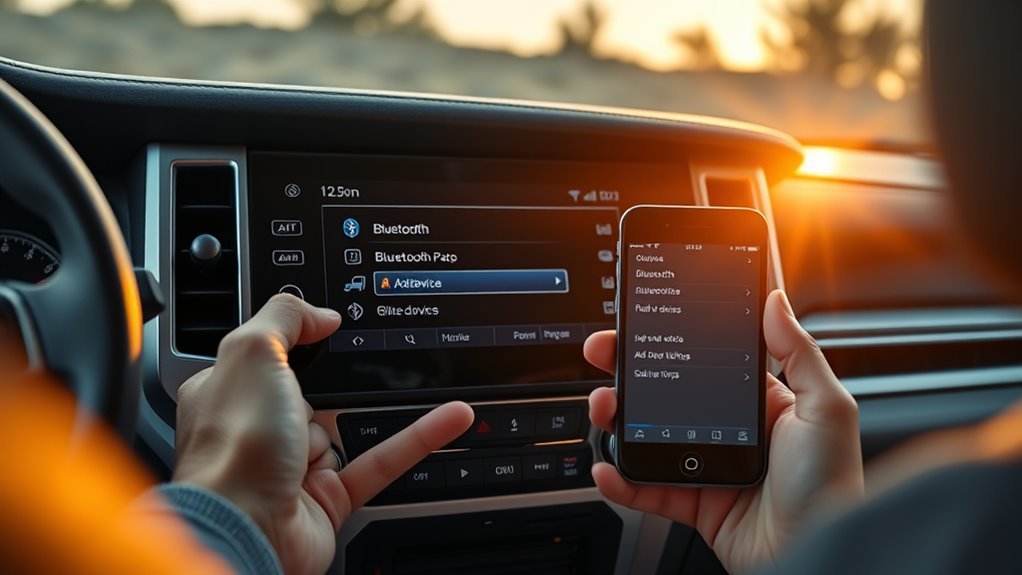
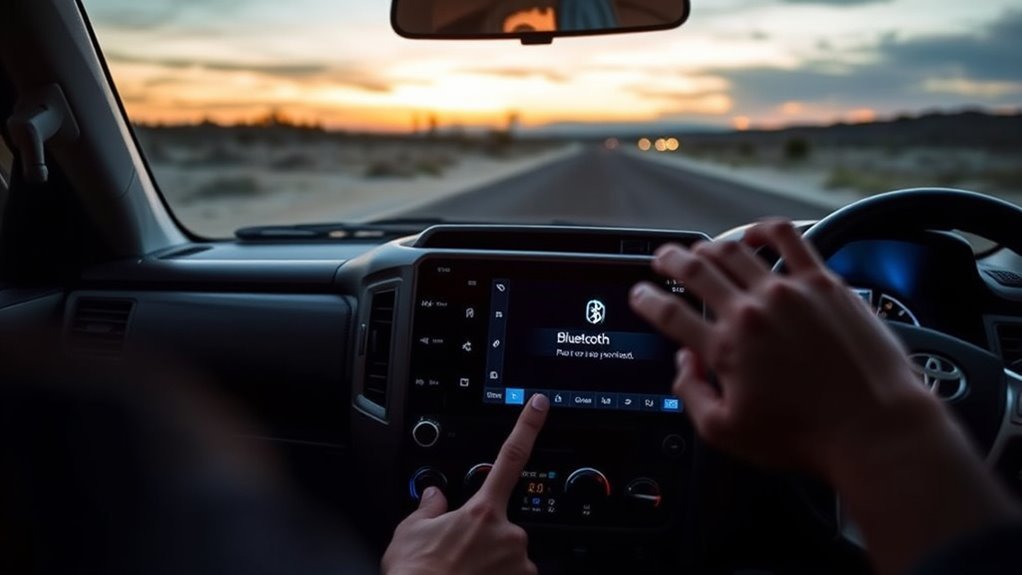
For current Land Cruisers with Toyota Audio Multimedia, the pairing process starts from the vehicle’s Bluetooth & Devices settings. Toyota’s official Bluetooth pairing guide uses the following basic sequence:
- Park the Land Cruiser and leave the multimedia system on.
- Turn on Bluetooth on your smartphone and keep the phone unlocked.
- On the Land Cruiser touchscreen, open Settings.
- Select Bluetooth & Devices.
- If no phone is paired, choose Search for devices. If another device is already stored, choose Add another device and then search.
- Select your smartphone from the list shown on the vehicle display.
- A verification code will appear on the Land Cruiser display and your phone. Confirm that the numbers match before accepting the pairing request.
- Approve any phone prompts for contacts, messages, calls, media, or Android Auto that you want to use.
After pairing succeeds, the phone can be used for hands-free calls and Bluetooth audio. Depending on your settings, the system may also ask whether you want to enable Android Auto or make the phone a primary device.
Pro Tip: If your phone does not appear in the vehicle’s search results, leave the phone’s Bluetooth settings page open while the Land Cruiser searches. You can also turn Bluetooth off and back on before trying again.
Prepare Before Pairing: Phone, Cable, and Park
You do not need a cable to pair a phone over Bluetooth. Before starting, make sure your phone has Bluetooth enabled, the Land Cruiser is parked, and the multimedia screen is operating normally. A USB-C cable is only needed if you specifically want to use a wired Android Auto connection on a current model.
Get Your Phone Settings Ready
Unlock the phone and turn on Bluetooth. For wireless Android Auto, also leave Wi-Fi enabled because wireless projection uses more than Bluetooth alone. Google’s current Android Auto setup instructions recommend keeping Bluetooth, Wi-Fi, and Location Services enabled during wireless setup.
You do not normally need to leave a modern Android phone permanently “visible.” Keeping its Bluetooth settings screen open while pairing is usually enough to make the process easier.
Use a Quality USB-C Cable When Needed
A USB cable is not required for Bluetooth pairing. However, current Land Cruisers also support Android Auto through a USB connection. Toyota’s current Land Cruiser multimedia system uses a USB Type-C media connection, so use a compatible USB-C data cable rather than assuming the vehicle has a USB-A media port.
If wired Android Auto disconnects or only charges the phone, test another short, high-quality data cable. Google notes that not every USB cable reliably carries Android Auto data and recommends avoiding hubs or extensions. A cable supplied by the phone manufacturer or a properly certified data cable is a good choice.
Note: Land Cruiser multimedia equipment varies by model year and market. This guide focuses on current U.S.-spec 2024–2026 models. If you own an older Land Cruiser, use Toyota’s manual for your exact year before assuming that wireless Android Auto or the same USB port type is available.
Park Safely Before Pairing
Put the Land Cruiser in Park before beginning. Applying the parking brake is also a sensible safety precaution, especially if you are parked on a slope. There is no need to disable start-stop features or change unrelated vehicle settings simply to pair a phone.
The important point is that the vehicle remains stationary while you work through the touchscreen prompts. Toyota and Google both advise completing initial phone setup while parked.
Pair via the Touchscreen: Add Device and Confirm the Code
On Toyota Audio Multimedia, open Settings > Bluetooth & Devices. If this is the first phone, select Search for devices. If another phone has already been registered, select Add another device and continue the search.
Choose your phone from the vehicle’s device list. The Land Cruiser and phone should then show the same verification code. Compare the numbers before approving the request on both devices. This verification helps make sure you are connecting to the intended phone rather than another nearby Bluetooth device.
After registration, approve the permissions you want to use, such as:
- Hands-free phone calls
- Bluetooth media audio
- Contact synchronization
- Message access
- Android Auto, if supported and desired
If you deny a permission accidentally, you can usually change it later from the phone’s Bluetooth settings or the Land Cruiser’s Bluetooth & Devices menu.
[Products Worth Considering]

This wireless CarPlay adapter upgrades compatible factory wired CarPlay or Android Auto systems with wireless connectivity and built-in entertainment apps. Enjoy navigation, calls, music, and hands-free control through Apple CarPlay, plus streaming from popular video platforms when connected to a hotspot. It also supports USB media playback and an HD media port for rear-seat entertainment on road trips and daily drives.

These custom floor mats are designed to fit the Toyota Land Cruiser GX550 with a 5-seat layout for a precise, secure install. Made from durable TPE, they help shield your interior from spills, mud, snow, dirt, sand, pet hair, and everyday debris while making cleanup quick and easy.

Custom-fit floor mats and cargo liner designed to provide edge-to-edge protection for the Toyota Land Cruiser Prado. Made from durable TPE material, they offer all-weather defense against rain, slush, snow, mud, and everyday dirt while remaining easy to install, clean, and maintain. The odorless, non-slip design helps keep your interior safer, cleaner, and more comfortable in every season.
How to Pair Two Phones and Set Call/Media Priority
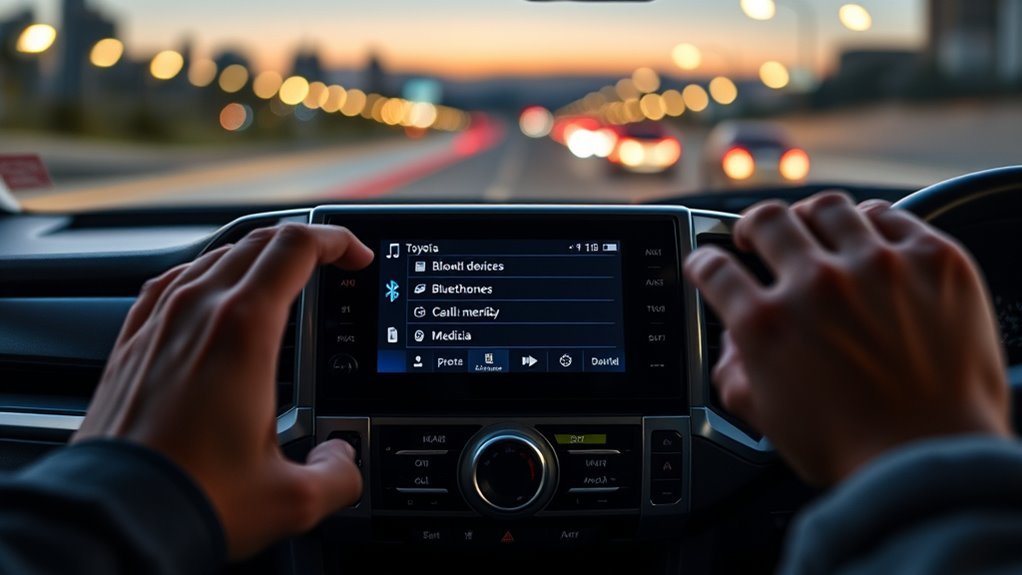
Toyota’s latest-generation Audio Multimedia system can store up to five Bluetooth devices and allows two devices to be connected at the same time. You do not need to delete the first phone just to add a second one.
Toyota’s latest-generation Audio Multimedia platform can store up to five Bluetooth devices and connect two devices at the same time.
Pairing Two Phones
Pair the first phone normally. To add another, return to Settings > Bluetooth & Devices, choose Add another device, search for the second phone, select it, and confirm the matching code.
If the system asks to disconnect a currently connected device temporarily while registration is performed, follow the on-screen prompt. The saved device is not necessarily being deleted.
Once both phones are registered, the Land Cruiser can reconnect supported devices automatically. The actual functions available at the same time can depend on which phone is primary, which is secondary, and which phone/media options are enabled.
Selecting Call Priority
Current Toyota Audio Multimedia uses a primary device and, when configured, a secondary device rather than relying only on a simple universal “call priority” switch.
A primary device is given first priority during automatic connection. Toyota’s system may ask you to make a newly paired device primary during setup. You can also manage linked devices through the driver-profile and Bluetooth settings.
If you use two phones regularly, set the phone you normally carry as the primary device. The second phone can remain available as the secondary device when supported by the active driver profile.
Choosing the Media Source
Within Bluetooth & Devices, select a saved phone to review how the system uses it. Toyota Audio Multimedia provides device-level settings for functions such as Use for phone and Use for media. Android Auto can also have its own enable/disable setting.
This means one connected phone can be preferred for calls while you choose another source for music when the system configuration allows it. If audio comes from the wrong phone, check the device’s media setting and then confirm the selected source in the Land Cruiser’s audio screen.
Set Up Android Auto: Wireless or USB-C
Current U.S.-spec Land Cruisers support wireless Android Auto. Toyota’s 2026 Audio Multimedia feature chart lists wireless Android Auto on both the Land Cruiser 1958’s 8-inch system and the Land Cruiser grade’s 12.3-inch system.
[Products Worth Considering]

This compact adapter upgrades compatible factory wired CarPlay or Android Auto systems to wireless convenience for both iPhone and Android users. It uses WiFi 6 and Bluetooth 5.4 for fast, stable connections with quick auto-connect startup and reliable voice, navigation, and music performance. Its mini plug-in design helps keep the dashboard tidy while supporting easy setup and broad vehicle compatibility.

The LIHAN Bluetooth 5.3 FM transmitter lets you stream music, podcasts, navigation, and hands-free calls through your car's FM radio without needing an AUX port. It features dual USB charging ports, a voltage display, and support for Bluetooth, USB drive, and TF card playback, making it a versatile upgrade for older vehicles. With CVC noise cancellation, auto reconnect, and broad compatibility for cars, SUVs, and trucks, it delivers convenient wireless audio and charging on every drive.

Teeran’s 2-in-1 wireless adapter turns compatible factory wired CarPlay or Android Auto systems into a cable-free experience for both iPhone and Android users. It offers fast setup, automatic reconnection, and full support for your vehicle’s original controls so navigation, music, calls, and voice assistants work seamlessly. Its compact flush-fit design helps reduce clutter, while built-in protection and broad compatibility make it a practical everyday upgrade.
Set Up Wireless Android Auto
- Park the Land Cruiser and turn on the multimedia system.
- Turn on Bluetooth and Wi-Fi on the Android phone.
- Open Settings > Bluetooth & Devices in the Land Cruiser.
- Add or select the smartphone and confirm the Bluetooth pairing code.
- When the system asks whether to enable Android Auto, choose Yes.
- Approve Android Auto permissions on the phone.
- Wait for the Android Auto interface to appear on the Land Cruiser display.
After the first successful setup, Android Auto should normally reconnect automatically when the phone and vehicle meet the required conditions.
Use Android Auto With USB-C
If you prefer a wired connection, connect the compatible phone to the Land Cruiser’s USB Type-C media port with a data-capable cable. Follow any Android Auto prompts on the phone and vehicle display.
Wired operation can be useful if wireless Android Auto is unstable, if you want to charge the phone while driving, or if you are diagnosing whether a wireless-only connection problem is involved.
Troubleshoot Common Bluetooth Connection Issues
If the Land Cruiser will not find, pair, or reconnect to your phone, work through the simplest fixes first rather than changing several settings at once.
- Confirm Bluetooth is on. Open the phone’s Bluetooth settings and make sure it is not already locked into an unwanted connection with another vehicle or accessory.
- Keep the phone unlocked during initial pairing. Some phones will not complete permission prompts while locked.
- Restart the phone. This can clear a temporary Bluetooth or Android Auto process problem.
- Restart the multimedia system. If the display is behaving abnormally, restart it using the procedure described in the Land Cruiser multimedia manual.
- Forget and re-pair the device. Remove the Land Cruiser from the phone’s saved Bluetooth devices and forget the phone from the vehicle, then pair again from the beginning.
- Check phone/media toggles. A phone may be paired but have its phone, media, or Android Auto function disabled in the vehicle settings.
- For wireless Android Auto, verify Wi-Fi is enabled. Bluetooth pairing alone does not provide the entire wireless Android Auto connection.
- For wired Android Auto, test another USB-C data cable. A charging-only or damaged cable can prevent Android Auto from launching.
- Check software updates. Update the phone and check whether Toyota has an applicable multimedia software update.
Pro Tip: Test the connection after each troubleshooting step. If you change Bluetooth permissions, delete devices, replace the cable, restart the system, and update software all at once, you will not know which change actually solved the problem.
[Products Worth Considering]

This 2-in-1 wireless adapter converts factory wired CarPlay into a convenient wireless connection for compatible vehicles, making every drive simpler and more flexible. It supports quick auto-connect, easy phone switching, and stable audio and navigation performance for iPhone and Android Auto users. Designed for plug-and-play use, it helps reduce cable clutter while keeping calls, maps, and music running smoothly.

This 2-in-1 wireless adapter converts factory-wired CarPlay into a cable-free experience for compatible vehicles, helping you enjoy seamless phone integration with less clutter. It supports automatic reconnection, stable Bluetooth and Wi-Fi pairing, and broad compatibility with many factory-installed CarPlay systems. Built with a durable metal and acrylic design, it also includes firmware updates and lifetime technical support for continued convenience.

This USB C to USB A carplay cable is designed to keep compatible iPhone and iPad devices connected and charged while driving. It supports fast charging and data sync for reliable everyday use on road trips and commutes, with broad compatibility across newer iPhone and iPad models. The included cable offers a simple plug-and-play solution for CarPlay and in-car charging needs.
Tweak Bluetooth and Audio Settings for Best Performance
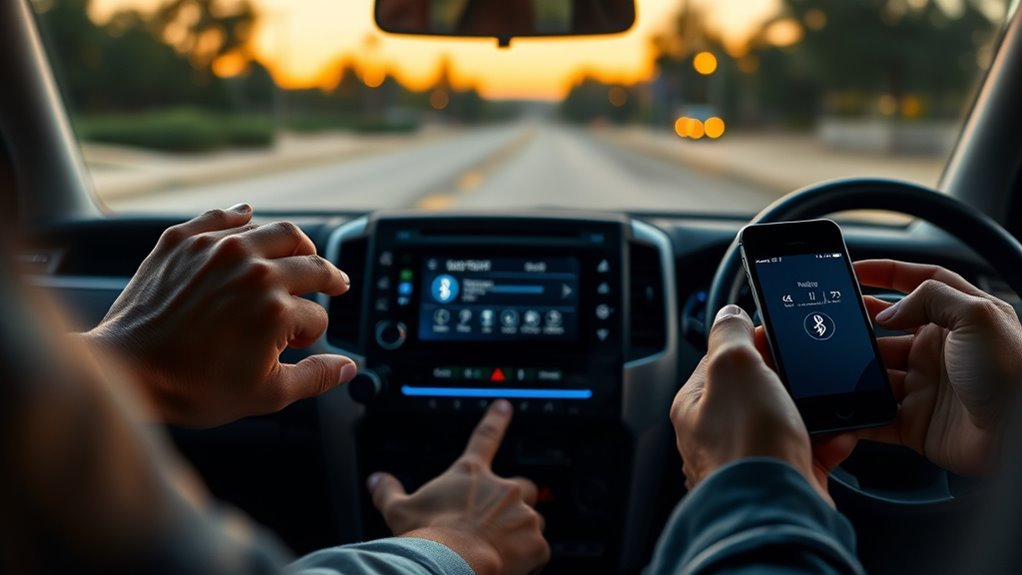
Once the phone is paired reliably, review its connection options under Settings > Bluetooth & Devices. Select the phone and make sure the functions you actually use are enabled.
Common options include:
- Use for phone for hands-free calling.
- Use for media for Bluetooth music and other audio.
- Use for Android Auto when you want Android Auto available from that device.
- Primary or secondary device settings for automatic connection priority.
For music quality, use the Land Cruiser’s sound settings to adjust balance, fade, bass, treble, or other available audio controls. Those settings affect sound reproduction but do not normally fix a failed Bluetooth pairing.
If Bluetooth music skips, first confirm that the phone is close to the front cabin, is not buried under metal objects, and is not aggressively restricting Bluetooth activity through a battery-saving mode. Then test the connection again.
When to Contact a Dealer or Toyota Support
Most connection problems can be solved by restarting, forgetting and re-pairing the device, checking permissions, or correcting Android Auto settings. A dealer or Toyota Support becomes more appropriate when the problem persists across multiple compatible phones or the multimedia system itself shows repeated errors.
Before requesting service:
- Test another compatible phone if possible.
- Record the exact error message shown on the vehicle or phone.
- Note whether Bluetooth calls, Bluetooth audio, wireless Android Auto, and USB-C Android Auto fail separately or all together.
- Confirm the phone operating system is current.
- Check Toyota’s multimedia software update portal for applicable update information.
If several phones cannot connect after the system has been restarted and re-paired, contact Toyota or an authorized Toyota dealer for diagnosis. Let the technician determine whether the cause is software, configuration, or hardware rather than assuming that a head-unit replacement or firmware reflash is automatically required.
Frequently Asked Questions
How do I put my Toyota Land Cruiser into Bluetooth pairing mode?
On a current Land Cruiser, park the vehicle and open Settings > Bluetooth & Devices. Select Search for devices, or choose Add another device if a phone is already stored. Select your phone and confirm the matching pairing code.
Do I need a USB cable to pair Bluetooth in a Land Cruiser?
No. Bluetooth pairing is wireless and does not require a USB cable. A USB-C data cable is only needed if you choose to use wired Android Auto or another supported USB media function on a current Land Cruiser.
Does the Toyota Land Cruiser have wireless Android Auto?
Current U.S.-spec 2024–2026 Land Cruisers support wireless Android Auto. Availability on older Land Cruisers varies by model year, market, and multimedia system, so check the manual for your exact vehicle.
How many phones can be paired with Toyota Audio Multimedia?
Toyota’s latest-generation Audio Multimedia platform can store up to five Bluetooth devices and allows up to two devices to be connected at the same time. Primary and secondary device settings help control automatic connection behavior.
Why is my Land Cruiser paired but not playing music?
Open Bluetooth & Devices, select the phone, and confirm that its media function is enabled. Then check that Bluetooth audio or the desired phone is selected as the current audio source. If Android Auto is active, media may instead be routed through Android Auto.
What should I do if my Land Cruiser keeps failing to pair?
Restart the phone and multimedia system, delete the saved pairing from both devices, turn Bluetooth off and back on, and pair again. If several compatible phones fail in the same way, check for multimedia software updates and contact Toyota or a dealer if the problem continues.
Conclusion
A successful Land Cruiser Bluetooth setup should leave your phone listed as connected and able to handle the functions you enabled, such as calls and media. On current U.S. Land Cruisers, you can also use wireless Android Auto without connecting a USB cable.
If the connection fails, start with the basics: restart the phone and multimedia system, forget the old pairing, pair again, verify phone/media permissions, and make sure Wi-Fi is enabled when using wireless Android Auto. For wired Android Auto, test a reliable USB-C data cable. Persistent failures across multiple phones are a better reason to involve Toyota or a dealer than a single failed pairing attempt.
Sources
- Toyota — Bluetooth Pairing on Toyota Audio Multimedia — official pairing sequence, stored-device capacity, simultaneous connections, and device management.
- Toyota — 2026 Land Cruiser Audio & Multimedia Manual — current Land Cruiser Bluetooth, Android Auto, USB, and multimedia guidance.
- Toyota — 2026 Audio Multimedia & Connected Services Feature Applicability — wireless Android Auto availability on current Land Cruiser grades.
- Google — Set Up Android Auto — Android Auto wireless and USB setup requirements.
- Toyota — Multimedia System Updates — official resource for checking available Toyota multimedia software updates.