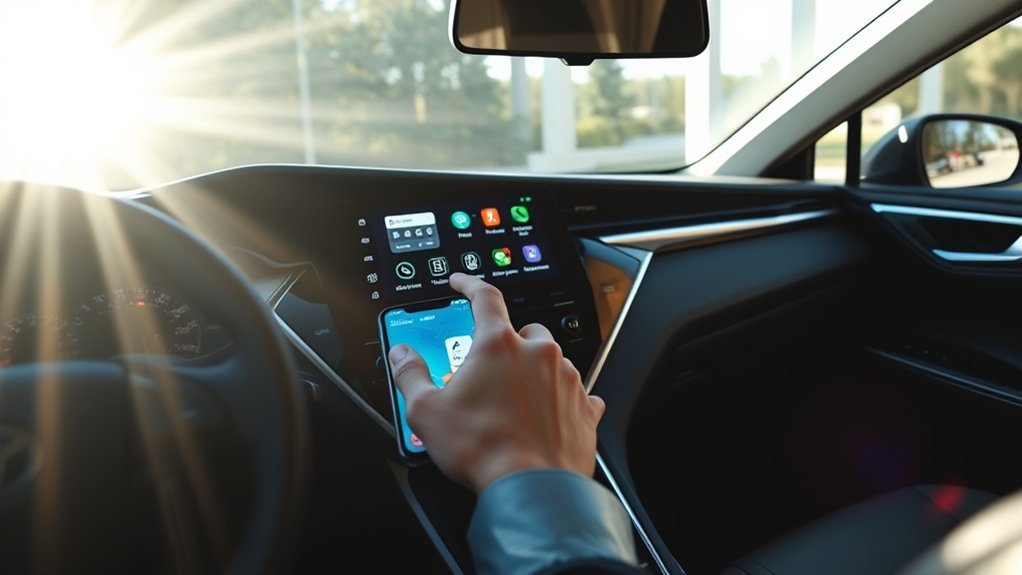
To set up Android Auto in your Toyota Camry, first confirm your audio system is updated and your phone runs Android 5.0 or newer with the Android Auto app installed. Activate Bluetooth on your phone and toggle “Use for Android Auto” in the Camry settings. Connect your phone to the USB port using a compatible data cable; keep the device accessible. For wireless use, check that Bluetooth settings are enabled. Continue on to explore more features and troubleshooting tips.
Get Your Camry Ready for Connection
To get your Toyota Camry ready for Android Auto, start by verifying your audio multimedia system is up to date. Check for updates through your vehicle’s settings; this will enhance compatibility with Android Auto features. Next, activate Bluetooth on your Android phone and keep it within range of your Camry for a smooth connection.
Navigate to your Camry’s settings to toggle on the “Use for Android Auto” option. This step is essential for seamless integration. If you prefer a wired connection, grab a compatible USB cable, plug your phone into the Camry’s USB port, and follow the on-screen prompts to establish the link. For a wireless setup, confirm your phone’s Bluetooth settings are enabled, then follow the prompts during the initial pairing. With these steps, you’ll liberate your driving experience, making it easier to access your favorite apps and features on the go.
Verify Android Auto Compatibility
Verifying Android Auto compatibility is essential for a successful setup in your Toyota Camry. First, check the multimedia system in your vehicle to confirm it supports Android Auto. You can find this information on the Toyota website or in your vehicle’s manual, which lists compatible models and year ranges.
Next, confirm your phone is up to the task. It should be running Android 5.0 (Lollipop) or newer. Don’t forget to check that the Android Auto app is installed; you might need to download it from the Google Play Store if it’s not already on your device.
Finally, inspect your Camry’s USB port. A wired connection is typically necessary for the initial setup, so verify the port functions correctly and supports data transfer. By taking these steps, you’ll pave the way for a seamless Android Auto experience.
Connect Your Android Phone via USB
Plugging in your Android phone to your Toyota Camry is the first step to accessing Android Auto. Use a compatible USB cable, ensuring it’s capable of data transfer, not just charging. Once you’ve connected your phone to the USB port, make sure your device is open. If you haven’t already, install and update the Android Auto app to the latest version from the Google Play Store.
Upon connection, you might see prompts on your phone—accept these to grant Android Auto access to your phone’s features. The system will automatically launch Android Auto, giving you easy access to apps like Maps, Music, and Messages. If prompted, head to your phone settings and toggle on “Use for Android Auto” to streamline future connections. This simple setup liberates you, turning your drive into an integrated experience!
Use Wireless Android Auto
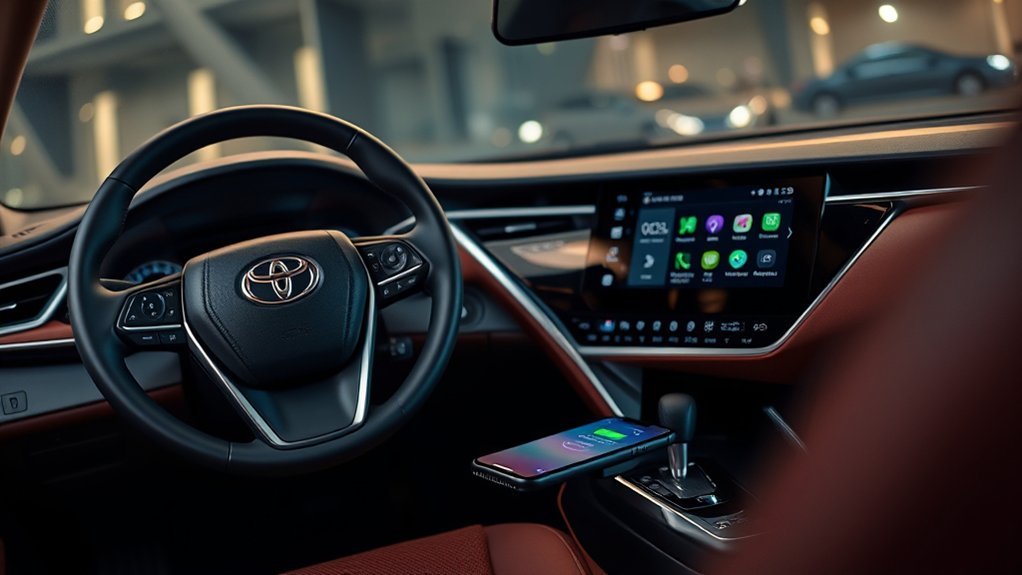
Once paired, your Android phone will automatically launch Android Auto, granting you seamless access to your favorite apps and services. To maximize performance, make sure your Camry’s multimedia system is updated to the latest generation. During the connection process, keep your phone close to the infotainment system to maintain a strong wireless signal. This way, you’ll enjoy a smooth, liberated driving experience without the hassle of cables. Embrace the freedom of Wireless Android Auto and elevate your commute!
Navigate the Android Auto Interface
Once you’re connected to Android Auto in your Toyota Camry, you’ll see a streamlined home screen featuring key apps for navigation, music, and messaging. Guiding between these tools is simple, allowing you to access your favorites with just a tap. Plus, with voice commands, you can manage your drive safely and efficiently, transforming your in-car experience.
Main Dashboard Features
Maneuvering the Android Auto interface in your Toyota Camry is straightforward, thanks to its user-friendly design. You can easily switch from the default multimedia interface to Android Auto by tapping its icon on the dashboard. The layout offers dashboard customization options, allowing you to prioritize navigation, music, and messaging apps according to your preferences. Notifications are displayed prominently, giving you quick access to important updates while you drive. The navigation screen enhances your experience with real-time traffic updates and route suggestions, ensuring you stay informed. Plus, user interface enhancements enable you to use voice commands, promoting hands-free operation for safer driving. Enjoy the liberation of seamless connectivity and convenience on the road!
Accessing Apps Easily
To make the most of your Android Auto experience in the Toyota Camry, accessing your favorite apps is both simple and efficient. Once you connect your Android phone, Android Auto launches automatically, presenting a user-friendly layout tailored for driving. You can easily access essential apps like Maps, Music, and Messages directly from the display. With app customization, you can arrange frequently used apps on your home screen for quick access. Plus, voice commands streamline navigation; just speak your destination, and you’re set—keeping your focus on the road. The notification center allows you to view messages and alerts without disrupting your journey, ensuring a seamless and liberated driving experience.
Navigational Tools Overview
How can you make the most of the navigational tools in Android Auto while driving your Toyota Camry? The interface offers seamless access to navigation apps like Google Maps and Waze, providing real-time traffic updates and turn-by-turn directions. You can easily switch to the navigation screen by tapping the dedicated icon.
Utilizing voice commands allows you to set routes or search for destinations hands-free, enhancing your driving experience. Key information, such as estimated arrival times and alternate routes, displays prominently on your Camry’s screen.
| Feature | Description |
|---|---|
| Voice Commands | Hands-free control for navigation |
| Traffic Updates | Real-time info on road conditions |
| Notifications | Calls and messages alongside prompts |
Stay informed and focused on the road!
Troubleshooting Connection Issues
Connection issues can be frustrating, but troubleshooting them in your Toyota Camry is often straightforward. First, verify your Android phone is compatible with Android Auto; older devices may not support the feature. Check the “Use for Android Auto” setting in your phone’s Bluetooth & Devices menu to confirm it’s enabled.
If you encounter common errors, try restarting both your phone and the Camry’s multimedia system. For wired connections, always use a high-quality USB cable, making sure it’s securely plugged into both your phone and the vehicle’s USB port. If you’re attempting a wireless connection, make sure both devices are within range and that Bluetooth is activated on your phone for proper pairing.
Incorporating these connection tips can save you time and enhance your driving experience, allowing you to enjoy Android Auto seamlessly. Remember, a little troubleshooting goes a long way!
Frequently Asked Questions
How Do I Connect My Android Auto to My Toyota Camry?
To connect Android Auto to your Toyota Camry, enable Bluetooth and Wi-Fi, then pair your devices. If you face troubleshooting issues, make sure your phone’s settings allow wireless connections or try a wired USB connection.
How Do I Activate Android Auto on My Car?
To activate Android Auto, connect your phone via USB for screen mirroring, or enable Bluetooth settings for wireless use. Use voice commands to access apps, ensuring app compatibility for a seamless driving experience.
Conclusion
Setting up Android Auto in your Toyota Camry enhances your driving experience by integrating your smartphone seamlessly. Did you know that over 80% of drivers find smartphone connectivity improves their vehicle’s usability? With just a few simple steps, you can access navigation, music, and calls hands-free. If you encounter any issues, don’t hesitate to troubleshoot; a smooth connection makes every journey more enjoyable. Now, hit the road and enjoy the convenience of Android Auto!