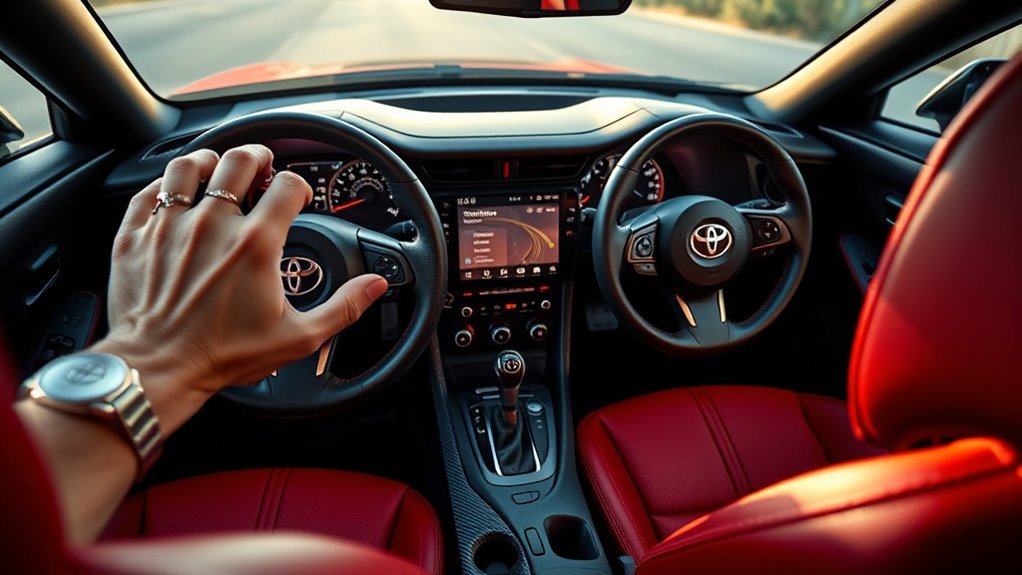
You’ll activate Dynamic Radar Cruise Control (DRCC) using the Driving Assist mode switch, accelerate above 20 mph, then press the switch again to set the speed; use the plus/resume and minus buttons to tweak speed by 1 mph per tap or hold for larger changes. Cycle the distance button to choose near, medium, or far following gaps, and cancel with brake or cancel switch—resume restores the saved speed above 20 mph. Continue for troubleshooting, model differences, and detailed settings.
Turn On DRCC and Set Your Speed : Step‑by‑Step

Activate DRCC while driving above 20 mph by pressing the Driving Assist mode select switch, then accelerate to your desired speed and press the same switch again to set it. You’ll engage Dynamic Control Features that maintain distance and relieve constant throttle input. Confirm the indicator and watch for lane and radar alerts. Use the plus resume switch to nudge the set speed upward by 1 mph; hold it only when you need larger jumps. Use the minus switch to decrease speed or hold for faster reductions. Cancel with the brake pedal or cancel switch—DRCC stores the last set speed so you can reclaim it. This procedure frees you from micro-adjustments while keeping you in command through Adaptive Speed Settings and clear, intentional inputs.
Adjust Speed in 1‑MPH Increments and Hold for Larger Changes
With DRCC set, fine-tune your target speed using the plus/resume and minus switches: tap the plus to raise the set speed by 1 mph, or tap the minus to drop it by 1 mph; holding either switch produces larger, continuous increments for quicker adjustments. Use these speed adjustment techniques while driving above 20 mph and with DRCC engaged. Tap for single-mph precision when you want subtle control; hold to traverse the range quickly when conditions demand freedom to change pace. The system retains the last set speed in memory after cancellation, so you can resume without reprogramming. This procedural approach maximizes cruise control benefits: consistent speed, reduced fatigue, and rapid adaptation to traffic flow while keeping you in command of motion and choice.
Set or Change DRCC Following Distance
Adjust the DRCC following distance using the steering-wheel controls to pick from three presets—near, medium, or far—so the system keeps the selected gap to the vehicle ahead via camera and radar sensors. To set or change it, press the distance-setting button on the wheel while DRCC is active; each press cycles the adaptive distance among presets. The display confirms your choice instantly. Use near for dense traffic, medium for normal flow, and far for higher-speed or cautious driving. These safety features let you tailor spacing without surrendering control, preserving freedom on the road. Consult the owner’s manual for model-specific nuances. Always monitor traffic and be ready to override the system if conditions demand immediate manual intervention.
Switch Between DRCC and Conventional Cruise Control

To switch between Dynamic Radar Cruise Control (DRCC) and conventional cruise control, use the Driving Assist mode select switch on the steering wheel; each press toggles modes while you’re driving so you can pick adaptive spacing or fixed-speed control based on traffic. Use the switch deliberately: press once to engage DRCC for adaptive following, press again to select Conventional control when you want simple speed hold. Remember DRCC benefits deliver automatic distance maintenance above 20 mph; it won’t operate below that threshold. Conventional control disables adaptive features and can be used at lower speeds. Toggle as conditions change to reclaim control or delegate spacing to the system. Confirm mode via the instrument cluster indicator before relying on the chosen function.
Cancel vs. Turn Off Cruise Control: What’s the Difference
How do canceling and turning off cruise control differ in practice? You cancel cruise control by tapping the brake or pressing the cancel switch; the system holds the last set speed in memory so you can reclaim it with the plus/resume switch. You turn cruise control off with the Driving Assist switch; that clears the stored speed and disables active functions.
Follow cruise control basics: cancel to temporarily surrender control while preserving your saved speed, turn off to relinquish the system entirely. If speed falls below 20 mph, DRCC reverts to conventional cruise control automatically for consistent safety features. Use cancel for brief interventions and Driving Assist off when you want full manual control and to erase the saved setpoint.
Resume a Saved Speed (Toyota Supra DRCC)
To resume a saved DRCC speed, press the plus/resume switch after the system has been canceled. The system retains the last set speed in memory until you turn cruise off with the Driving Assist switch, and each press of the plus switch raises speed by 1 mph (hold the switch for larger increments). Note that resume works only above 20 mph, and it won’t reactivate if you fully turn cruise off.
Resume With Plus Switch
Press the plus (RES) switch on the steering wheel to resume the Toyota Supra’s Dynamic Radar Cruise Control to the last saved speed; the system returns to that speed without manual re-acceleration. Use this to reclaim momentum and maintain your chosen pace while benefiting from safety features that protect freedom on the road and enhance your driving experience.
To resume: verify DRCC is active (not fully powered off), then tap RES. A single tap restores the saved speed; each tap raises the set speed by 1 mph for fine control. Hold the plus switch to ramp speed in larger increments when you need quicker gains. If you canceled with the brake, the last speed stays in memory until you switch Driving Assist off. Act deliberately and monitor traffic.
Memory Retention Behavior
Although you may cancel DRCC by braking or hitting the cancel switch, the system keeps the last set speed in memory so you can quickly resume it with the RES (+) switch; this retained value persists until you turn the Driving Assist switch off, which clears the memory and fully disables DRCC. You’ll rely on this memory functionality to restore a previously set cruise speed without reprogramming. After canceling, press RES (+) to command the vehicle to accelerate smoothly back to the saved target; the system manages throttle and gap control to reestablish speed while maintaining safety margins. Remember: braking or canceling won’t erase speed retention. Only switching Driving Assist off clears the stored value, so you maintain operational freedom and predictable control on long drives.
When Resume Is Disabled
If you turn the Driving Assist switch off, the DRCC will clear its saved speed and you won’t be able to use RES to resume a previously set speed; instead, you’ll need to reactivate the system and re-establish your desired speed. When resume limitations apply, verify whether the system was merely canceled (brake, clutch) or fully disabled. If canceled, you can press RES to recover the last set speed since memory retention preserves it after interruptions. If disabled via the Driving Assist switch, memory is erased and RES won’t work. For system reactivation, switch Driving Assist back on, accelerate to the target speed, then set DRCC to store it. Consult the Owner’s Manual for model-specific behaviors and safety cautions.
Troubleshooting: DRCC Won’t Engage or Responds Late

When DRCC won’t engage or reacts slowly, first confirm you’re driving above 20 mph and that the Driving Assist mode select switch is engaged so the system can activate. If it still fails, follow DRCC troubleshooting tips: verify clear line of sight for the radar and camera, remove debris, and inspect for visible damage. Reset the system by pressing the brake pedal, turn Driving Assist off, then back on to force a reboot. Check instrument warnings and consult the Owner’s Manual for model-specific procedures. Apply sensor maintenance advice regularly—clean lenses with a soft cloth and avoid aftermarket modifications that obstruct sensors. These steps let you reclaim control quickly and assertively; if issues persist, seek dealer diagnostic support.
Best Practices: When and How to Use Cruise Control Safely
Because cruise control tasks like speed holding and gap management depend on clear conditions, only use DRCC at speeds above 20 mph and in steady traffic where lane markings and sensor sightlines are unobstructed. Activate DRCC after you accelerate to your target speed, then fine-tune in 1 mph increments with the plus/minus resume switches for precise control. Monitor adaptive braking readiness and be prepared to cancel with the brake pedal or cancel switch for immediate deceleration. During highway merging or when visibility degrades, disengage DRCC and take manual control; don’t rely on sensors in complex maneuvers. Remember the system retains the last set speed until you turn off the Driving Assist switch. Consult the Owner’s Manual for model-specific behaviors.
How Supra Model Years Affect Toyota Safety Sense and DRCC
Check the model year before relying on Toyota Safety Sense and DRCC because feature sets and hardware differ between pre-2020 and 2020+ Supras. You’ll find 2020 and newer models use camera-plus-radar sensors and standardized Driving Assist mode controls, while earlier cars lack adaptive DRCC entirely. For exact software capabilities, calibration limits, and available DRCC functions, consult the Owner’s Manual for the specific model year.
Model-Year Feature Variations
Although Supra models share a common DRCC framework, model-year differences change which Toyota Safety Sense features you can use and how you configure them. For a clear feature comparison, review model highlights first: 2020+ models adopt the latest Safety Sense and expanded DRCC capabilities; 2021 adds finer following-distance adjustments and improved menu options. You should verify your model year before configuring cruise settings. On post-2019 cars, expect better distance management at higher speeds and seamless integration with the multi-information display for intuitive setup. Older models may lack lane-departure alerts tied to cruise and offer fewer adjustment increments. Procedure: confirm year, access DRCC settings via the display, select follow distance level or precise increment (2021+), then test in safe conditions to validate behavior.
DRCC Hardware Changes
When you compare Supra model years, you’ll see that DRCC hardware evolved from a basic radar-only setup to a combined radar-and-camera array that improves target detection and following precision; this hardware progression directly affects how the system senses vehicles, reacts to speed changes, and hands control between adaptive and conventional cruise modes. You’ll consult the owner’s manual, recognize hardware upgrades, and adapt driving behavior. Newer sensor integration yields tighter following, faster reacquisition, and clearer shifts cues. Inspect visible sensors and rely on system indicators. Procedural checks: verify camera/radar cleanliness, confirm system self-test at startup, and test engagement in low-risk conditions. Use the table for quick reference.
| Model Year | DRCC Hardware |
|---|---|
| 2020 | Radar + Camera |
| 2021 | Radar + Camera |
| 2022 | Refined Array |
| 2023 | Refined Array |
| 2024 | Enhanced Array |
Software And Calibration Differences
Because Toyota refined both software and calibrations across Supra model years, you’ll notice measurable differences in how TSS and DRCC respond to traffic and inputs. You should verify your model year’s calibration techniques and recent software updates before relying on adaptive functions. Begin by checking the multi-information display for available DRCC distance and responsiveness options; later model years may expose finer adjustments. When you update or service the vehicle, insist on OEM software updates to preserve sensor accuracy and system reliability. If you retrofit or replace sensors, match the proper calibration techniques to avoid drift or erratic behavior. Consult the Owner’s Manual for year-specific procedures and follow documented steps to guarantee TSS and DRCC perform predictably and empower confident, liberated driving.
Find Your Supra’s DRCC Settings (Owner’s Manual & Online)
You can find and configure your Supra’s Dynamic Radar Cruise Control (DRCC) settings by checking the Owner’s Manual for model-specific steps and using the multi-information display to adjust options like following distance and Driving Assist mode select; for broader feature details, consult toyota.com/safety-sense. Use Owner’s manual navigation to locate the DRCC section—this DRCC features overview shows available modes, distance settings, and cancellation/resume procedures. Sit stationary, access the settings menu via the steering-wheel controls, then select Driving Assist mode to toggle presets and fine-tune following distance. Memorize cancellation and resuming actions described in the manual so you can reclaim control immediately. If something’s unclear, reference the online Safety Sense documentation or contact a dealer for clarification and liberation through informed control.
Frequently Asked Questions
How to Do Launch Control on a Toyota Supra?
You engage launch control by selecting Sport, holding brake with your left foot, flooring the throttle to target RPM, then releasing the brake sharply; this launch technique yields performance benefits like optimized traction and quicker, more consistent acceleration.
Do You Need to Press the Accelerator When Using Cruise Control?
No — you don’t need to press the accelerator; DRCC maintains speed. Embrace freedom: use cruise control benefits and safety features, set speed via Driving Assist, adjust with plus/minus switches, and let the system handle pace.
Conclusion
You’ll master DRCC by following steps, making incremental adjustments, and monitoring following distance; treat cancel and off differently, troubleshoot sensor and software issues, and consult your owner’s manual for model‑specific settings. Think of DRCC as an autopilot co‑pilot that follows your lead but needs your supervision. Practice in safe conditions, avoid relying on it in poor visibility or complex traffic, and update vehicle software so the system performs reliably.