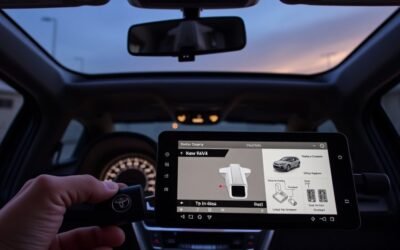
Use the left/right steering‑wheel buttons to reach the Multi‑Information Display’s Settings tab, press OK to open the menu, then scroll to Pre‑Collision System (PCS). Press and hold OK on the PCS entry to access sensitivity (Most→Least) or choose Off; confirm selections with OK and note the display indicator. PCS temporarily disables until you restart the vehicle, when it reverts to default. If you want procedures for infotainment adjustment, troubleshooting, and recommended sensitivity choices, continue for more.
Access the Multi-Information Display on RAV4

When you’re ready, use the left and right steering-wheel buttons to navigate the Multi-Information Display and highlight the settings tab for the Pre-Collision System. You’ll see structured menu items; keep inputs deliberate. Use steering wheel controls for display navigation until the settings tab is selected. Press OK to enter configuration options; the screen switches to a focused settings view showing PCS parameters and current status indicators.
Make adjustments by selecting the desired parameter and pressing OK. To confirm a change, press and hold OK; the display will show a visual confirmation and return you to the parameter list. If you back out, use the left or right steering-wheel button to reposition the cursor without altering values.
These steps give you direct control—precise, deliberate, and reversible—so you can free yourself from uncertainty about PCS behavior. Rely on the display navigation feedback to validate each modification before driving.
Find the PCS Menu Using Steering Controls
Start by using the left/right steering-wheel buttons to cycle the Multi-Information Display pages until the Settings tab appears, then press OK to enter the settings menu. You’ll navigate with those steering wheel controls to reach PCS quickly: use left/right to move between display pages, watch the multi information display labels, and stop on Settings. Press OK to open the menu.
Within Settings, scroll downward to locate the PCS (Pre-Collision System) entry. Use the down button on the steering wheel to highlight PCS; the display will show its current state. Don’t press randomly—hold focus on the commands displayed. When PCS is selected, press and hold OK to open sensitivity options. This sequence keeps control in your hands and prevents unwanted changes. Remember the system resets to default on restart, so think of adjustments as temporary calibrations that serve your autonomy until you reclaim them again.
Step-by-Step: Change PCS Sensitivity (Most → Least)
Locate the Settings tab on the multi-information display using the steering-wheel left/right buttons. Press and hold OK on the PCS option to access sensitivity, then select a level from most to least. Save your choice and verify the display shows the new sensitivity (or PCS off), noting it resets to default on restart.
Locate The Settings Tab
Although you’ll be maneuvering through menus on the multi-information display, use the steering wheel’s left and right buttons to reach the Settings tab, then press OK to enter the menu. You’ll perform settings navigation deliberately; menu customization begins here. Locate the Settings tab visually and confirm entry with the OK press.
- Use left/right steering-wheel buttons to highlight Settings.
- Press OK to open the Settings menu; visual indicators confirm entry.
- Within Settings, locate PCS—don’t press and hold OK yet; that’s the next step.
This procedure frees you from uncertainty: it’s a controlled, repeatable sequence that places you in command of PCS options. Stay focused on the display prompts and visual confirmations before proceeding to sensitivity adjustments.
Access PCS Sensitivity
To change PCS sensitivity, use the steering-wheel left/right buttons to highlight PCS on the multi-information display, then press and hold OK to enter the sensitivity adjustment menu; from there toggle between “Most” and “Least” sensitivity or select the temporary “Off” option, with the display confirming your selection. You navigate with left/right to move the cursor, then press OK to open the submenu. Select “Most” for maximum pre collision technology responsiveness or “Least” to reduce interventions; choose “Off” to suspend alerts temporarily. The display indicates current status and will show a confirmation when you switch settings. Note that PCS resets on vehicle restart and cannot be permanently disabled, preserving driver safety while granting operational control.
Save And Verify Changes
Confirm your selection on the multi-information display by using the steering-wheel left/right buttons to highlight the desired PCS level, pressing and holding OK to set it, then checking the on-screen visual indicator that shows the system now reads “Least.” You’ll finalize and verify the change as follows:
- Use left/right to pick a sensitivity level, press and hold OK to commit; the display shows the updated sensitivity levels.
- Verify the on-screen visual indicator confirms the chosen setting; note that the 7-inch display follows the same steps for clarity and liberation of control.
- Remember PCS settings reset on vehicle restart; re-confirm your preferred safety features after power cycle to guarantee continued alignment with your driving intent.
This keeps control precise, technical, and repeatable.
Turn Off PCS Temporarily and Read the Indicator

You can temporarily disable the Pre-Collision System (PCS) through the steering-wheel menu: use the left/right buttons to select PCS, press OK, then press and hold OK to toggle the temporary off setting. This PCS functionality overview frames the control flow: navigate, select, press-and-hold to disengage. You’ll see a clear visual indicator on the multi-information display confirming PCS is disabled; monitor it immediately to verify the command registered.
Do this when you need temporary freedom from automatic braking interventions, but respect the Safety system importance—PCS provides collision mitigation across Toyota Safety Sense 2.5–equipped RAV4s. The temporary off state covers all such models and is intentional, preserving driver authority without compromising design intent. The system won’t remain off after a restart; it resets to active default, guaranteeing the vehicle returns to protective mode. Use the indicator as your confirmation and re-enable PCS whenever you want automatic protective functions restored.
Why PCS Resets on Restart
Because Toyota designed the RAV4’s Pre-Collision System (PCS) to default to active on startup, the system automatically resets at each vehicle restart to guarantee collision-mitigation functions are available for every drive. You’ll notice PCS functionality reinstated even after you temporarily disable it; this affirms core Safety features remain present as a baseline protection. The multi-information display provides visual confirmation of PCS status after restart so you can verify system readiness immediately.
- The reset prevents permanent deactivation, preserving essential Safety features across users and trips.
- Temporary off states are allowed for flexibility, but automatic reactivation on restart restores PCS functionality for the next drive.
- Visual indicators on the display confirm system state so you can assert control and move freely without sacrificing protection.
You’ll retain liberty to momentarily disable systems while the vehicle’s design prioritizes continuous collision-mitigation readiness each time you start the RAV4.
Adjust PCS on the 7-Inch Display (Quick Walkthrough)
With PCS reactivating each time the RAV4 starts, you’ll use the 7-inch multi-information display to adjust its behavior for a given drive. Use the left/right steering-wheel buttons to reach the settings tab, then press OK to enter the PCS options menu. Hold OK to access sensitivity levels; toggle from most sensitive to least sensitive to match road conditions and personal preference. You can also temporarily turn off PCS—select the off option and verify the visual indicator on the display confirms the status. Remember the system resets at vehicle restart, so your temporary change is for the current ignition cycle only.
These controls let you tailor PCS benefits and Safety enhancements quickly without maneuvering larger infotainment screens. The process is direct, reversible, and under your control, supporting liberated decision-making while preserving automated protections. Follow the display prompts precisely and confirm indicator status before driving.
Adjust PCS on Larger Infotainment Screens
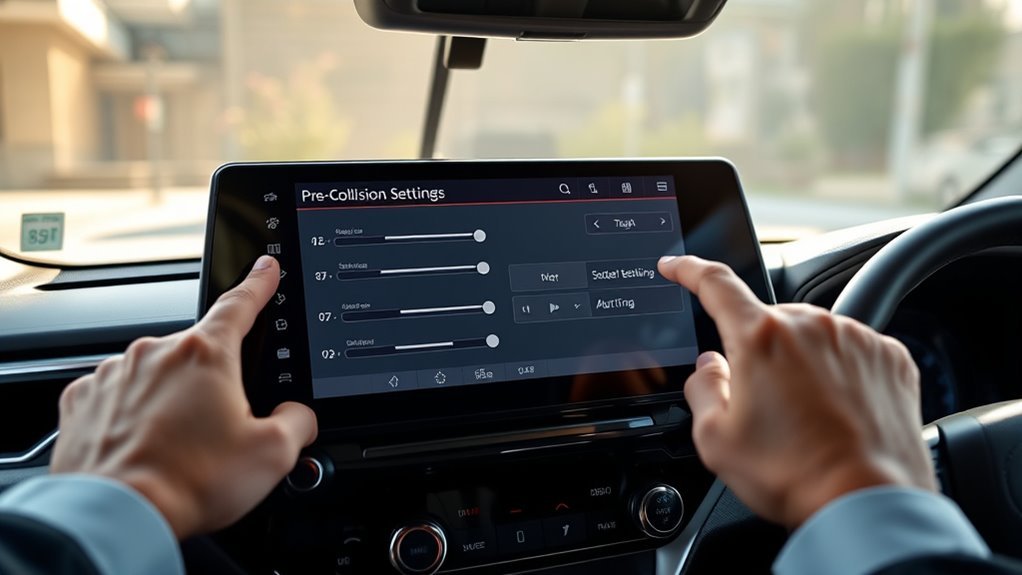
Use the left/right steering-wheel buttons to highlight the Settings tab on the multi-information display and press OK to enter PCS options. From there you can set PCS sensitivity between most and least sensitive or select the temporary Off option. The screen shows clear status indicators and the system reverts to active at restart.
Locating The Settings Tab
When you need to adjust the Pre-Collision System on RAV4 models with larger infotainment screens, navigate to the settings tab using the left and right buttons on the steering wheel and press OK to open vehicle settings. You’ll access vehicle-level controls for safety features and driving assistance there. Use the multi-information display; visual indicators confirm when you select the pre-collision options. Remember PCS isn’t permanently off — it resets after restart.
- Press left/right on the steering wheel to cycle menus until “Settings” appears.
- Press OK to enter Vehicle Settings, then select Pre-Collision System.
- Observe on-screen confirmation when you change options; exit to save.
This process gives you direct, sovereign control without technical ambiguity.
Adjusting PCS Sensitivity
If you need to change how quickly the RAV4’s Pre-Collision System responds, navigate to Settings on the multi-information display using the left/right steering-wheel buttons, highlight Pre-Collision System, then press and hold OK to open sensitivity controls. Use the left/right steering buttons to select sensitivity from most to least sensitive; press OK to confirm. On larger infotainment screens the flow mirrors smaller units, so you won’t lose access or functionality. The menu also shows a visual indicator if you temporarily turn PCS off, but note PCS auto-reactivates at restart — it can’t be permanently disabled. Adjustments tune PCS Features to match your driving intent while preserving core Safety Benefits. You control system aggressiveness without sacrificing mandatory collision protections.
Temporary System Disable
Although the steps mirror smaller displays, you can temporarily disable the RAV4’s Pre-Collision System from larger infotainment screens by selecting the PCS option with the steering-wheel left/right buttons and pressing OK; hold OK to cycle sensitivity from most to least sensitive and confirm your choice. You’ll see a multi-information display indicator showing PCS is temporarily off. Remember PCS benefits and safety features remain active after restart because the system auto-resets to on.
- Navigate to PCS with the steering-wheel buttons and press OK to select.
- Hold OK to cycle sensitivity from most to least sensitive; release to set.
- Verify the temporary-disable indicator on the display; restarting the vehicle restores PCS.
This gives you controlled freedom while preserving mandated safety features.
Troubleshooting PCS Menu & Button Issues
Start by confirming you’re maneuvering the Multi-Information Display correctly: use the steering-wheel left/right buttons to reach the Settings tab, then press and hold OK to enter PCS sensitivity options. Use PCS troubleshooting tips when the menu fails to appear: verify you used the correct button sequence issues pattern and try alternative sequences if holding OK doesn’t engage the menu.
If sensitivity controls remain inaccessible, confirm the engine is running — accessory mode can lock configuration options. Scan the instrument cluster for PCS warning lights; absent visual indicators can signal module faults. When the pre-collision system seems unresponsive, consult the owner’s manual for targeted diagnostics steps. If on-board checks don’t restore control, seek a Toyota dealer to evaluate software status and sensor integrity. You deserve systems that enhance freedom and safety; persist until the interface responds reliably, documenting button responses and warning codes to liberate yourself from intermittent faults and enable decisive repair or software updates.
PCS Sensitivity: Daily-Driving Recommendations
For your daily commute, set PCS to a higher sensitivity to catch frequent stops and short reaction windows. On highways, choose a lower sensitivity to minimize false alerts from distant or fast-approaching vehicles. You can temporarily disable PCS if alerts become intrusive, but confirm the system status on the display after any change.
Daily Commute Sensitivity
When you commute daily, set the PCS sensitivity to a balanced level so you get timely warnings without frequent false alerts; access this via the multi-information display, press and hold “OK” to open PCS settings, and choose a mid-range sensitivity that suits mixed urban/highway routes. You’ll maintain urban safety while preserving flow and autonomy. Select a setting that reflects your alert preferences and the mixed nature of your route. Monitor the display indicators; PCS resets to the last chosen level at restart and can’t be permanently disabled.
- Choose mid-range sensitivity for mixed routes to reduce nuisance alerts.
- Increase sensitivity in dense pedestrian/cyclist areas; decrease for steady-speed segments.
- Verify visual PCS status each trip to confirm configuration.
Highway And City Modes
Although highway and city environments demand different PCS behavior, you should match sensitivity to the driving context: set a lower sensitivity on highways to suppress alerts from high-speed traffic and a higher sensitivity in urban areas to better detect pedestrians and close-range vehicles. You’ll select a less sensitive highway driving mode to reduce nuisance warnings during sustained speeds, improving comfort and control. Switch to a more sensitive city driving profile when traffic density and pedestrian exposure rise; this maximizes detection range and braking readiness. You can temporarily disable PCS, but it resets to the last sensitivity at restart, preserving your preference. Monitor visual indicators on the instrument cluster and infotainment screens to verify active mode and sensitivity, maintaining situational awareness and autonomy in choices.
When to Contact Your Dealer for PCS Faults
Any illuminated pre-collision system (PCS) warning light or persistent abnormal behavior means you should contact your dealer for a diagnostic check. You’ll want swift dealer diagnostics whenever the system shows signs of malfunction: pre collision alerts that appear without hazard, alerts that fail to trigger, or visible warning indicators. Don’t ignore these symptoms; they compromise safety and autonomy.
- If you get frequent false pre collision alerts or the system won’t engage, schedule dealer diagnostics for sensor and software verification.
- If sensitivity adjustments don’t change system response, have the dealer inspect calibration, wiring, and module communication.
- After any collision or near-miss where PCS didn’t act as expected, report it immediately so the dealer can assess fault logs and update or recalibrate systems.
Acting promptly preserves your freedom to drive with confidence; the dealer will diagnose faults, perform software updates, and recalibrate sensors to restore reliable PCS operation.
Frequently Asked Questions
How Does the Toyota Pre-Collision System Work?
You’re protected by Pre Collision Technology that uses cameras and sensors to detect hazards, warns you with alerts, and applies brakes if needed; these Safety Features let you stay free to control risks and choose responsiveness.
Does Toyota Pre-Collision Assist Stop the Car Before It Crashes?
About 60% of collisions’ severity can be reduced; no, PCS can’t always stop you before impact. You’ll benefit from safety features that auto-brake short distances, but they rely on driver awareness and aren’t foolproof.
At What Speed Is Pre-Collision Assist Active?
The Pre-Collision Assist stays active up to about 50 mph; you’ll use pre collision settings to view speed thresholds, adjust alerts, and rely on camera/radar detection—so you’re empowered to manage intervention within that limit.
Conclusion
You’ve learned how to access and adjust the RAV4’s Pre-Collision System via the multi-information display or infotainment screen, change sensitivity from Most to Least, temporarily disable PCS and read its indicator, and troubleshoot common menu or button faults. Want peace of mind that you’ve optimized PCS for your driving conditions? Use “Most” for high-risk environments and “Least” for benign roads; contact your dealer if warnings or persistent resets appear.