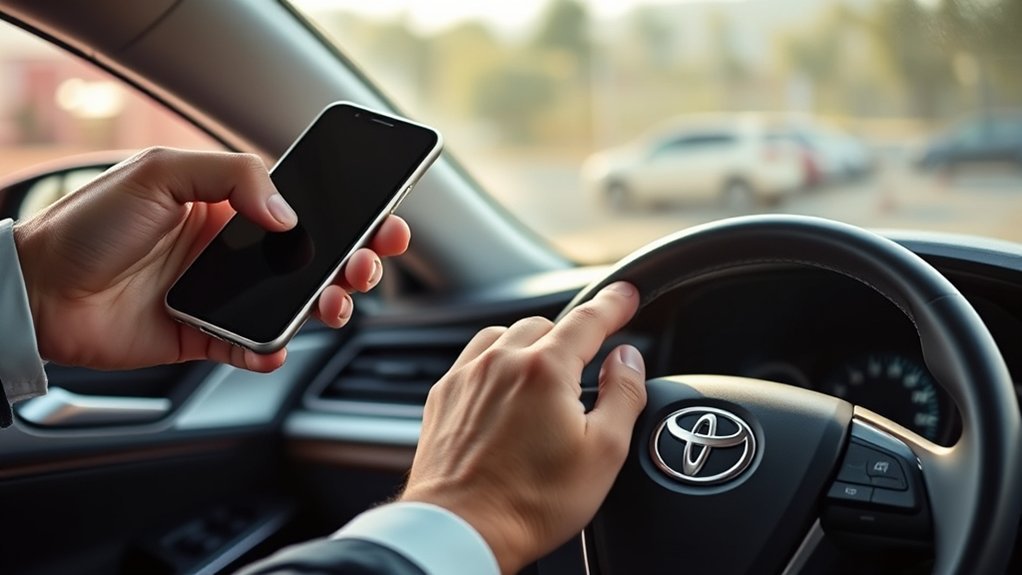
You can use your smartphone as a Bluetooth-based Digital Key on a 2025 Toyota Camry by activating Remote Connect, installing the Toyota app, and pairing your phone to the car with the VIN and key fob nearby for authentication. Once registered, approach to lock/unlock or press Start with the phone in your pocket, and share timed guest keys with tailored permissions. Keep Bluetooth on, the app updated, and a backup key handy for failures — continue for setup steps, sharing options, and troubleshooting.
How to Use Digital Key on a Camry (Quick Answer)
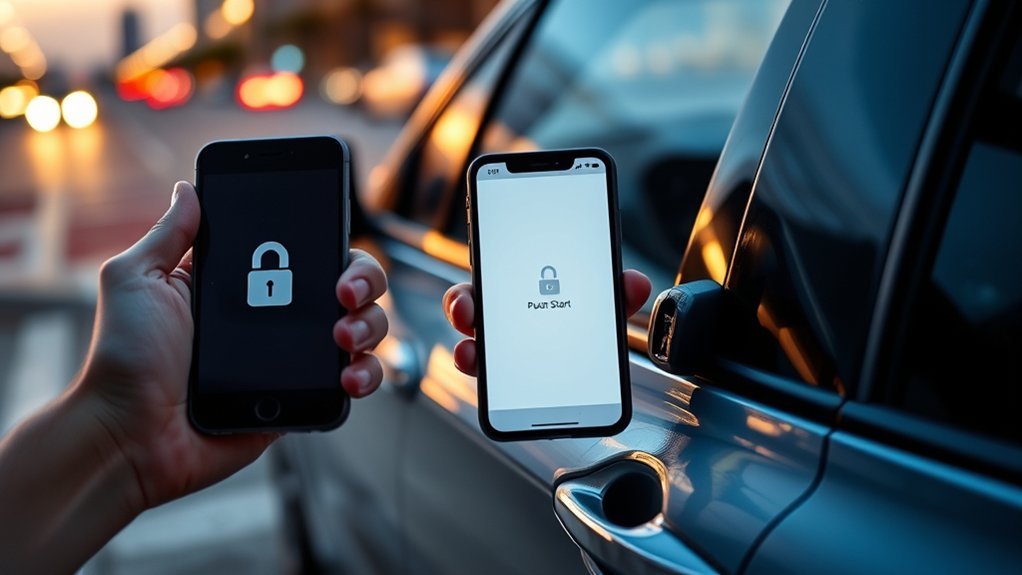
Get started by confirming you have an active Toyota Remote Connect subscription and the Toyota app installed on your Bluetooth-capable smartphone. Once that’s ready, open the app and follow the pairing flow to link your phone to the Camry over Bluetooth. You’ll authorize device access, register the Digital Key, and complete any verification steps the app requires. After setup, you can open, start, and lock the vehicle without removing your phone from a pocket or purse, which is one of the clear Digital Key benefits.
Keep your phone charged and maintain Bluetooth connectivity for reliable operation, and always carry a backup key fob or key card since the system depends on your phone’s battery. For Smartphone security, enable your phone’s lockscreen and biometric protections; the app adds vehicle-specific permissions but doesn’t replace your device safeguards. This approach gives you streamlined access and personal autonomy while protecting access to your Camry.
Check Compatibility: 2025 Camry Trims & Supported Phones
Before you try pairing, confirm your 2025 Camry has the Remote Connect package—Digital Key is included only on trims with the Premium or Convenience packages—and make certain you have the vehicle’s key fob on hand for setup. Perform a compact compatibility check: verify your trim level and that Remote Connect is active or available. Know the smartphone requirements before proceeding. For iPhone, you need iOS 14+ and typically an iPhone 11 or later. For Android, you need Android 11+ and supported models such as Samsung S20+ or Google Pixel 5 and newer.
Also confirm Bluetooth is enabled and the Toyota app is installed and allowed to run in the background for consistent connectivity. You’ll need an active or trial Remote Connect subscription to access Digital Key features; without it the feature won’t function even if your hardware meets specs. This concise verification keeps you independent and prevents wasted setup attempts.
Prepare: Remote Connect Subscription, Toyota App, and In‑Car Prerequisites
While you’ll need an active Toyota Remote Connect subscription (or trial) to use Digital Key, also make sure the Toyota app is updated on your iOS 14+/Android 11+ phone, Bluetooth is on, cellular data is available, and the vehicle’s key fob is within reach so the app can register the car during setup. Confirm your Camry trim actually includes the Digital Key option; it’s typically part of the Remote Connect package on select 2025 models. The subscription benefits include remote locking/unlocking, status checks, and secure digital access that replaces carrying a physical key for everyday freedom. Update the Toyota app to access the latest app features, security patches, and compatibility fixes that make pairing reliable. Keep Bluetooth enabled and maintain a steady cellular link throughout the initial registration. Keep the physical fob near the center console as prompted; the app uses it to verify vehicle ownership. Preparing these items ahead of time saves steps and preserves control over your mobility.
Set Up: Register Your Camry & Pair Your Smartphone
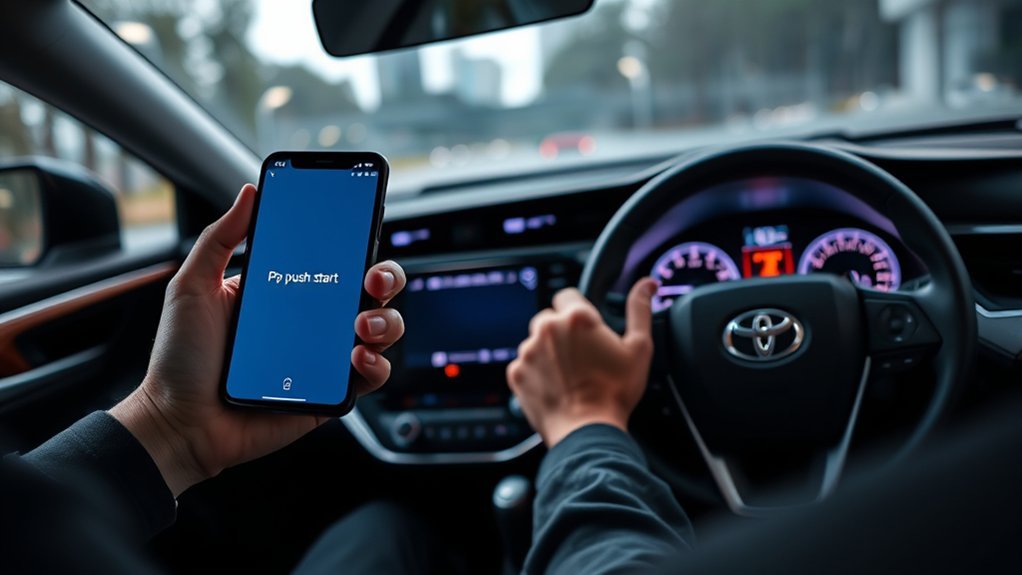
Start by opening the Toyota app and registering your Camry following the on‑screen prompts, then enable Bluetooth on your phone and initiate pairing with the vehicle. Make sure you have an active Remote Connect trial or subscription and that your phone meets compatibility (Android 11+/iOS 14+). Keep the physical key fob nearby; the app may require it for initial authentication. Follow the app’s registration sequence: enter VIN, confirm ownership, and accept permissions. When Bluetooth pairing begins, verify device names and approve any PIN or prompt shown by the vehicle. Address common setup challenges by restarting Bluetooth, toggling airplane mode, or reinstalling the app if pairing fails. Once paired, test connection status in the Toyota app and review security settings. Embrace the digital key benefits—convenience, selective sharing, and frictionless access—while staying alert to compatibility limits and procedural hurdles so you gain independence without surprises.
Use Digital Key: Lock, Unlock, and Start the Camry
Once your smartphone’s paired via the Toyota app with Bluetooth enabled, you’ll be able to lock and gain access to the Camry simply by approaching or leaving the vehicle if the phone is registered with Digital Key. To gain access, walk up with the phone in your pocket or bag and the doors will respond automatically; to lock, just walk away and confirm the doors secure. Start the engine by placing the registered phone inside the cabin and pressing the start button—note this requires a Remote Connect subscription and the Remote Connect package on supported 2025 Camry trims.
Pairing Your Smartphone
Before you try any remote functions, make sure your phone meets the requirements and the Toyota app is installed so you can pair it to the Camry. Highlight digital key benefits and smartphone security during setup: confirm iOS 14+/Android 11+, enable Bluetooth, and sign into the Toyota app. Register your vehicle, then follow the step-by-step pairing prompts—grant permissions, verify codes, and accept terms. Stay within Bluetooth range while the app and car exchange credentials. Maintain an active Remote Connect subscription to avoid interruptions. Once paired, the app stores an encrypted key tied to your account; you control sharing and revocation. This setup frees you from physical keys while keeping access under your control—secure, reversible, and optimized for autonomous mobility.
Locking And Unlocking
Approach your Camry with Bluetooth on and the Toyota app running, and the Digital Key will let you open the doors automatically; you can also tap the app’s lock/open icon or use remote access over the internet to control locks from a distance. When your phone’s paired and the app runs in the background, proximity access engages as you approach; leaving and walking away triggers locking via the proximity feature. You can also lock or open from afar using the app if your phone has internet and an active Remote Connect subscription—ideal when you need freedom from keys or to grant access remotely. Check smartphone compatibility and battery level before relying on Digital Key to guarantee consistent access and avoid being stranded.
Starting The Engine
Start the Camry without taking your phone out: with Bluetooth on and the Toyota app running in the background, walk up to the car and it will open automatically; sit inside, press the brake pedal, and tap the dashboard Start button while your paired smartphone stays in your pocket. With smartphone proximity detected, the system authorizes an engine start so you can move freely without fumbling for keys. Confirm your phone is paired, Bluetooth is enabled, and Toyota Remote Connect is active for full functionality. If the automatic access fails, use the app or the on-screen button to lock/unlock. This workflow gives you control and mobility: quick, secure engine starts tied to verified proximity, reducing friction and reinforcing your autonomy.
Share and Manage Guest Digital Keys (Permissions & Time Limits)
You can grant guest access to your Camry’s Digital Key directly from the Toyota app by selecting a contact and sending a key invite. Set precise time limits for each guest session and choose permission levels (for example, lock/unlock only) to control what the guest can do. You’ll get notifications when a guest uses the key, and both users must have the Toyota app on compatible devices.
Granting Guest Access
When you need to share temporary access, the Toyota app lets you send a Digital Key to another user’s smartphone, set precise time limits for how long the key works, and define which features they can use (for example, lock/unlock only vs. full start capability). For a streamlined guest experience and digital convenience, open the app, choose Share Key, and enter the recipient’s email or phone—the guest must have the Toyota app and an active account to accept. Assign permissions: full start or lock/unlock only. You’ll receive notifications whenever the guest uses the key, giving real-time tracking and auditability. Revoke access instantly from the app if plans change. This method hands you secure, controlled freedom without physical keys.
Setting Time Limits
If you need to give someone temporary access, the Toyota app lets you set precise expiration windows for shared digital keys so access automatically ends when the time limit lapses. You choose duration and permissions for guest digital keys, granting only the functions needed—unlock, start, or drive—without exposing your primary key. The recipient must install and link the Toyota app; once active, guest access security is enforced by the expiration and by notifications sent to you whenever the key is used. These alerts let you monitor usage in real time and revoke access immediately if needed. This system delivers clear digital key benefits: controlled delegation, auditable access, and the freedom to share your vehicle without sacrificing security or control.
Troubleshoot Digital Key: Bluetooth, App, Battery, and Connectivity Fixes
Start by verifying your phone’s Bluetooth is on and the Toyota app is running in the background, since the Digital Key relies on an active Bluetooth link and the app process to establish a handshake with the vehicle. If you face Bluetooth issues or app glitches, follow focused steps to restore control without surrendering mobility.
- Restart the Toyota app and your phone to clear app glitches and reset the Bluetooth stack.
- Verify telematics troubleshooting: confirm the vehicle’s telematics device is operational and within range to avoid connectivity problems.
- Check subscription checks and smartphone power: verify Remote Connect is active and your phone isn’t suffering battery drain that disables background processes.
If restarting doesn’t work, verify your subscription status in the app, inspect phone battery settings to prevent aggressive sleep, and move closer to the vehicle for a stronger signal. These targeted actions return you to independent access quickly and predictably.
Safety, Limits, and Security Best Practices
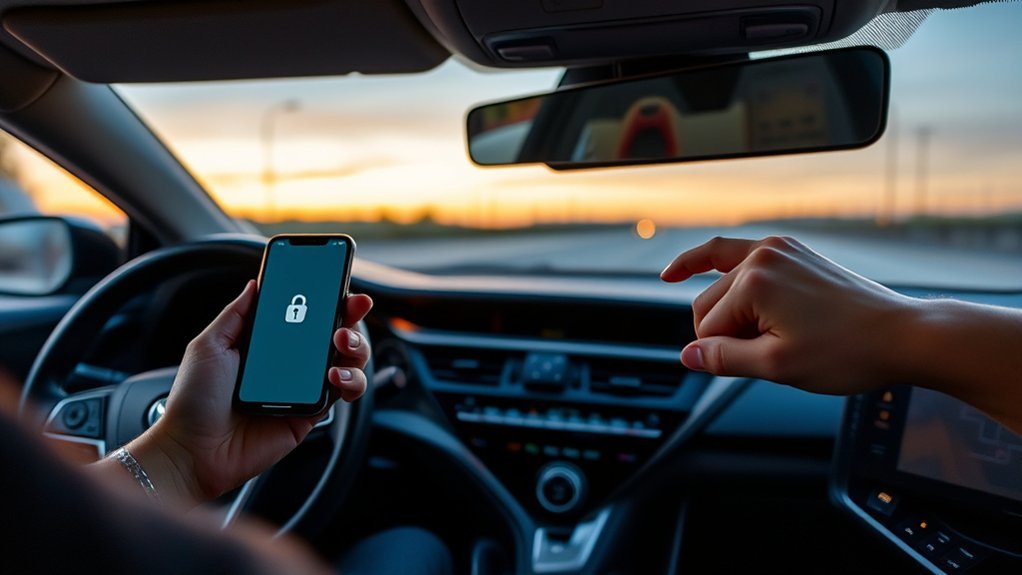
Because Digital Key can remotely start, lock, and access your Camry, always confirm the area around the vehicle is clear and that local laws allow remote operation before you use those features. You’ll prioritize user safety by checking surroundings, keeping your phone charged, and updating the Toyota app for security patches. Remember Digital Key requires an active Remote Connect subscription; canceling it removes remote access.
| Topic | Action | Benefit |
|---|---|---|
| Battery | Keep phone charged | Prevent lockout |
| Sharing | Use timed permissions | Limit guest access |
| Updates | Install app patches | Improve access security |
Treat sharing as delegated freedom: assign precise permissions and set expirations. Rely on Bluetooth but plan for failures—carry a backup physical key. Regularly review app permissions and subscription status to maintain control. These steps protect user safety and preserve your autonomy over vehicle access without unnecessary complexity.
Frequently Asked Questions
How Do I Use My Toyota Digital Key?
You enable smartphone integration, activate Remote Connect, then approach for keyless entry; your Camry detects your phone and lets you access and start it. Share keys in the app, keep Bluetooth on and your phone charged.
Does the Toyota Camry Have a Digital Key?
Yes — the Camry offers smart key technology and keyless entry; you’ll use your compatible smartphone with the Toyota app, enable Remote Connect, and share or revoke access, freeing you from carrying a physical key fob.
How to Use Digital Key 2025 Camry?
You set up digital key setup in the Toyota app, pair your phone via Bluetooth, enable keyless entry, then tap to open, start, and lock; you’ll share guest keys and manage permissions to liberate trusted access.
Does Toyota Digital Key Work Without a Subscription?
No — you’ll lose key functionality without an active subscription. You’ll need Remote Connect subscription options to maintain Digital Key access; you can still liberate yourself using the physical Smart Key or Key Fob as backup.
Conclusion
Using your phone as a digital key is straightforward and reliable: set up Remote Connect and the Toyota app, pair your Camry, then lock, open, and start like a physical key. Share guest keys with time limits and permissions, monitor connectivity, and troubleshoot Bluetooth, app, or battery issues promptly. Treat security like a seatbelt—simple, essential, and nonnegotiable—to keep access controlled and your vehicle protected while enjoying the convenience of seamless, tech‑forward operation.