To update your Toyota Camry’s infotainment software, first identify your model year and check if it supports over-the-air updates or requires a USB update. For over-the-air updates, connect to Wi-Fi, access the settings, and follow prompts to download. If using USB, format a 32 GB drive to FAT32, download the update files from Toyota’s portal, and install them via the USB port. If you encounter issues, you can explore troubleshooting tips and maintenance options further.
Determine Your Toyota Camry Model Year
To determine your Toyota Camry’s model year, start by locating the Vehicle Identification Number (VIN), which you can find on the driver’s side dashboard or inside the driver’s door frame. The VIN is vital because it reveals your vehicle’s specific model year. If you’re unable to locate the VIN, you can usually find the model year on your vehicle’s registration documents or in the owner’s manual.
Knowing the model year is important for identifying the correct update method for your infotainment system. For instance, models from 2018 to 2021 require USB updates, while those from 2022 and newer can receive over-the-air updates. If you need further clarification, visit the Toyota website or contact a local dealer for specific software update information relevant to your Camry’s model year. Taking these steps will guarantee you have the latest features and updates for a superior driving experience.
Check Compatibility for Over-the-Air Updates
To check compatibility for over-the-air updates, confirm your Toyota Camry is a 2022 model or newer. Next, make sure you’re connected to a reliable Wi-Fi network, as this is essential for downloading updates. Finally, access the software update section in your infotainment settings to verify available updates.
Vehicle Model Year
When checking compatibility for over-the-air updates, it’s essential to know your Toyota Camry’s model year. The model year greatly impacts your ability to access upgrade benefits. If your Camry is a 2022 model or newer, you’re in luck—over-the-air updates are available. For models from 2018 to 2021, you’ll need to use USB updates instead.
- 2022 models and newer support over-the-air updates
- 2018-2021 models require USB updates
- Always verify specific update requirements
- Regular updates guarantee ideal performance
- A stable Wi-Fi connection is vital
Wi-Fi Connection Required
Guaranteeing a reliable Wi-Fi connection is essential for successfully downloading over-the-air updates on your 2022 and newer Toyota Camry. Before initiating the update process, verify your network’s connection stability to avoid interruptions. A stable Wi-Fi connection not only facilitates the download but also enhances Wi-Fi security, protecting your vehicle’s infotainment system from potential threats. Access the update settings through the infotainment menu once connected, and keep your vehicle parked during the update, which typically takes about 22 minutes. Regularly checking for updates guarantees your system remains current and performs effectively, giving you the freedom to enjoy the latest features and enhancements without hassle. Stay connected, and keep your Camry’s software up to date!
Software Version Check
After confirming a stable Wi-Fi connection, the next step is checking your software version to verify compatibility with over-the-air updates. This step is essential for maintaining your Camry’s performance and security. Here’s how to do it:
- Access the infotainment system settings.
- Navigate to the “Software Information” section.
- Verify that your Camry is a 2022 model or newer.
- Note the current software version installed.
- If it’s outdated, visit the Toyota software update portal for updates.
Regularly checking your software version guarantees you’re aligned with update frequency recommendations, enhancing the infotainment system’s functionality. Recognizing the software version significance empowers you to keep your vehicle’s technology up-to-date and performing at its best.
How to Establish a Reliable Wi-Fi Connection
To establish a reliable Wi-Fi connection in your Toyota Camry, start by positioning your Wi-Fi router within range of the vehicle. Verify your network is operational and connected to the internet before you attempt to link your Camry. Access the settings menu in the infotainment system to locate the Wi-Fi connection option and select your network from the list.
When prompted, enter the correct Wi-Fi password, paying close attention to capitalization and special characters for effective password management. A successful connection will confirm that your vehicle is linked to your network.
Keep an eye on signal strength and watch for any potential network interference, which can disrupt your connection. If issues arise, utilize connection troubleshooting to resolve any problems. Confirm your devices are compatible with your network for a seamless experience. Prioritizing Wi-Fi security will protect your data as you proceed with updates.
Step-by-Step Guide for Over-the-Air Updates
With your Toyota Camry now connected to a reliable Wi-Fi network, you’re ready to initiate the over-the-air update process. Follow these steps to enhance your vehicle’s performance and user experience:
- Access the settings menu on your infotainment system.
- Check for available software updates; you’ll see update notifications if new ones exist.
- Follow the on-screen prompts to download the latest updates, typically taking around 22 minutes.
- Keep your vehicle running during the entire process to maintain power supply.
- Regularly check for updates to enjoy improved infotainment features and software benefits.
How to Download Update Files From Toyota’s Portal
To download update files from Toyota’s portal, start by verifying that your USB drive meets compatibility requirements, specifically having at least 32 GB of storage and formatted as FAT32. Next, enter your vehicle identification number (VIN) to access available updates for your Camry’s infotainment system. Once you’ve selected the appropriate files, download them directly to the USB drive, making sure to follow the on-screen prompts carefully.
Verify USB Drive Compatibility
Updating your Toyota Camry’s infotainment system starts with verifying your USB drive’s compatibility. To guarantee a smooth update, follow these USB drive specifications and formatting guidelines:
- Capacity: At least 32 GB
- Format: Must be formatted as FAT32
- Functionality: Confirm the drive is working properly
- Compatibility: Check for any required specifications on Toyota’s portal
- Ease of Use: Follow on-screen prompts for downloading files
Once you’ve confirmed these details, visit Toyota’s software update portal. Enter your vehicle identification number (VIN) to access the necessary update files. After downloading, verify everything’s set before initiating the update process to avoid any installation issues.
Enter Vehicle Identification Number
How can you quickly access the latest software updates for your Toyota Camry? Start by visiting Toyota’s official software update site. The VIN significance cannot be overstated; it uniquely identifies your vehicle and guarantees you receive the correct updates. In the designated field, enter your VIN accurately to initiate the process. This step is essential for checking available software updates tailored to your specific Camry model. Once you’ve entered your VIN, follow the on-screen prompts to download the necessary files directly to your USB drive. Make sure your USB is at least 32 GB and formatted as FAT32. After downloading, safely eject the USB drive and prepare for the upcoming update process.
Download Update Files Safely
Once you’ve confirmed your VIN, you can easily download the update files from Toyota’s official software update portal. Follow these downloading tips to guarantee update file security:
- Visit the portal and enter your VIN.
- Use a compatible USB drive with at least 32 GB, formatted as FAT32.
- Follow the on-screen prompts to download the files directly to your USB.
- Verify that the downloaded files are complete and correctly saved.
- Check for specific instructions based on your Camry model year.
Preparing a USB Drive for Software Updates
Before you start the software update for your Toyota Camry, it’s vital to prepare your USB drive correctly. First, verify your USB drive is at least 32 GB and formatted as FAT32. This formatting is significant for compatibility with your vehicle’s infotainment system.
Next, visit the designated Toyota software update portal and enter your vehicle identification number (VIN) to access the appropriate update files. Download these files directly onto the USB drive, making sure to save them in the root directory. This update file organization helps guarantee easy access during installation.
Always keep your engine running while performing the USB update to prevent any power loss. By following these steps, you’ll be well-prepared for a smooth software installation, allowing you to enjoy the latest features and enhancements in your Toyota Camry’s infotainment system.
Installing Software Updates Using USB
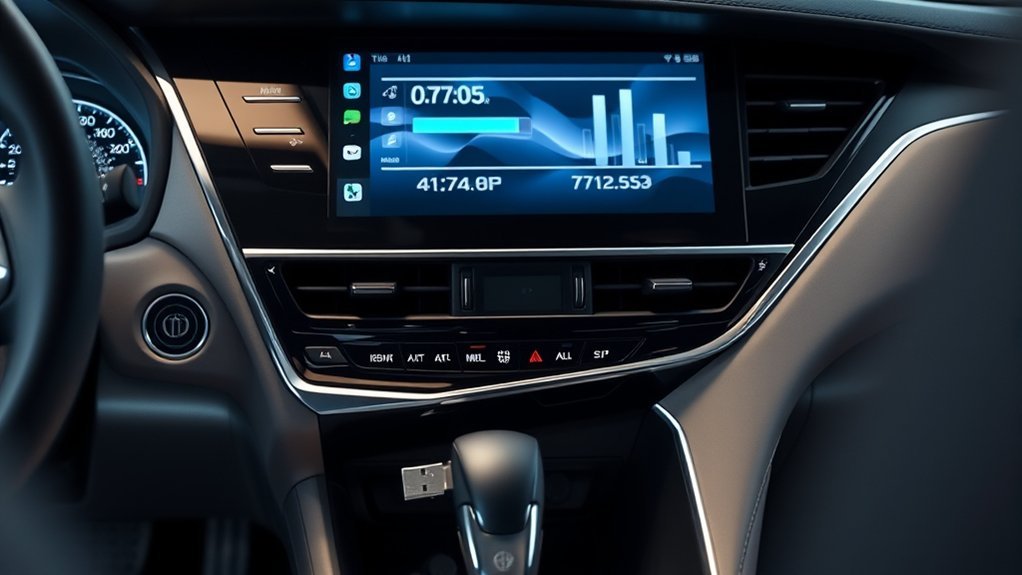
To install software updates on your Toyota Camry using USB, you’ll need a compatible USB drive with at least 32 GB formatted as FAT32. Start by downloading the update files from Toyota’s portal using your vehicle identification number (VIN) and transfer them to the USB drive. Once that’s done, insert the drive into the Camry’s USB port and follow the on-screen instructions to complete the update.
USB Drive Requirements
When updating your Toyota Camry’s infotainment software via USB, it’s essential to use a drive with a minimum capacity of 32 GB, formatted as FAT32. Proper USB drive formatting guarantees your update files are organized correctly for the system to recognize them.
Here are some requirements to keep in mind:
- Confirm the USB drive is empty for maximum efficiency.
- Format the drive to FAT32 using your computer’s disk management tools.
- Visit the Toyota software update portal and enter your VIN.
- Download the necessary update files directly to your formatted USB drive.
- Keep your engine running during the update to maintain power and prevent interruptions.
Following these steps will pave the way for a smooth update process.
Update Installation Steps
After preparing your USB drive, you’re ready to install the update for your Toyota Camry’s infotainment system. Begin by downloading the update files from Toyota’s software update portal using your vehicle identification number (VIN). Once downloaded, insert the USB drive into the Camry’s USB port and make sure the engine is running to maintain power. Park in a safe location to avoid interruptions. Follow the on-screen prompts on the infotainment system; the update may take up to 45 minutes. This process enhances your user experience by implementing vital interface improvements. Stay patient and let the system complete the installation. Once done, you’ll enjoy a more streamlined and efficient infotainment system driving experience.
Dealer Services for Toyota Camry Software Updates
If you want to guarantee your Toyota Camry’s infotainment software is up-to-date and functioning at its best, visiting a local dealer is your best option. Dealer assistance promotes software reliability and proper installation, which is vital for complex systems. Here’s what to expect when you schedule an appointment:
- Professional installation of critical updates
- Maintenance of essential firmware and safety features
- Access to expert technicians familiar with your vehicle
- Personalized service tailored to your needs
- Easy location of nearby Toyota dealers for convenience
Regular updates not only enhance functionality but also keep your vehicle secure. By opting for dealer services, you guarantee that your Camry remains at peak performance, with all the latest features and safety enhancements. Don’t leave your infotainment system to chance—trust the professionals for the best results.
Common Issues and Troubleshooting Tips
Keeping your Toyota Camry’s infotainment software updated can sometimes lead to unexpected challenges. To minimize issues, make sure your vehicle is safely parked with the engine running during USB updates, preventing power loss. For over-the-air updates, check that your Camry is connected to a stable Wi-Fi network; interruptions can derail the download process.
If you encounter a failed update, restart your infotainment system and try again. Compatibility is vital—use a USB drive of at least 32 GB, formatted as FAT32, to avoid common pitfalls. Regular update frequency is important, but don’t hesitate to seek user feedback from online forums; it can provide insight into persistent issues. If problems linger, consider scheduling an appointment with your local Toyota dealer for professional assistance. Addressing these common challenges will keep your infotainment system running smoothly and enhance your overall driving experience.
Tips for Post-Update Vehicle Maintenance
To guarantee your Toyota Camry continues to perform at its best after updating the infotainment software, regularly check for further updates that enhance system security and functionality. Keeping your vehicle in prime condition guarantees peak post-update performance.
Here are some essential tips:
- Check for software updates regularly to stay current with enhancements.
- Schedule maintenance appointments with a local Toyota dealer for necessary safety and ECU firmware updates.
- Format your USB drive as FAT32 before downloading updates, guaranteeing it’s at least 32 GB for efficiency.
- Test all infotainment features post-update to confirm proper functionality and connectivity.
- Monitor vehicle performance closely and report any anomalies to your dealer for early intervention.
Frequently Asked Questions
How Do I Update My Toyota Camry Software?
To update your Toyota Camry software, check for USB or over-the-air options. Confirm stable connections and follow system features for troubleshooting. Regular updates keep your infotainment system running smoothly and enhance overall performance.
How to Update 2019 Toyota Camry Infotainment System?
Updating your 2019 Toyota Camry’s infotainment system is as thrilling as watching paint dry. Grab a USB drive, download updates, and follow on-screen prompts. Enjoy enhanced infotainment features and software benefits—freedom’s just a click away!
Conclusion
Updating your Toyota Camry’s infotainment software is as essential as tuning a musical instrument—getting it just right enhances your driving experience. By following the steps outlined, you can guarantee your system runs smoothly and stays up-to-date. Whether you’re using over-the-air updates or a USB, keeping your software current helps you enjoy the latest features and improvements. Remember to troubleshoot common issues and maintain your vehicle for peak performance. Safe travels!